
3 Quick Ways to Add Image to PDF
Adding an image to PDF files can be essential when you're editing reports, presentations, or scanned documents.
Whether you're using a desktop, browser-based PDF editor, or mobile app, there are several ways to embed a photo directly into an existing file.
In this guide, we’ll walk you through the most effective methods to insert an image into a PDF on different platforms.
Way 1. Icecream PDF Editor
Icecream PDF Editor is intuitive software that enables you to enrich documents by embedding pictures. Alongside image insertion, it provides a wide range of editing capabilities for customizing your papers.
How to insert a picture into a PDF on Windows
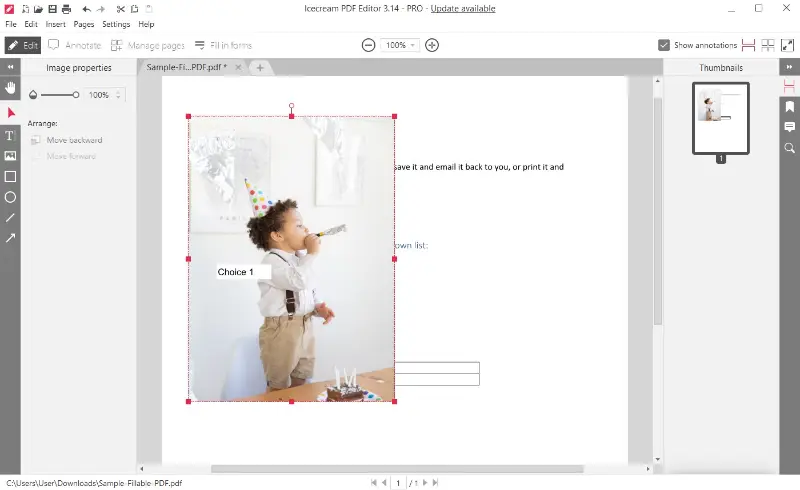
- Download and install the best free PDF editor from the official website, then launch the application.
- Press "Open..." to load the file where the picture will be added.
- Switch to the "Edit" mode available on the top panel.
- Choose the "Add Image" command and select the graphic you want to include.
- Drag to reposition and resize as needed.
- When done, go to "File" → "Save" to apply the modifications.
Pros:
- User-friendly layout. Easy navigation with clear options to add images to PDF.
- Flexible placement. Supports scaling and relocating pictures anywhere on the page.
- Comprehensive features. Offers annotations, text editing, and other adjustments.
Cons:
- Windows-only availability. Not designed for macOS or Linux platforms.
Way 2. Adobe Acrobat
Adobe Acrobat is a professional-grade solution that makes it effortless to embed photos into documents. Available on both Windows and macOS, it provides powerful tools that maintain quality.
How to add a picture to a PDF on any OS
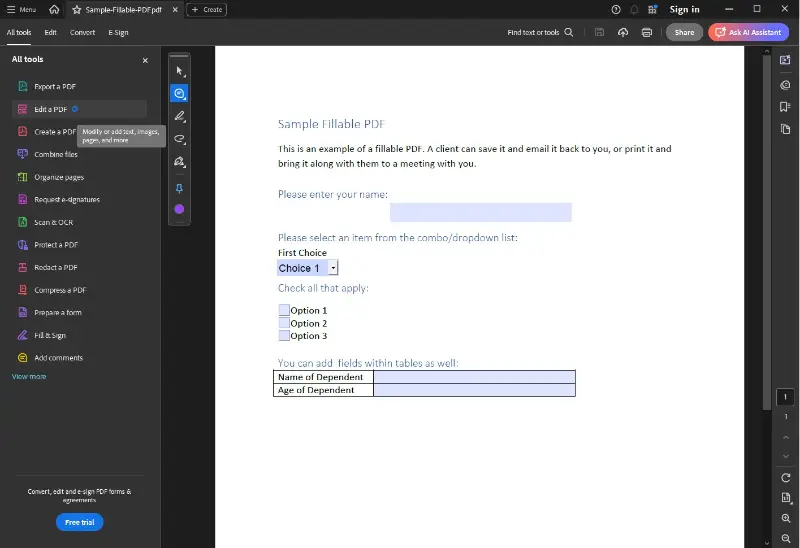
- Install and launch the program, then open the file you need to adjust.
- In the right panel, hit "Edit PDF" to enable the modification mode.
- Select the "Add Image" command from the toolbar.
- Locate the desired photo on your computer, then press "Open".
- Click on the page to place the picture, dragging to resize or rotate it as necessary.
- Finalize the changes by going to "File" → "Save" or use "Save As" to keep an untouched version.
Pros:
- Multi-platform support. Works on both Windows and macOS without limitations.
- Excellent preservation. Maintains visual clarity and structure after you add a photo to the PDF.
- Extensive capabilities. Includes numerous tools for annotations, text changes, and layout control.
Cons:
- Paid subscription. Full functionality is available only in Acrobat Pro.
- Heavy on resources. May slow down older machines or those with limited performance.
Way 3. iLovePDF
iLovePDF is a web-based service that offers a quick way to place graphics without installing software. Accessible from any browser, it simplifies edits while keeping documents secure in the cloud.
How to add an image into a PDF online
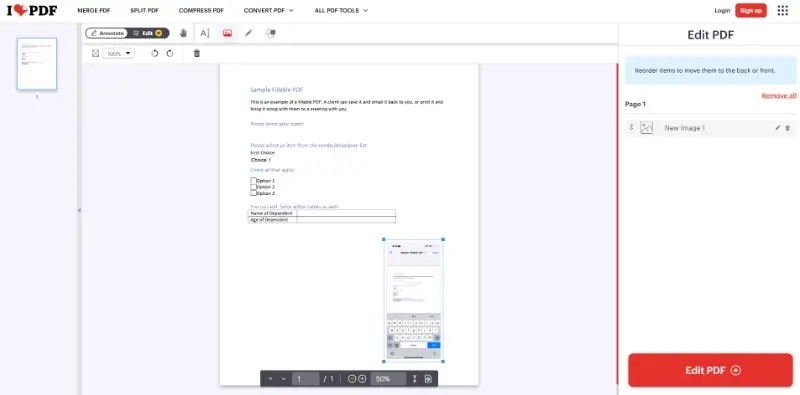
- Launch your preferred browser and navigate to the website.
- Select the "Edit PDF" feature from the main page and upload the document.
- When the file is ready, click the "Add image" button in the toolbar.
- Choose the graphic stored on your device and confirm to insert it.
- Drag to reposition the picture and adjust its dimensions for the best fit.
- Complete the process by pressing "Edit PDF" and then download the updated version.
Pros:
- No software needed. Runs entirely online without installation.
- Device-independent. Works across computers, tablets, and smartphones.
- Quick operations. Add an image to a PDF with minimal effort.
Cons:
- Requires connectivity. Cannot be used with no internet.
- Feature limitations. Advanced functions are unlocked only in the premium plan.
Tips for adding an image to a PDF
- Select clear, high-quality visuals to ensure they remain crisp after resizing.
- Reduce file size by compressing large graphics before insertion.
- Place pictures carefully within the page, away from edges to avoid cropping issues.
- Maintain proper alignment and scaling so the added element blends naturally with the surrounding content.
- Keep the original proportions locked to prevent stretching or warping.
- Store a separate copy of the document prior to editing to avoid losing the untouched version.
- Choose a reliable PDF editor that safeguards formatting and preserves layout accuracy.
- Add PNG image to PDF when layering for a polished result.
- Review the final document on various devices to verify consistent display across platforms.
Conclusion
Whether you need to embed a logo, add a signature, or include a photo in your report, knowing how to paste an image into a PDF has never been easier.
With the tools and steps we’ve outlined, you can handle this task in just a few clicks. Choose the method that suits your device and needs, and turn your static PDF into a dynamic document with ease.

Tech Writer and Photography Aficionado
