3 Ways Add Watermark to PDF with Ease

Wondering how to add watermark to PDF? It’s a simple yet effective way to protect your documents and highlight brand identity.
Whether you're distributing important reports, creative portfolios, or sensitive information, applying an imprint gives content a polished and secure finish.
In this guide, you'll discover easy, step-by-step techniques to embed watermarks into the files — no advanced skills needed — so you can confidently share work while keeping it uniquely yours. Let’s get started!

What is a watermark?
It is a subtle, translucent image, text, or design placed into a digital file to signify ownership, authenticity, or to prevent unauthorized use. It acts as a discreet branding tool that helps protect content while keeping the main information clearly visible.
Method 1. PDF Candy Desktop for Windows
PDF Candy Desktop makes adding watermark to PDF effortless and efficient. You can fully customize every detail, from the transparency and position to the angle and size, so your stamp looks just right.
How to put a watermark on a PDF with PDF Candy Desktop
- Download and start the PDF watermark creator on a PC.
- From the main menu, find "PDF Editor" to begin customizing the item.
- Drag and drop the document into the tool's icon or click "Add File" to browse for it.
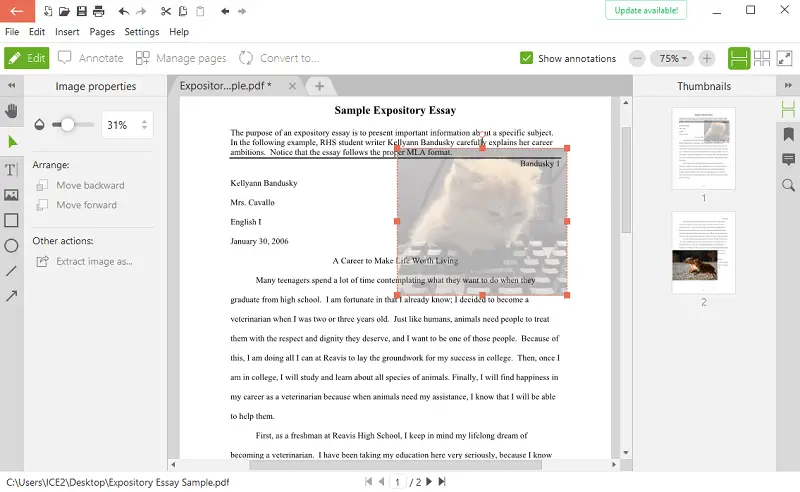
- Tap "Add Image" tool to upload the graphic you'd like to use as a watermark — this could be a logo, stamp, or any brand element.
- Move the picture to the desired location, resize it as needed, and tune the slider to create a transparent effect.
- Once everything looks right, save the result.
Pros:
- The editing environment is clean and easy to navigate
- The built-in opacity adjustment helps achieve a subtle overlay
- Offers full access to the capabilities without any cost or subscription
Cons:
- Watermarks must be inserted individually on each page
Method 2. PDF-XChange Editor
PDF-XChange Editor delivers a dynamic and versatile solution for adding watermark to PDF with accuracy and flair. It supports preset textual elements, letting you control their exact position on selected pages.
How to watermark a PDF by means of PDF-XChange Editor
- Upload and launch the watermark adder.
- Go to "File" > "Open" and find the PDF you wish to modify.
- Follow to the "Organize" tab on the toolbar.
- Click "Watermark" and pick "Add..." from the menu.
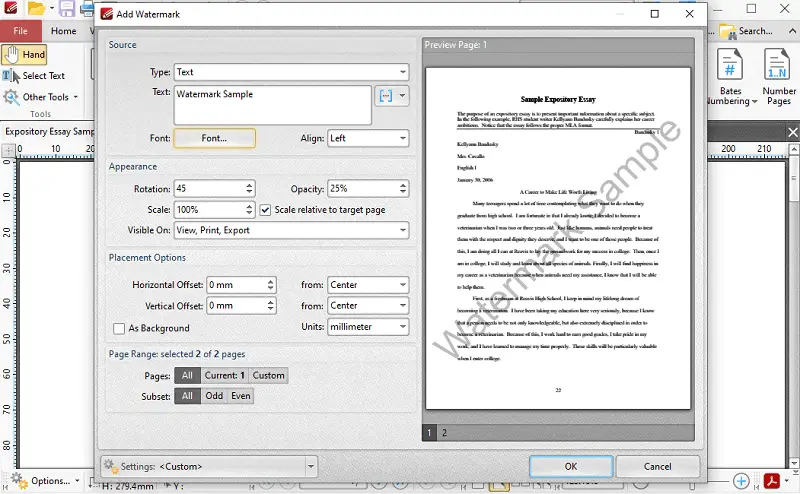
- Type your message and adjust the font style, size, color, rotation, and transparency.
- Define the page range where the seal should appear and locate it.
- Press "OK" to insert the watermark.
Pros:
- Enables exact placement of document watermarks using millimeter measurements
- Scales the stamp to match the dimensions of the target page
Cons:
- Unable to set logos or graphic elements directly as marks
- Requires a paid license for full functionality
iLovePDF
iLovePDF transforms watermarking PDFs into a simple and efficient experience through its polished online platform. The intuitive design offers clear guidance throughout, ensuring even beginners in editing can navigate with ease.
How to insert watermark in PDF online with iLovePDF
- Open your preferred browser and visit the PDF watermark tool website.
- Upload your document by clicking "Select PDF file".
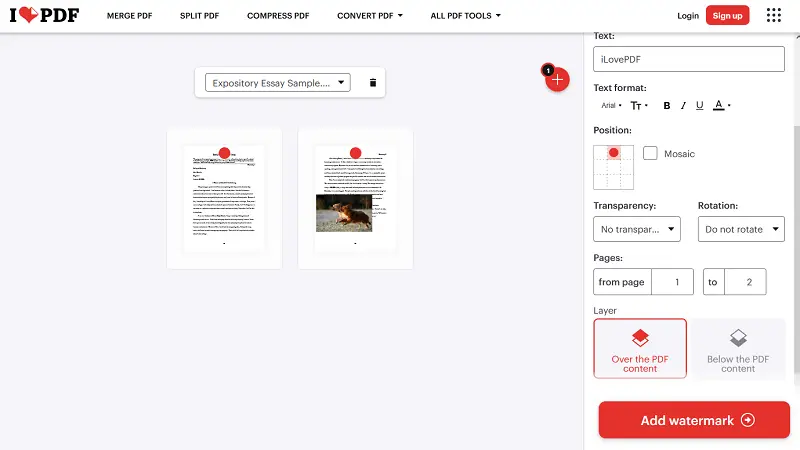
- Decide whether to stamp PDF with text or picture.
- For text, enter your desired wording and adjust font. For images, transfer the graphic and modify its scale, rotation and opacity.
- Pick from nine different positions to place your watermark.
- Choose which pages will display it.
- Hit "Add watermark" to finalize the changes.
Pros:
- Provides the option to appoint the layer
- Operates entirely online, eliminating the need for installation
Cons:
- Lacks the ability to manually drag or fine-tune placement
Types of PDF watermarks: comparison table
| Kind | Purpose | Applications | Features |
|---|---|---|---|
| Confidentiality Indicator | Signals that the paper holds sensitive data. | Internal communications, law files. | Prominent wording like "Confidential" or "Restricted". |
| Draft Label | Denotes the file is a preliminary version. | Early-stage reports. | Typically marked with "Draft". |
| Branding | Identifies ownership or affiliation. | Marketing collateral. | Incorporates logos, trademarks, or company names. |
| Copyright Notice | Shows intellectual property rights protection. | Published materials, creative works. | Includes copyright symbols or legal statements. |
| Authentication | Confirms the legitimacy or approval. | Certificates. | Features signatures, seals, or official stamps. |
| Tracking Identifier | Enables monitoring of distribution or recipient. | Confidential distributions. | Contains unique codes or timestamps. |
Tips of how to add watermark to PDF
- Opt for vector footage for crisp, scalable marks.
- Adjust opacity to 10–30% for clear yet subtle effect.
- Elect images supporting transparency like PNG.
- Resize proportionally to match page dimensions.
- Include metadata for identification and tracking.
- Simplify designs to keep sizes manageable.
Conclusion
Applying a watermark to a PDF is an effective method to safeguard your files, strengthen brand identity, and convey essential messages clearly.
Whether labeling drafts, protecting intellectual property, or customizing documents, using watermarks skillfully elevates the professionalism of your work.

Expert Tech Writer