
Troubleshooting PDF Conversion Errors
A PDF conversion error can be frustrating, especially when you urgently need a document in another format.
Whether it’s distorted layouts, missing fonts, or unreadable characters, these issues can make your files unusable and waste valuable time. Understanding the root causes and knowing how to fix them will save you from repeating the same mistakes.
This article explores the most common problems when converting PDFs, why they occur, and practical solutions to ensure smooth operations.
Common reasons PDF conversion failed
Working and organizing digital files can be seamless — until a PDF conversion error disrupts the process. Instead of a clean export, you might end up with jumbled designs, strange symbols, or broken links.
These mishaps are widespread, but once you know the underlying causes, they can be resolved quickly. Let’s explore the most frequent difficulties users face and how to correct them.
Distorted Formatting
One of the top complaints is that the resulting file doesn’t resemble the source. Tables overlap, margins collapse, or the layout looks uneven.
Main triggers:
- The software misinterprets page arrangement or structure.
- Complex designs with multiple columns or graphics often translate poorly.
- Overuse of custom styles, tabs, or irregular spacing.
What helps:
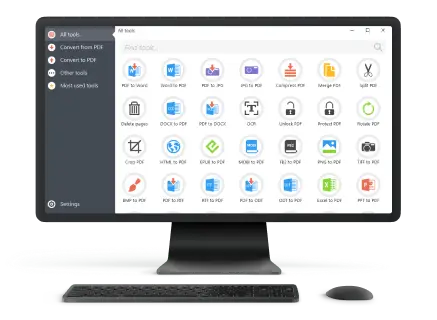
- Utilize reliable applications designed for professional PDF conversion.
- Simplify the document’s design where possible — avoid deeply nested tables.
- If results remain inconsistent, try saving into an intermediate format like RTF before switching to Word.
Text Turning Into Symbols
A frequent headache is when letters appear as strange characters after processing.
Example: A brochure made with a decorative typeface becomes unreadable when exported to Word, displaying blocks or odd symbols.
Why it happens when you convert PDF:
- Fonts were never embedded in the document.
- The receiving application doesn’t recognize the font.
How to fix:
- Enable embedding when you create the PDF.
- Replace obscure options with widely supported ones such as Calibri or Arial.
- If the text already looks corrupted, install the missing font family and attempt the process again.
Images Disappearing or Losing Quality
Another recurring difficulty is with photos that turn blurry, shift position, or fail to appear altogether. Scanned pages are particularly prone to this.
Likely reasons:
- Low-resolution pictures in the source.
- The conversion tool fails to handle embedded objects.
- OCR (optical character recognition) errors when dealing with scans.
Solutions:
- Use higher-resolution images to convert files to PDF (300 DPI or more for printing).
- If graphics remain problematic, extract them separately and place them back into the target.
Hyperlinks No Longer Clickable
In business reports or presentations, broken URLs are more than an inconvenience — they can mislead readers.
Typical causes:
- The program strips interactive elements.
- Links were inserted incorrectly in the source document.
Corrective steps:
- Manually re-add links in the resulting version if necessary.
- Always test hyperlinks before sharing the final draft.
Bloated Sizes
Sometimes the PDF file converter grows papers to several times the size of the original. A 3 MB PDF can suddenly inflate into a 25 MB Word.
Underlying reasons:
- Pictures are rendered at unnecessarily high quality.
- Hidden layers and duplicate data remain inside.
- Inefficient export settings.
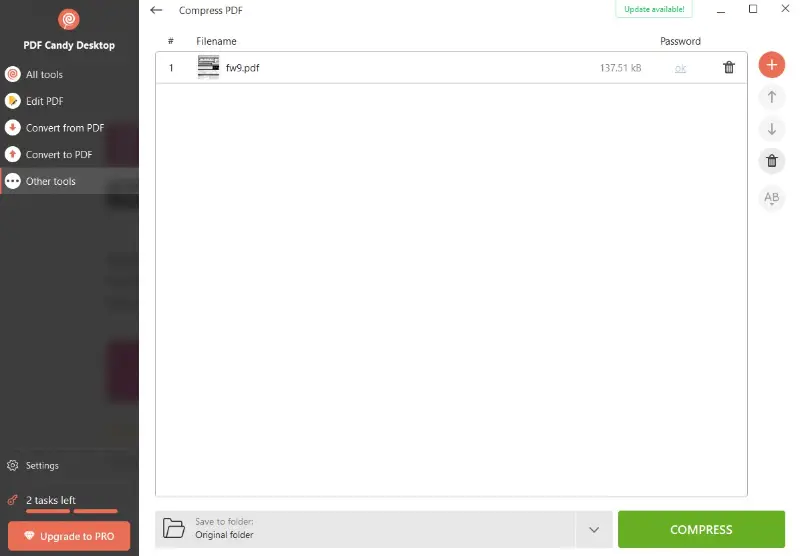
Ways to reduce size:
- Employ “Save As” rather than “Export” to discard extra data.
- Run the finished file through an optimization tool or compressor.
Locked or Password-Protected Documents
If a file is restricted, the PDF conversion may failed completely, or the result might be empty.
What causes it:
- Encryption blocks third-party software from accessing content.
- Owner permissions limit copying or PDF editing.
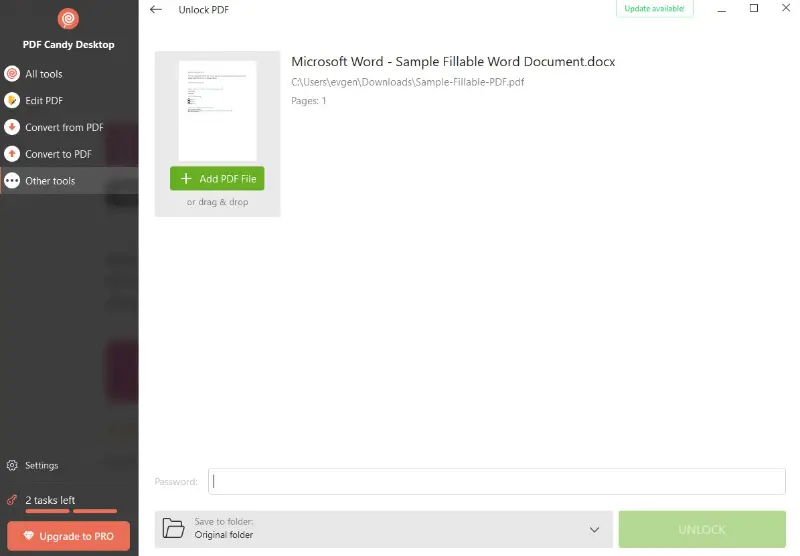
What you can do:
- Remove the password before attempting processing.
- Use authorized decryption utilities only when you have the right to access.
- When handling sensitive information, ask the source for an editable copy.
Best practices to prevent PDF conversion errors
| Recommendation | Benefit | Tip in Action |
|---|---|---|
| Keep tools current | Improves stability and avoids compatibility glitches | Check for updates monthly |
| Embed typefaces on export | Preserves text appearance and avoids strange symbols | Enable Embed all fonts before saving |
| Choose widely supported fonts | Maintains consistent reading across devices | Opt for Arial, Calibri, or Times New Roman |
| Adjust image resolution | Balances clarity with manageable file size | Save pictures at 150 – 300 DPI depending on purpose |
| Streamline page design | Reduces risk of broken tables or shifted elements | Limit nested structures and irregular spacing |
| Run test PDF conversions | Spots formatting flaws before full processing | Try single page first, then change the rest |
| Store original copies | Safeguards content if something goes wrong | Keep a version in cloud storage or on a separate drive |
Conclusion
PDF conversion errors are common, but they don’t have to slow you down.
By understanding the causes — whether it’s outdated software, missing fonts, or corrupted files — you can take proactive steps to fix and even prevent them.
With the right tools and practices, you’ll ensure that your processing is smooth, accurate, and hassle-free every time.

Expert Tech Writer
