
6 Ways to Convert SWF to MP4
If you regularly work with animations or interactive media, chances are you’ve run into this format more than once. Figuring out how to convert SWF to MP4 isn’t just handy — it’s basically essential these days.
MP4 docs are super versatile, running smoothly on just about any device you throw at them. SWFs, though? Those need special software, and frankly, who has time for that?
In this article, I’ll walk you through 6 SWF to MP4 converters and explain how each works. You can easily pick the free turner that fits your style best.
Whether you’re an experienced content creator or someone wanting to preserve old projects, I’ll help you simplify the task. Let’s jump right in.

How we picked SWF to MP4 converters
Here are the key criteria we evaluated when choosing the utilities:
- Conversion speed. The desktop or online video converter should handle files quickly and efficiently, especially when you’re dealing with bigger SWFs.
- Output condition. Nobody wants to lose quality in the process — the software needs to keep your visuals and audio crisp.
- Ease of use. A straightforward interface is a must. Whether you’re tech-savvy or not, the modification shouldn’t feel like rocket science.
Method 1. HandBrake
Let’s talk about HandBrake for a minute. This is one of those open-source tools that’s been helping folks convert videos for ages — and yes, it’s completely free. If you’re looking to switch your files over to MP4, the utility makes it straightforward.
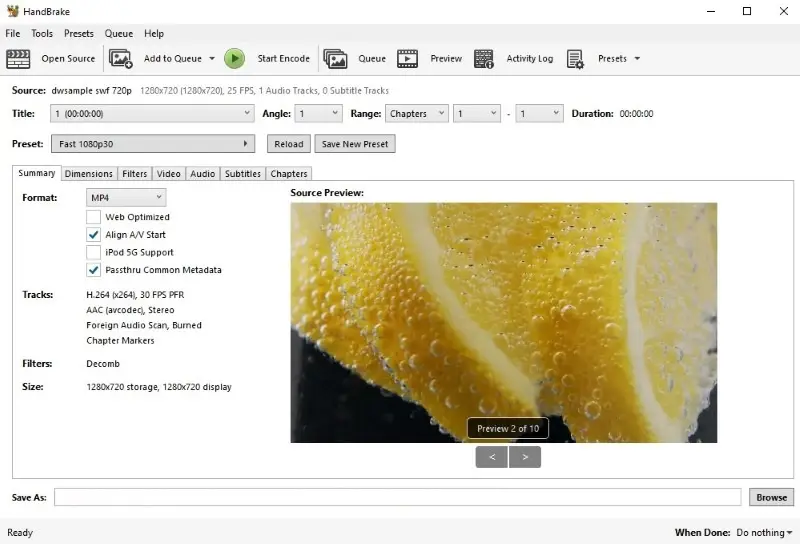
How to turn SWF to MP4 with HandBrake
- Download and install HandBrake on your device.
- Open the converter and bring in your SWF by clicking the "File" or "Folder" button.
- Select "MP4" from the "Format" drop-down menu.
- Pick a preset that best fits your needs (e.g., "Super HD" for top-tier videos).
- Go to the "File" tab and click "Start Encode".
- Once it wraps up, your MP4 file will be ready.
Pros:
- It’s open-source and completely free, plus you can modify it if you are into that sort of thing.
- It supports a wide range of video types, including popular ones like MP4, AVI, MOV, FLV, MKV, and more.
- Offers a lot of options for tweaking bitrate, resolution, and framerate to get things just right.
- Works on Windows, Mac, and Linux, so you’re covered no matter what gadget you prefer.
Cons:
- The video converter's interface isn’t exactly beginner-friendly. Starters might need a little time to get used to it.
- If you’re working with large files or aiming for high-fidelity output, it can slow down your computer a bit.
HandBrake is a reliable way to convert SWF to MP4 without spending a dime or jumping through hoops. If you don’t mind a few extra settings, it’s definitely worth a shot.
Method 2. VideoProc
VideoProc really stands out as a popular (and pretty reliable) free video converter — especially if you need to turn files into MP4s. It’s user-friendly and gets the job done without a headache.
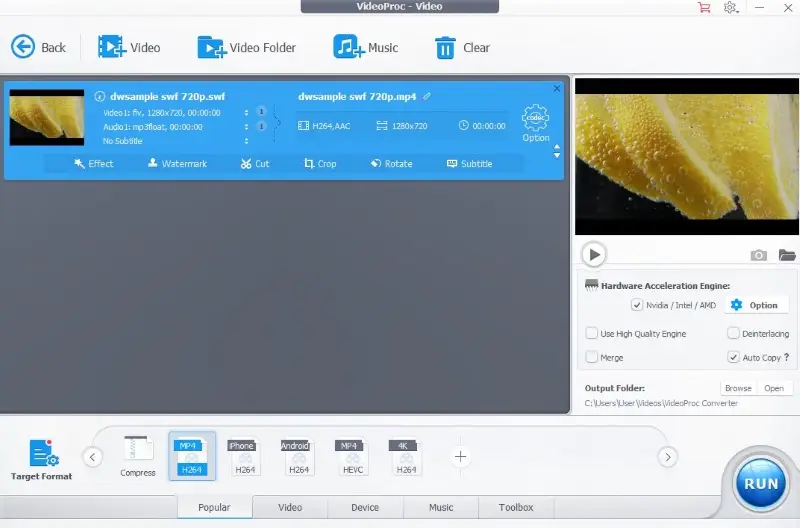
How to save SWF as MP4 in VideoProc
- Load and install VideoProc on your computer.
- Launch the SWF converter and hit "Video" on the main screen.
- Click "+ Video" to load the one or multiple SWFs you desire to convert.
- Select "MP4" from the target format list and choose the output folder.
- Press "Run" to begin converting. You'll find your new doc in the destination folder.
Pros:
- The SWF to MP4 converter isn’t just about transformation — it actually lets you do some basic editing, like trimming, rotating, or effects.
- Batch processing is supported, so you can handle a stack of footage in one go instead of repeating the same steps over and over.
- Speed is impressive, which is great when you have multiple or larger packs.
Cons:
- The full feature set does require a purchase or a subscription. For anyone on a tight budget, this might be something to consider.
Overall, VideoProc is an excellent tool for quickly and easily transforming SWF files to MP4 without compromising quality.
Method 3. VLC Media Player
If you’re after a quick way to change SWF files into MP4, VLC Media Player is honestly a solid choice. It’s free, it works on tons of systems, and you probably already have it installed.
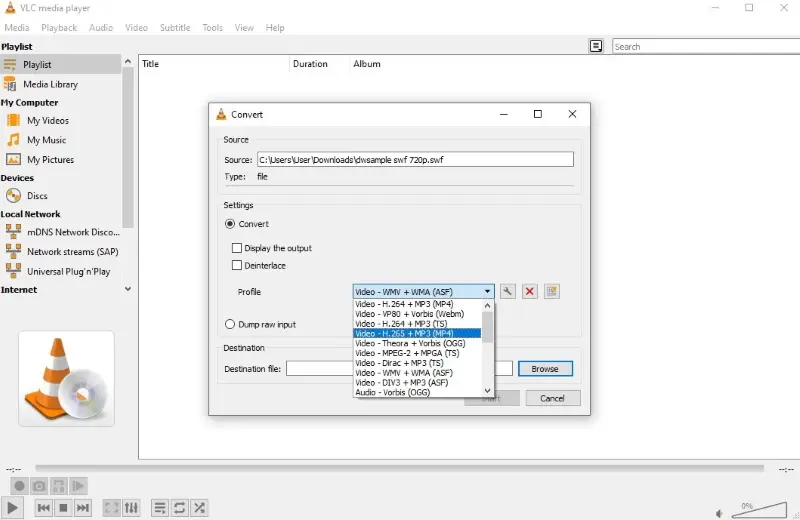
How to use VLC Media Player as SWF to MP4 converter
- Find and set VLC Media Player on your computer.
- Open the program and click "Media" in the upper left-hand corner.
- Select "Convert/Save" and drag and drop the files you wish to transform.
- Click "Convert/Save" and pick "Video - H.265 + MP3 (MP4)" in the "Profile" menu.
- Decide where you intend to save your new MP4 file.
- Finally, click "Start". It’s usually pretty quick, but your mileage may vary.
Pros:
- VLC runs on Windows, macOS, Linux, iOS, and Android — plenty of options.
- Since it’s open-source, the software is always getting updates.
- You can queue multiple files for conversion.
- There’s no shortage of community support and tips online if you ever get stuck.
Cons:
- The UI is not as friendly or optimized for video conversion tasks.
Ultimately, using VLC Media Player remains an excellent option to rapidly change SWF files to the MP4 without having to install additional plugins or acquire costly software programs.
Method 4. Convertio
Trying to change the SWF to MP4 could be challenging, but Convertio takes the hassle out of the process. This web-based service makes it surprisingly simple.
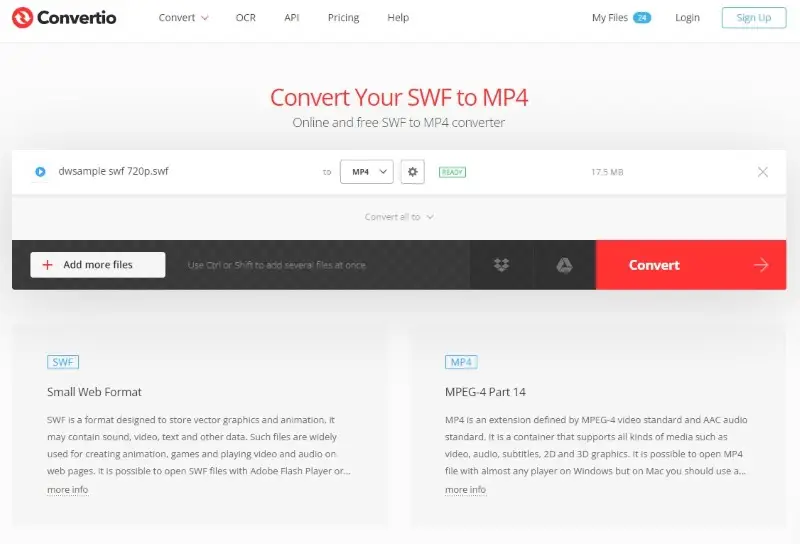
How to use Convertio online video converter:
- Go to Convertio and opt for "Choose Files".
- Select your SWF file from your computer or cloud storage.
- If you demand to adjust the controls, tap the gear icon.
- Click "Convert" to initiate the transformation from SWF into MP4.
- Once the conversion is complete, click the "Download" button to save the material.
Pros:
- The interface is intuitive, so you don’t need any special skills to figure it out.
- SWF files transform quickly and the quality holds up.
- The online video converter is available on any device or operating system. The only thing you need is internet access.
- Your uploads are secure, and everything gets deleted afterwards, so there’s no need to worry about privacy.
Cons:
- The free plan has limitations, restricting users who want to change more than 2 files at once.
- Even with a premium subscription, you can only modify footage up to 500 MB. Anything larger means you’ll have to find another tool.
All in all, Convertio is a practical choice if you crave a straightforward way to convert SWF to MP4. I’ve found it reliable, and the whole process barely takes any effort.
Method 5. 1-Click Video Converter
To save SWF as MP4 on your Mac, you might covet to check out 1-Click Video Converter. It’s pretty straightforward and doesn’t drown you in complicated steps.
How to convert video with 1-Click Video Converter
- Download and install the program. Launch it.
- Click the "Add File" button to upload the media for conversion.
- In the "Profile" field, select "MPEG-4 Video (.mp4)". If you like to fine-tune things, hit "Settings" to adjust options like frame rate, resolution, or bitrate.
- Pick the folder where the new MP4 will be saved in the "Destination" window.
- Once you're ready, hit "Convert".
.webp "Save SWF as MP4 with 1-Click Video Converter")
Pros:
- User-friendly and free to install.
- Supports a broad range of input and output — including MOV, AVI, FLV, MP3, and others.
- Offers customization of video properties for those who want more control.
Cons:
- Only works on macOS — Windows owners will need to look elsewhere.
Overall, 1-Click Video Converter is a good comprehensive software for transforming your multimedia files into different types that are most suitable for particular needs.
Method 6. CloudConvert
CloudConvert is another online platform that can help you convert a SWF file to MP4 within seconds. Although web-based, the service offers a generous size limit of 5 GB.
How to complete the conversion with CouldConvert
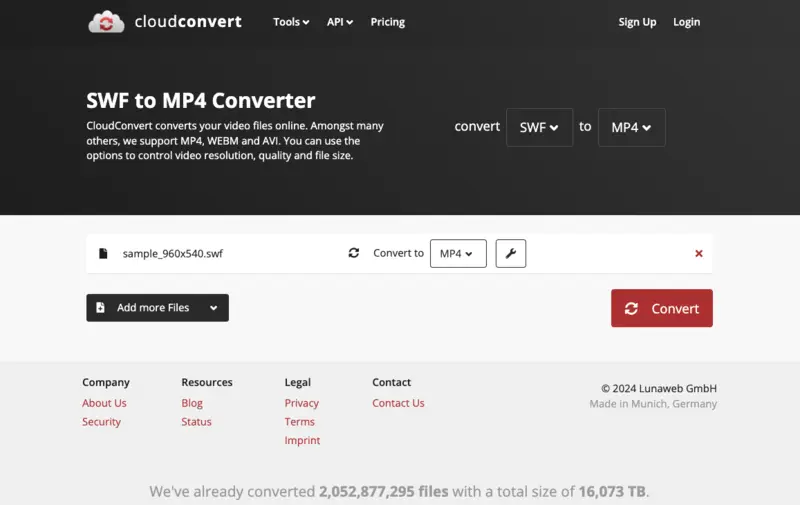
- Head over to their website and open the SWF to MP4 page.
- Use the "Select File" button to import archives or manually drag and drop them into the browser's tab.
- Desire to fine-tune the output? Hit the wrench icon.
- Proceed with the "Convert" button. Once transformed, your file will be ready for download.
Pros:
- No software installation needed, so you don’t have to clutter up your computer.
- Plenty of customization — adjust video quality, codec, frame rate, and other details to your liking.
- Works with popular cloud storage services like Google Drive, Dropbox, OneDrive, and Box, so moving around is super convenient.
Cons:
- The free version lets you convert just 10 items per day, which could be limiting if you’ve got a lot to process.
- While they advertise support for large files, some say big uploads may run into timeout problems.
What is SWF?
SWF stands for ShockWave Flash — a multimedia format that was pretty much everywhere in the early days of the web.
It started with Macromedia (later picked up by Adobe) and quickly became the go-to for GIF content, interactive banners, and browser games. If you’ve ever played those old-school online games or seen an animated web ad, you’ve probably come across an SWF file, even if you didn’t realize it.
SWF vs MP4: comparison table
| SWF | MP4 | |
|---|---|---|
| Purpose | Designed for web content | General-purpose multimedia container |
| Animation | Center on interactivity | Mainly for playback |
| Vector graphics | Supports vector graphics | Primarily focuses on raster graphics |
| Scripting | Allows interactivity via ActionScript | Not built for scripts |
| Web browser support | Historically required Flash Player | Runs natively in most browsers today |
| File compression | Resizing suitable for animations | Uses video reduction standards (e.g., H.264) |
| Interactive elements | Designed for interactive content | Primarily fixated on playback |
| Usage | Fading out with the end of Flash | Common for streaming, movies, and sharing |
| Hardware | Dependent on Flash Player | Widely supported on various devices and platforms |
| Browser | Can run into issues without plugins | Works smoothly without extra installations |
Honestly, if you’re deciding between SWF and MP4, it really comes down to your needs and what gadgets you plan to employ. SWF was great for active experiences back in its prime, but these days, MP4 is the safe and reliable choice for pretty much any type of video.
Best settings for converting SWF to MP4
- Resolution: 1080p (1920x1080) for HD, 720p (1280x720) for storage
- Bitrate: 2500-5000 kbps for good quality, 1500 kbps for smaller files
- Frame rate: 30 fps for smooth playback, 24 fps for a cinematic feel
FAQ
- Can I edit my SWF files before converting them to MP4?
- Absolutely. Some utilities let you tweak your SWFs before turning them into MP4s. You can trim, crop, add subtitles, or even put on a watermark to make it your own.
- Can I upload MP4 files that have been transformed directly onto YouTube?
- Yes, once your SWF is converted to MP4, post it on YouTube with no hassle. Share away!
- What configurations should I consider adjusting?
- Pay attention to resolution, bit rate, and frame rate. Refining these lets you control the final view and size. Many converters let you fine-tune these.
- Is there a risk of losing any interactive elements?
- Unfortunately, yes. These usually don’t survive the jump from SWF, since MP4s can’t handle those characteristics.
- What’s the deal with frame rate and video superiority?
- Frame rate plays a big part in how smooth your video looks. Try to match it with your original file, or go with what fits your project best.
- Can I convert SWF files on a Mac?
- Definitely. Most SWF to MP4 converters work on both OS, so you’re good to go.
- How do I keep the audio precision the same after converting?
- Double-check your sound parameters — make sure you’re not downgrading the bitrate or codec. That way, your track stays clear.
Tips on how to convert SWF to MP4
- Modify the fidelity. Play around with resolution, bit rate, and frame rate until you get the result you want. It’s worth taking a minute to uphold your footage looking sharp.
- Add external subtitles. If you’ve got captions in a separate item, incline them to your SWF before manipulation. Saves you the hassle of syncing things up later.
- Opt for batch modification. Look for the best video converter that allows batch processing. That way you can turn multiple SWFs to MP4s in one go.
- Preview your content. Always check your clip before the operation. It’s much easier to spot any issues early rather than after you’ve already gone through the whole process.
- Check size. When picking your output preferences, keep an eye on how big your files will get. Oversized MP4s can be a pain to store, and you might need to try a video compressor if things get out of hand.
Conclusion
Converting SWF to MP4 can be a straightforward process if you have the right tools. There are a few different approaches, but finding a method that works for you is half the battle.
With a little tweaking and the right converter, your SWFs will be ready to play anywhere you need them — no fuss required.

Tech Writer and Photography Aficionado
