
How to Resize an Image on PC and Online
Having a reliable image resizer can prove handy on several occasions. Whether you need to edit a photo for a project, create a profile picture for your social media account, or design a logo for your business, being able to adjust the dimensions correctly is essential.
Fortunately, there are many different options for PC and online services that allow you to change the resolution with just a few clicks.
In this article, we will cover 6 best free picture resizers that you can utilize for your needs. Keep on reading to learn about each of them!
Summary table of image resizers
| Program | OS | Price of PRO | User experience | Rating |
|---|---|---|---|---|
| Icecream Image Resizer |
Windows
|
$19.95/lifetime
|
Great
|
5.0 |
| Image Candy |
Web
|
N/A
|
Great
|
5.0 |
| Microsoft Photos |
Windows
|
N/A
|
Good
|
4.5 |
| Apple Preview |
macOS
|
N/A
|
Good
|
4.5 |
| iLoveIMG |
Web
|
from $5/month
|
Fine
|
4.0 |
| Image Resizer |
Web
|
N/A
|
Fine
|
3.5 |

How we picked picture resizers
For this list, we chose 6 programs and online tools to help you get the job done. The mentioned below utilities that offer:
- Quick changing to the desired dimensions;
- Free photo resizers to work with your content;
- Understandable interface for comfortable tasks.
Solution 1. Icecream Image Resizer
Among the many competitors, Icecream Image Resizer stands out thanks to its simplicity. It allows you to make your pictures look better. You can optimize them for web tasks and ensure that any elements or logos used in your projects look crisp and clear.
How to resize an image on Windows with Icecream Image Resizer
- Download and install the photo resizer for Windows PC on your computer.
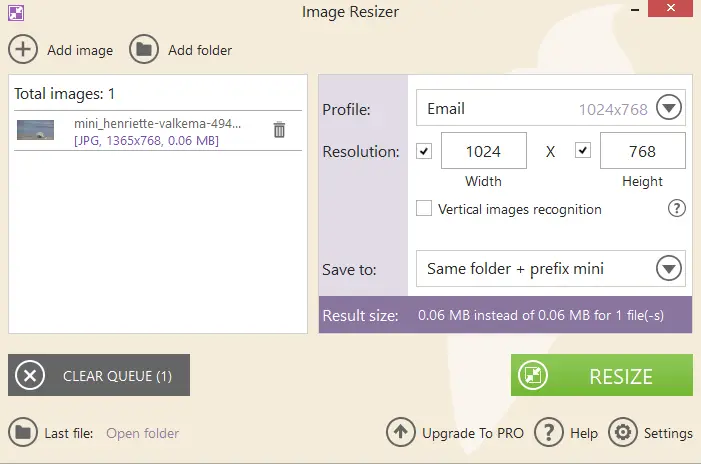
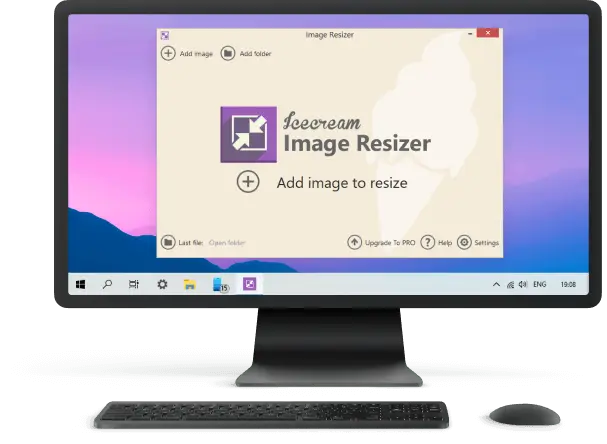
- Open the program and click "Add image to resize" to pick the content that requires adjusting.
- Select the desired output format from the drop-down menu "Profile". You can also set the parameters manually.
- Hit the "Resize" button to start processing.
- When it finishes, click "Open folder" to go to the file's location on your computer.
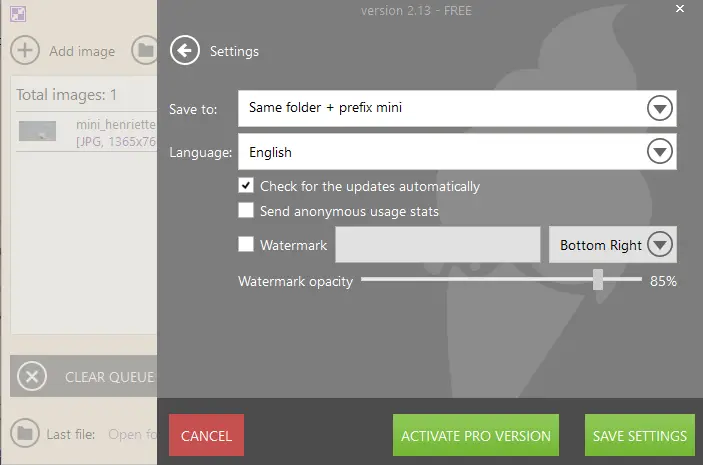
Pros:
- Fast and easy. The free image resizer makes it quick for anyone even without any experience working with photo editors to alter the dimensions promptly and precisely.
- Clean results. The program uses advanced algorithms to produce high-quality results with no significant loss of quality.
- Compatibility. It supports a wide range of popular formats, so you can resize pictures from any source without worrying about any issues.
- Customization. You can choose the new settings from presets or enter your specific numbers.
- Bulk processing. To save time, you can upload an entire folder and resize all photos at once.
Taking advantage of the application, anyone can effortlessly get the job done with great accuracy without any hassle. So why wait? Try it today and start taking advantage of all its great utilities!
Solution 2. Image Candy
Image Candy is a web-based platform with a variety of features for working on your content. Apart from other tools, it offers an online photo resizer.
How to use Image Candy's online image resizer
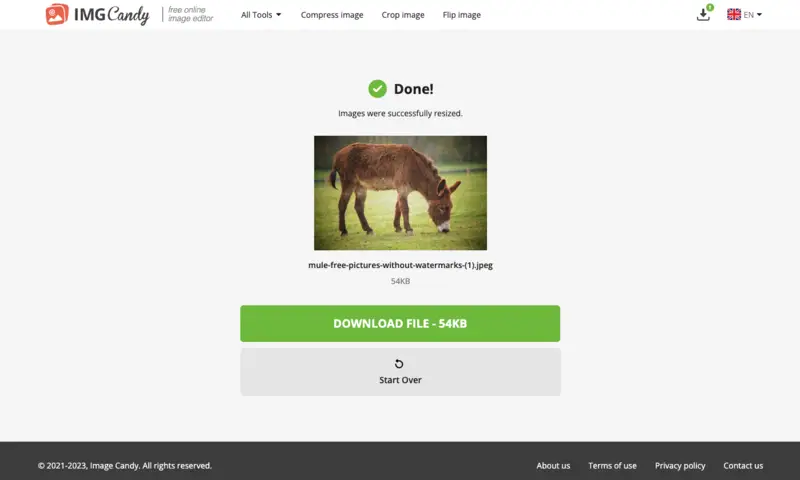
- Go to the online image editor and choose the "Resize Image" option.
- With the "+Add file(s)" button, upload the elements you would like to change.
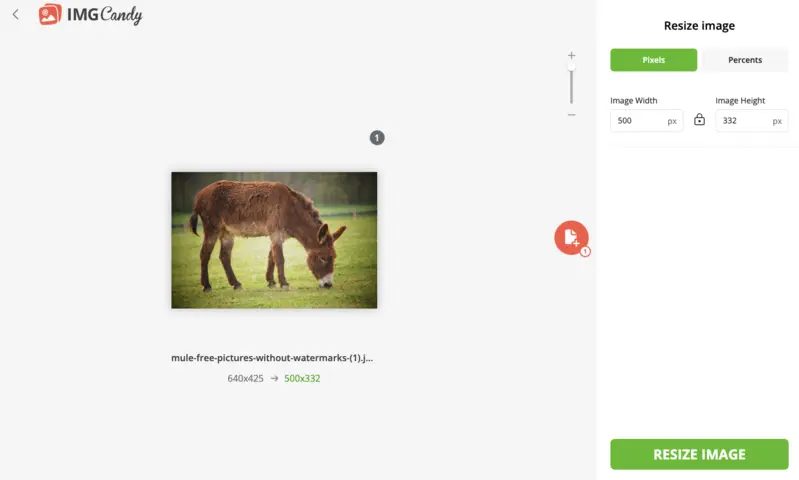
- Pick between two tabs - "Pixels" or "Percents". Choose the desired configurations or enter custom values.
- Once you are done, hit "Resize Image". Wait for the processing to finish.
- Now, click "Download file" to save the altered results on your device.
Pros:
- Speed. Working in browser is much faster than downloading additional software or opting for tools that require more steps to complete the task.
- Free. This online image resizer is completely free, so you don't have to worry about spending money on pricey programs or subscriptions for photo editing.
- Convenience. The web-based service can be used on any device and operating system, making it a cross-platform utility.
- Functionality. With the same website, you can compress your file, convert to and from various formats, remove background, and more.
Overall, Image Candy is a great option for quickly and easily working on the images online. Just upload them to the service, select the desired resolution, and you are done!
Solution 3. Microsoft Photos
In case you don't want to or don't have time to get a third-party photo resizer, there are ways to change dimensions with a built-in tool. On Windows OS, you can try Microsoft Photos.
How to resize your picture for free with Microsoft Photos
- Open the app and pick the desired content.
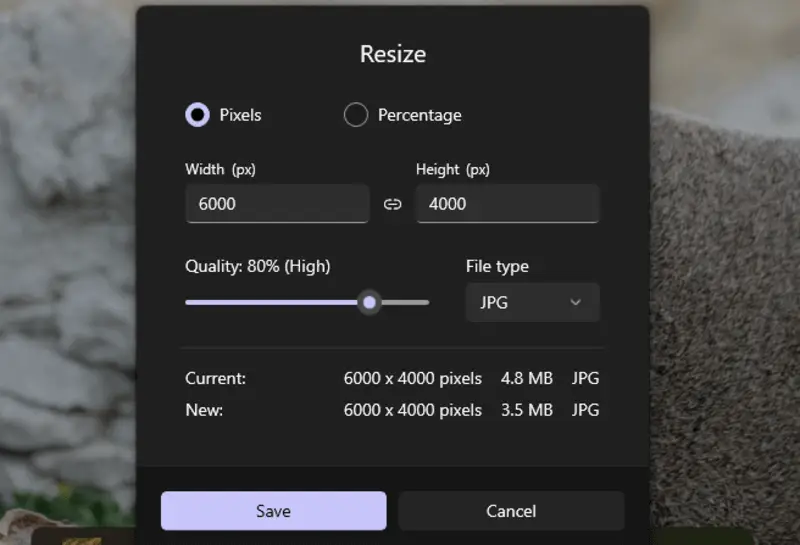
- Click the three dots icon to open the dropdown menu. There, choose the "Resize image" option.
- Enter the specific numbers for the Width and Height in pixels or change the percentages.
- Pick the output quality and the file format. Hit "Save".
- Press the tree dots icon again and now go with "Save as". Enter the new name and select the folder to store it.
.webp "How to resize an image for free with Microsoft Photos")
Pros:
- Built-in and free. The picture resizer comes pre-installed on Windows OS devices and has no hidden cost.
- Simple. It's a basic program that has a self-explanatory interface, which makes it easy to use.
As you can see, you can resize your image for free with just the elementary editing tools that your computer already has. This method is great if you need to get the job done quickly and do not require additional customization.
Solution 4. Apple Preview
If you own a macOS device, you are definitely familiar with the Preview. Although basic, the software is a great choice. Since the majority of people already employ the application as their photo viewer, it will be quick to locate the image resizer within it.
How to resize pictures on macOS in Preview
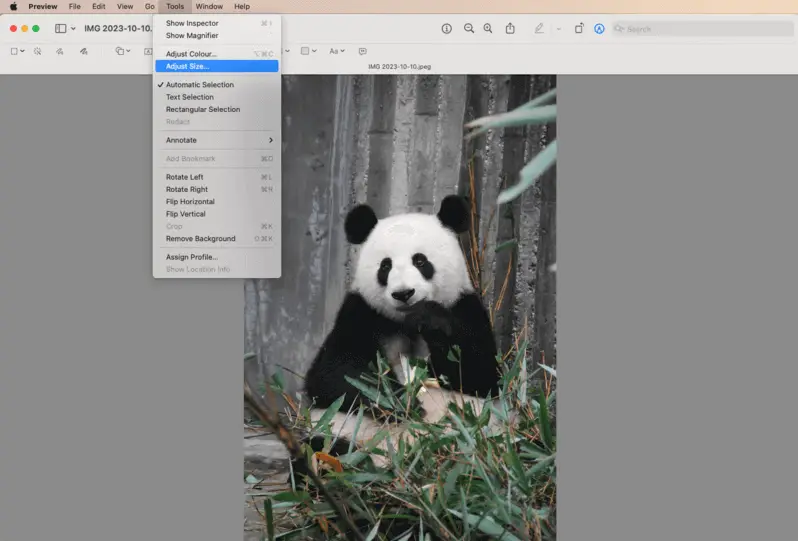
- Open the elements in the program.
- From the "Tools" menu, select "Adjust Size".
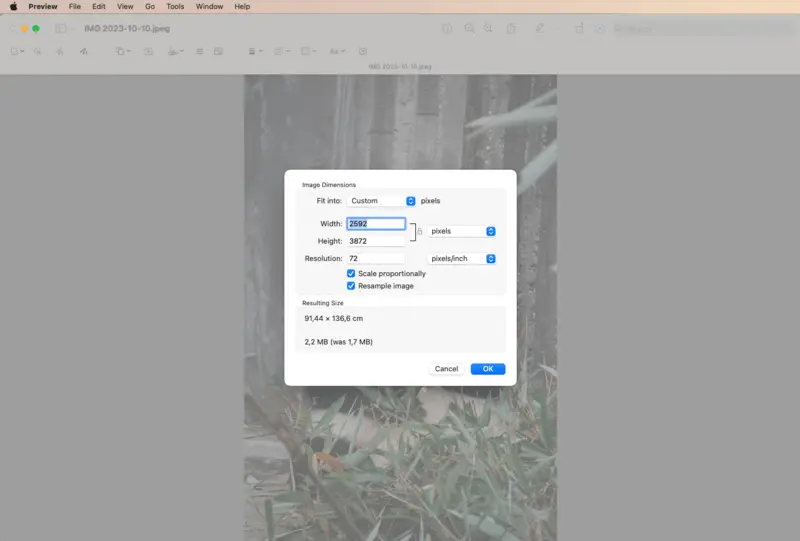
- In the new window, choose one of the presets from the "Fit into" list. Alternatively, manually enter the Width and Height numbers. You can choose to enter them in pixels, percentages, inches, and more.
- Click "OK" when you're satisfied with your changes. They will be applied to the original file.
Pros:
- Pre-installed. No need to get a third-party image resizer as your computer already comes with this basic utility.
- Additional functionality. Apart from being a viewer and editor, the program also has the ability to open and edit PDF files.
Solution 5. iLoveIMG
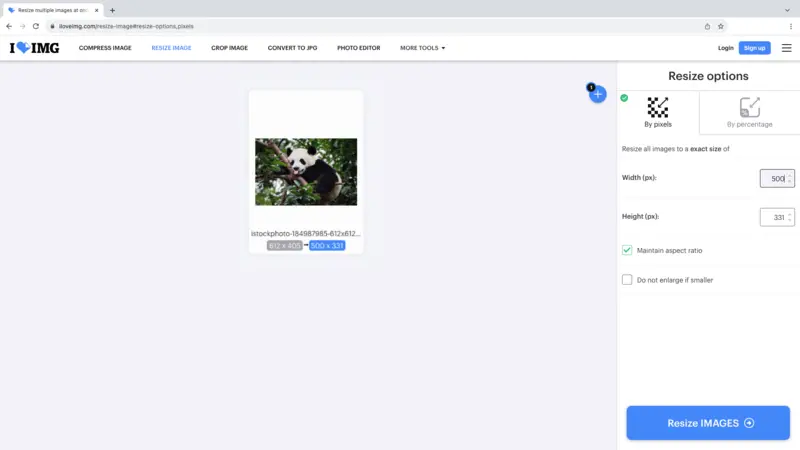
iLoveIMG is another great online photo resizer if you're not familiar with any image editing software. The tool is available for free with a few limitations (you can upload up to 30 elements per task) but is still suitable for a small workload.
How to use iLoveIMG for changing resolution online
- Go to the website's main page and choose the "Resize Image" tool.
- Click the "Select images" button to upload the content from your device.
- Pick one of the options - "By pixels" or "By percentage". Enter the desired dimensions or select a preset from the drop-down menu.
- Hit the "Resize Images" button. After processing, use "Download resized images" to save the result.
Pros:
- Fast. Your files are processed immediately and usually do not take long unless the internet connection is very slow.
- More from the developers. The online image resizer has a sister website to work on files in PDF format, like editing the text.
Overall, iLoveIMG is a convenient tool for getting the job done without needing any special skills or equipment. It's a great solution for people who need a simple way to resize their images quickly and easily.
Solution 6. Imageresizer.com
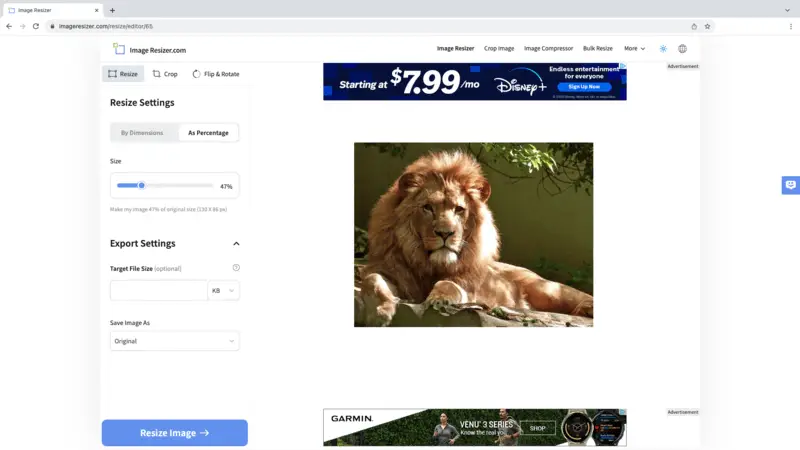
Here is one more method to resize your picture online. If you only need to complete one task and do not mind some little advertisements, try the imageresizer.com. This is a website that does just what its URL address says.
How to utilizeImageresizer.com website as a photo resizer
- Open the main page of the website.
- Use the "Select Image" button to add your files.
- In the "Resize" tap, set the parameters. Adjust your parameters "By dimensions" or "As percentage". Customize the "Export Settings" if needed.
- Now, hit "Resize Image".
- When the result is ready, click "Download Image".
Pros:
- Simple. The website's page has only one feature - image resizer.
- Linked with other services. In the footer, you will find hyperlinks to other services. For example, a free collage maker.
As you can see, online tools can prove helpful when on the go or in a hurry. With the imageresizer.com you will set the new dimensions in no time.
Image sizes for different use cases
| Use Case | Recommended Size (Width x Height) | Aspect Ratio |
|---|---|---|
| Social Media (Instagram) | 1080 x 1080 px (Square) | 1:1 |
| 1080 x 1350 px (Portrait) | 4:5 | |
| 1080 x 566 px (Landscape) | 1.91:1 | |
| Facebook Profile Picture | 180 x 180 px | 1:1 |
| Facebook Cover Photo | 820 x 312 px | 2.63:1 |
| Twitter Profile Picture | 400 x 400 px | 1:1 |
| Twitter Header Image | 1500 x 500 px | 3:1 |
| LinkedIn Profile Picture | 400 x 400 px | 1:1 |
| LinkedIn Banner Image | 1584 x 396 px | 4:1 |
| YouTube Thumbnail | 1280 x 720 px | 16:9 |
| Pinterest Pin | 1000 x 1500 px | 2:3 |
| Blog Post Image | 1200 x 675 px | 16:9 |
| Email Newsletter | 600 x 200 px (Banner) | 3:1 |
| Website Hero Image | 1920 x 1080 px | 16:9 |
| Product Image (eCommerce) | 1000 x 1000 px | 1:1 |
| Print (Standard Photo) | 4 x 6 inches (1200 x 1800 px) | 2:3 |
| Print (Poster) | 24 x 36 inches (7200 x 10800 px) | 2:3 |
FAQ
- What is the difference between resizing and resampling?
- Resizing changes only the dimensions, while resampling adjusts the pixel density, affecting the resolution.
- What is aspect ratio, and why is it important?
- Aspect ratio is the proportional relationship between the width and height. Maintaining these ensures that the picture does not appear stretched or distorted.
- What is the maximum I can resize an image to without losing quality?
- It depends on various factors, including the resolution of the original, the method, and the intended use. For example, If you're creating content for digital display or sharing on the web, you generally have more flexibility compared to printing.
- How do I resize photos for social media?
- Different platforms have specific resizing parameters. You can resize pictures accordingly with the help of templates or guides provided by each site.
- Is it possible to upscale low resolution without losing quality?
- Technically, yes. While it's challenging, certain AI-powered tools can improve results compared to traditional methods.
- Why do some images look pixelated?
- This occurs when they are enlarged beyond the original resolution, causing the pixels to stretch and become visible.
- What resolution should I use for print?
- It should typically be set to 300 DPI (dots per inch) to ensure sharp, high-quality results. For example, for a 4x6 inch print, you’ll need a picture that’s at least 1200x1800 pixels.
Tips on how to resize an image
Remember, each element may have its unique characteristics. The below tips can serve as a general guideline but might require adjustments based on intended use.
- Maintain aspect ratio. Always keep the original aspect ratio to prevent distortion. This ensures the result doesn't look stretched or compressed unnaturally.
- Use high-quality software/tools. Utilize reputable photo editor or tools that maintain quality. Avoid low-quality or unknown applications that might compromise the resolution.
- Back up the original. Make a duplicate or backup of the original content. This preserves the initial clarity in case changes don't meet your expectations.
- Choose the right file format. Select the appropriate extensions. For example, JPEG for photographs, PNG for transparency, or GIF for animations. Different formats can affect image quality differently.
- Consider resolution. Determine the ideal resolution for your purpose. For web tasks, a lower resolution may suffice, while printing requires higher parameters for better clarity.
- Avoid excessive enlargement. Enlarging too much can result in pixelation or blurriness due to limited data. Try to resize within a reasonable range.
- Employ interpolation methods. Choose the right interpolation method (e.g., bicubic, bilinear) offered by the software. These can affect how pixels are added or removed during the process, impacting the quality.
- Preview and compare. Before finalizing, preview the result at different sizes and compare it with the original. This helps ensure the new version meets your standards.
- Create presets. Save settings or presets if you frequently resize pictures with similar requirements. This can save time and maintain consistency across your elements.
- Check the size. Sometimes, reducing dimensions may not significantly reduce the file size, especially with certain formats. Customize parameters if necessary to achieve an optimal balance.
Conclusion
As you can see, the process is easier than it may seem. By picking any of the suggested methods in this article, you can successfully resize your photos with no problems.
Keep in mind what you want to achieve and what resources you have. You will definitely get perfect results!

Tech Writer and Photography Aficionado
