
How to Clip on PC: Capture Highlights Like a Pro
How to clip on PC is a common question among gamers, streamers, and content creators who want to save their favorite moments or record video tutorials effortlessly.
Whether you’re capturing gameplay highlights or saving important actions to send your friends, there are multiple ways to do it.
This guide covers built-in Windows tools, third-party software, and tips for editing and sharing your recordings quickly.

What is a clip on PC?
Clipping means capturing a short segment of what’s happening, usually preserving only the most notable parts instead of an entire session.
This approach is widely utilized by gamers who want to save epic wins, memorable plays, or amusing moments without generating lengthy videos.
Practical uses for clips on PC:
- Highlight reels for YouTube, Twitch, or Discord.
- Brief instructional demonstrations.
- Documenting glitches, errors, or proof of achievements.
- Producing short-form content for TikTok, Instagram, and similar networks.
How to clip on PC using specialized software
Icecream Screen Recorder
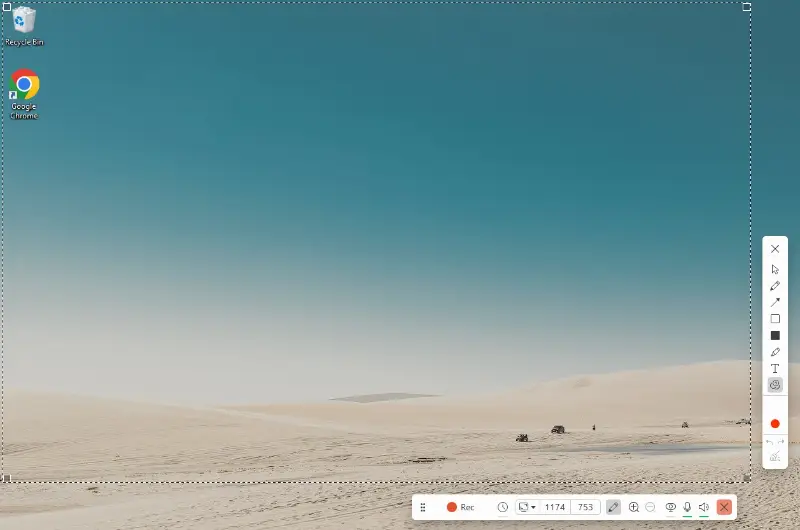
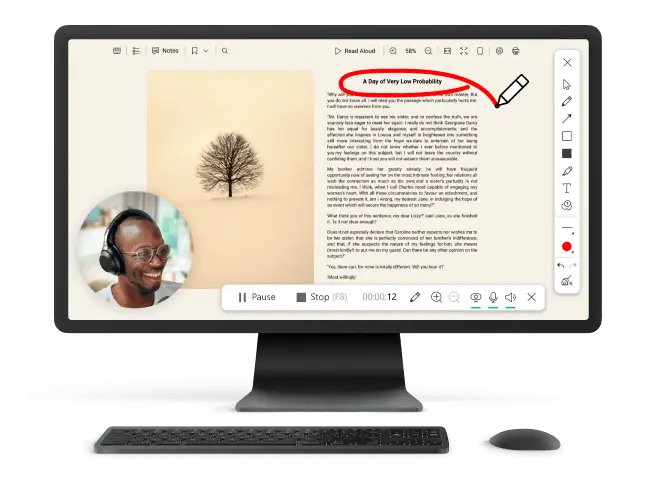
Icecream Screen Recorder is a multifunctional program that enables both capturing and segmenting results. Its trimming capability is especially useful for preparing tutorials, saving highlights, or extracting specific portions.
How to clip on Windows with Icecream Screen Recorder
- Download and install free video recording software from the official site, then open the application.
- Click "Capture video" on the start screen to begin setting up your parameters.
- Define the zone: full monitor or selected area.
- Press "Rec" to commence the process. Use the control panel to pause or stop as required.
- Once finished, access the built-in cutter to remove unnecessary sections.
- Save the file to your chosen directory or distribute it through available sharing options.
Pros:
- Comprehensive utility. Handles recording and trimming without extra tools.
- Customizable capture zones. Allows selection of different screen portions.
- Straightforward changes. Includes an easy-to-use video editor for a computer for quick modifications.
OBS Studio
OBS Studio is a powerful open-source application that allows you to create high-quality projects with customizable settings. It’s especially favored by gamers and content creators who need more control than built-in tools provide.
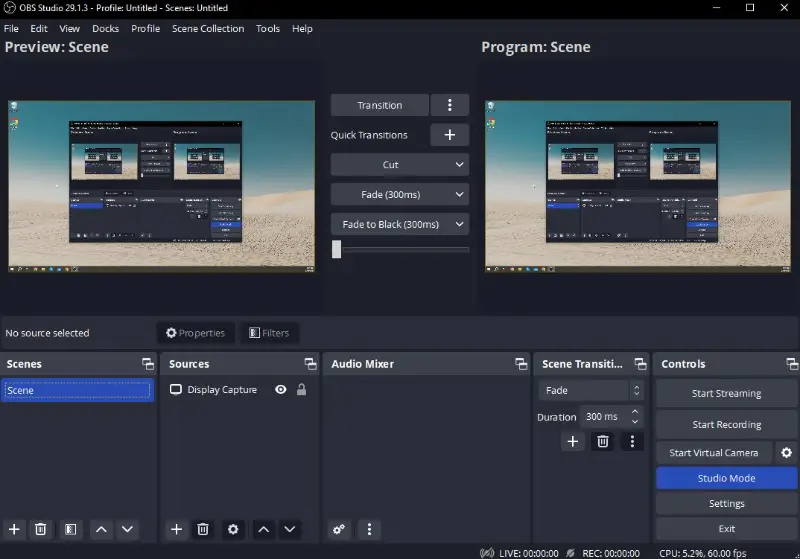
How to clip videos on PC with OBS Studio
- Download and install the program from the official website, then launch it.
- In the "Sources" panel, click the "+" icon and choose "Display Capture" or "Game Capture".
- Adjust the parameters by going to "Settings" → "Output" and choose the desired format (MP4 is recommended).
- Press "Start Recording" when you’re ready to begin capturing, and Stop Recording to end.
- Locate your saved clip on PC in the default output folder or customize the save path.
Pros:
- Advanced features. Supports high-quality video recording with flexible configuration.
- Free and open-source. No watermarks or hidden costs.
- Streaming capability. Can capture and stream simultaneously.
Cons:
- Steeper learning curve. Requires some time to configure for optimal workflow.
- Resource usage. May consume more CPU/GPU power compared to lightweight clipping tools.
Bandicam
Bandicam is a compact utility designed to capture crisp videos while keeping system performance steady. It’s widely chosen by gamers and professionals who need a straightforward solution with flexible options.
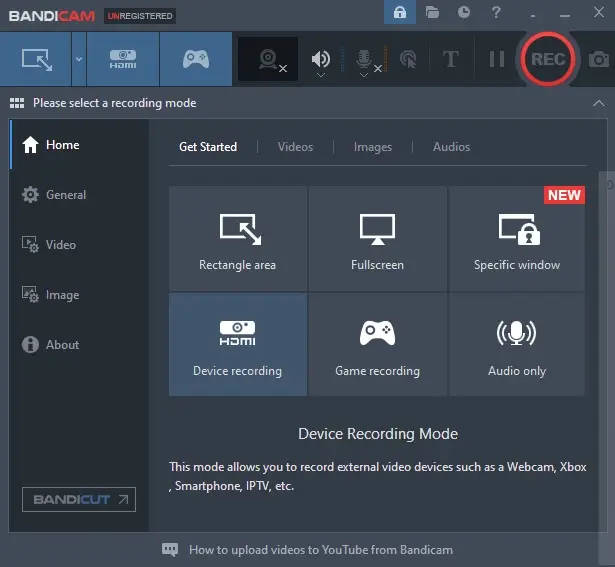
How to record a clip on PC in Bandicam
- Download the software from its official site, install it, and launch.
- Pick a mode from the top bar: "Game", "Screen", or "Device" depending on what you want to record.
- Open "Video" → "Settings" to tweak parameters such as resolution, frame rate, and format (MP4 or AVI recommended).
- Start the process by pressing the "REC" button or with the default shortcut F12.
- End the session by hitting "Stop" or the same hotkey, then retrieve your file in the chosen output directory.
Pros:
- Clear interface. Minimal design allows quick access to features.
- Low resource consumption. Runs efficiently without straining hardware.
- Adjustable settings. Offers control over quality, codecs, and capture modes.
Cons:
- Logo in trial version. Adds a watermark unless upgraded to the paid plan.
- Few post-processing tools. Limited options for editing within the program.
How to record clips on PC with built-in tools
Xbox Game Bar
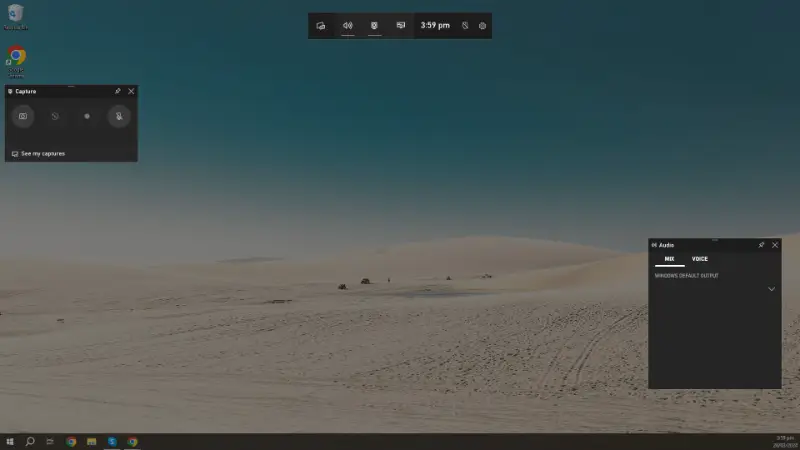
Xbox Game Bar is an integrated Windows utility that enables users to record gameplay and on-screen actions without installing external applications. It’s perfect for quickly saving highlights and sharing them effortlessly.
How to clip stuff on Windows PC using Xbox Game Bar
- Press Win + G to open the overlay.
- If it does not appear, activate in "Settings" → "Gaming" → "Xbox Game Bar".
- Launch the "Capture" panel or use Win + Alt + R to begin recording.
- Hit Win + Alt + R again to stop, or Win + Alt + G to save recent activity as a short clip.
- Access the result through the built-in gallery or in the "Captures" folder located in "Videos".
Pros:
- Already included. Works out of the box with no additional downloads.
- Shortcut support. Keyboard commands make capturing moments simple.
- Direct sharing. Uploads to Xbox Live and social channels with ease.
Cons:
- Basic customization. Few settings to fine-tune video output.
- Gaming-oriented. Less efficient for non-gaming screen recording.
NVIDIA ShadowPlay
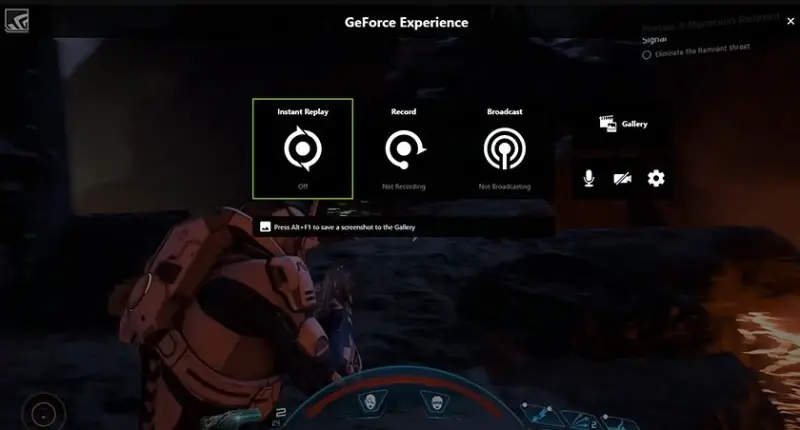
NVIDIA ShadowPlay is a feature within GeForce Experience designed to save gameplay smoothly while maintaining system performance. It caters specifically to those with NVIDIA graphics cards who want hassle-free background capture and instant saving.
How to record clips on PC using NVIDIA ShadowPlay
- Install GeForce Experience and log into your profile.
- Open the overlay by pressing Alt + Z on your keyboard.
- Activate "Instant Replay" to continuously capture recent gameplay or select "Record" for manual sessions.
- Customize settings like resolution, bitrate, and replay duration via the "Preferences" panel.
- Save your clips on PC by stopping the process or hitting Alt + F10 to instantly preserve the last few minutes.
Pros:
- Low impact on resources. Ensures smooth processing without taxing hardware.
- Automatic replay saving. Captures recent gameplay without manual intervention.
- Superior quality. Offers support for up to 4K resolution with sharp detail.
Cons:
- Limited to NVIDIA cards. Only compatible with systems equipped with NVIDIA GPUs.
- Relies on background app. Requires GeForce Experience to be active while recording.
AMD Radeon ReLive
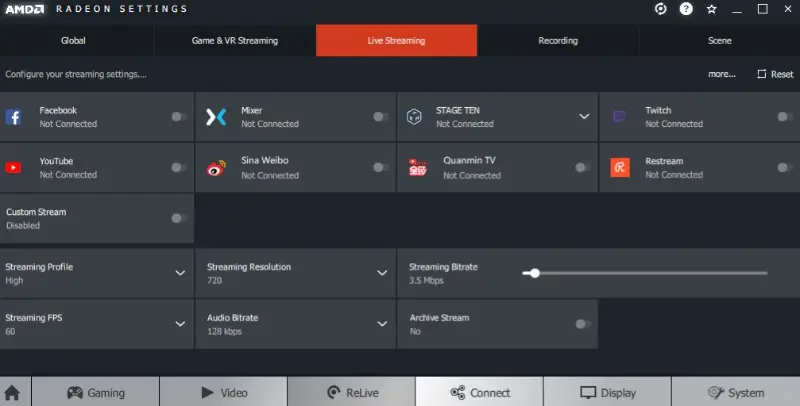
AMD Radeon ReLive is an integrated screen capture utility designed for AMD GPU users, providing smooth video recording without compromising system efficiency. It offers a straightforward way to save gameplay and desktop activity.
How to save clips on PC with AMD Radeon ReLive
- Launch AMD Radeon Software from the taskbar or Start menu.
- Turn on "ReLive" in the settings if it isn’t already enabled.
- Open the overlay by pressing Alt + Z.
- Click the "Record" icon or hit Alt + R to begin capturing your display or gameplay.
- Press Alt + R again to finish the session. Files will be stored in the designated directory.
Pros:
- Efficient performance. Captures a clip on PC smoothly without draining resources.
- Handy shortcuts. Keyboard commands simplify starting and stopping the process.
- Good video quality. Records HD footage with adjustable parameters.
Cons:
- Restricted to AMD GPUs. Only functional on machines equipped with Radeon cards.
- Minimal editing features. Limited tools are available for modifying clips on PC after the session.
Tips on how to clip on PC effectively
Achieving clear and smooth clips on PC requires adjusting key settings and organizing the process properly. Use the following recommendations to enhance your projects and maintain a neat collection.
Suggested settings for any clip on PC
| Parameter | Ideal Value | Additional Info |
|---|---|---|
| Resolution | 1920 x 1080 (Full HD) or above | Opt for 4K (3840 x 2160) only if your hardware can handle it smoothly |
| Frame Rate | 30 or 60 FPS | 60 FPS delivers better fluidity for fast action |
| Bitrate | 10,000 – 50,000 kbps | Higher bitrate means sharper visuals but larger files |
| File Format | MP4 or AVI | MP4 offers broad compatibility and efficient compression |
| Audio Bitrate | 128 – 320 kbps | Higher values produce clearer sound quality |
Storage and organization advice
- Designate a specific directory for clips on the PC to simplify access.
- Frequently back up your videos to external drives or cloud platforms to safeguard content.
- Immediately rename files with meaningful titles and dates for quick recognition.
- Remove old or unwanted clips regularly to conserve disk space.
- Compress files if you need to lower storage use without noticeable quality loss.
- Prefer SSDs over HDDs for faster writing and smoother performance.
How to share your PC clips?
- Choose an export format and resolution tailored to your intended viewers (for example, 1080p MP4 for YouTube).
- Make videos smaller if needed to speed up uploads while maintaining quality.
- Publish directly to social networks such as YouTube, Twitch, Instagram, or Facebook through their apps or websites.
- Employ clear titles, relevant tags, and eye-catching thumbnails to attract attention.
- Share links or embed videos in blogs, forums, or messaging platforms to increase reach.
FAQ
- How long can a clip be?
- The length depends on the tool used and storage space. Some programs allow unlimited recording, while others limit duration.
- Can I capture system audio and microphone simultaneously?
- Yes, most modern programs support recording both system sounds and voiceover at the same time.
- Can I schedule a clip on PC for the specific time?
- A few advanced applications offer screen recording scheduling features, but many basic tools do not.
Conclusion
Knowing how to record clips on your PC doesn’t have to be complicated. You can save your favorite moments with just a few clicks. Choose the method that best suits your needs, and start capturing and sharing your highlights today.

Expert Tech Writer
