
How to Convert Text Files to PDF?
Knowing how to convert text to PDF can save time, ensure formatting consistency, and make sharing easier.
Whether you’re working with a TXT, DOC, or copied content from an email, changing it to PDF is useful for archiving, printing, and presenting documents professionally.
In this guide, we’ll explore multiple ways to create a PDF from text — with built-in OS tools, online services, and specialized software.
Add text to existing PDF
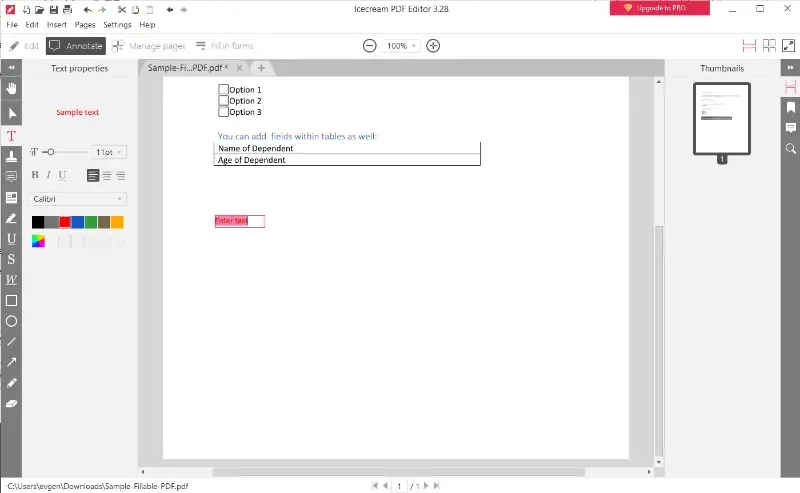
Icecream PDF Editor is a desktop application that enables you to work on documents in various ways. It allows you to place text with precision and customization options.
- Download and install the free PDF editor for Windows.
- Open the program and click "Open" to load your file.
- Switch to "Edit" mode via the top menu.
- Select the "Text" tool (T icon), then press on the page where you want to put new content.
- Type the desired words. You can modify the font style, size, color, and alignment with the formatting panel.
- To finalize your changes, go to "File" > "Save As" and choose a location for the updated version.
Pros:
- Flexible layout. Offers a variety of customization features including font and color controls.
- Offline functionality. Fully usable without an internet connection on Windows.
- All-in-one software. Includes tools for annotations, digital signatures, and rearranging pages.
Cons:
- Limited to Windows. No support for macOS or Linux systems.
Icecream PDF Editor provides a quick way to turn a short text document to a PDF and make other adjustments without needing online access.
Online TXT to PDF converter
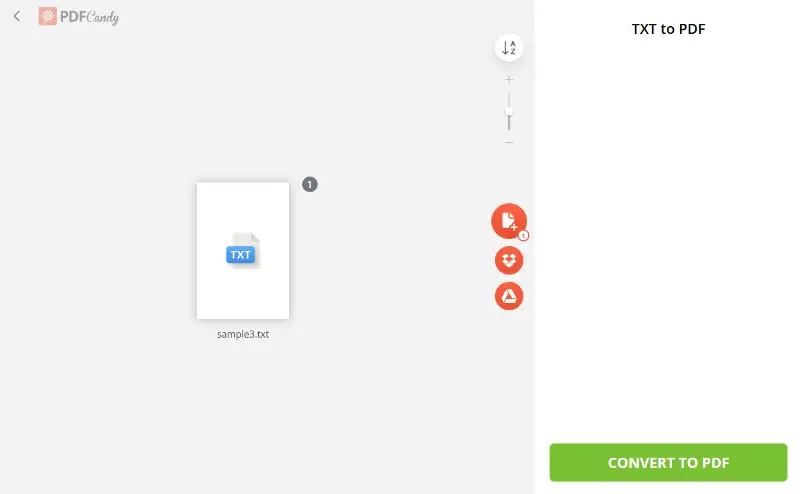
PDF Candy is a web-based suite of tools that includes a convenient utility for transforming a plain text file to PDF. The process is straightforward and doesn't require installation.
- Go to the text to PDF converter in any browser.
- Click "Add file" to upload your document. You can also drag and drop it into the designated area.
- Hit "Convert to PDF" and wait for the platform to generate the result.
- Once ready, retrieve the newly created file.
Pros:
- No installation required. Runs entirely in your browser, accessible from any device.
- Beginner-friendly. The interface is clean and intuitive, even for non-technical users.
- Private by design. Uploaded content is erased after 2 hours for enhanced data protection.
- Batch support. Convert multiple TXT files to PDF at a time.
Cons:
- Basic formatting. Does not offer control over fonts or styling.
PDF Candy is a practical option for quickly turning text-based material into a fixed layout. Its simplicity and accessibility make it a solid choice for one-time tasks, without the need for heavy software or account setup.
Notepad
Notepad, the default editor, can be paired with the built-in Print to PDF feature to quickly produce a formatted version of your content in PDF format — all without third-party tools.
How to convert a text file to a PDF on Windows
- Launch Notepad and load the content you want to export.
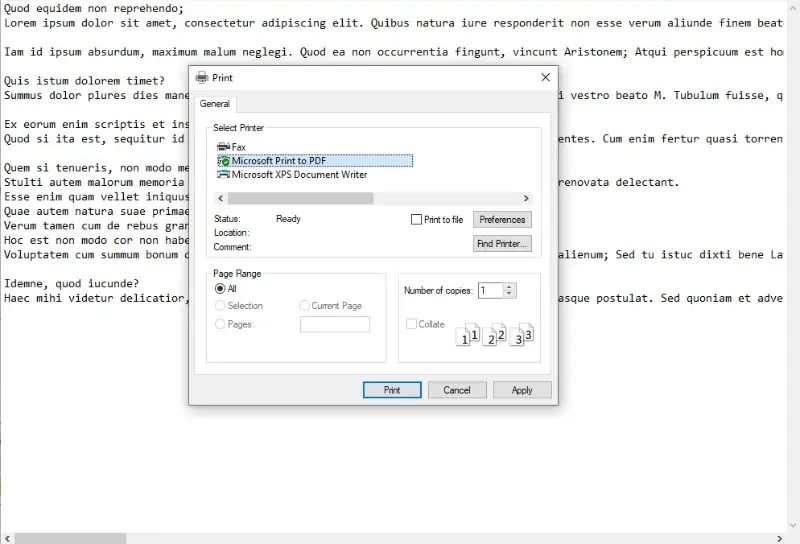
- Navigate to "File" in the top menu and choose "Print".
- In the printer selection window, pick "Microsoft Print to PDF".
- Click "Print" again. A prompt will appear asking where you'd like to store the result.
- Choose a destination, enter a name, and confirm with "Save".
Pros:
- No extra software. This approach uses built-in Windows functionality.
- Efficient for basic needs. Ideal for notes, logs, and simple drafts.
- Quick execution. The process takes just a few clicks from start to finish.
Cons:
- Limited formatting. No control over styling, alignment, or visual layout.
- Minimal output customization. Better suited for plain content than structured documents.
The Notepad + Print to PDF method is perfect for those who need a fast, no-frills way to change simple text to PDFs — all without leaving the Windows ecosystem.
TextEdit
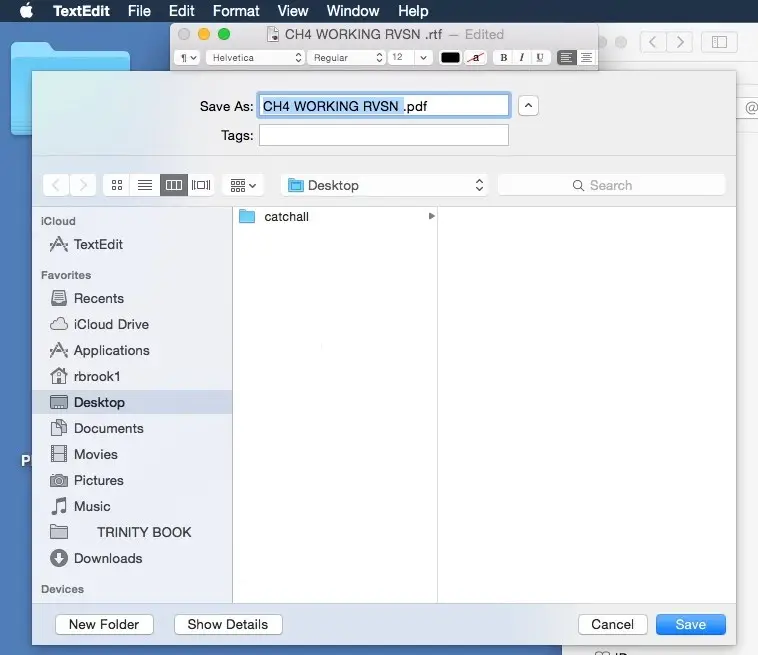
TextEdit, the standard writing app, provides a built-in way to generate shareable versions of your content. It supports both direct output and system print options for flexible use.
How to convert a TXT file to PDF on macOS
- Open TextEdit, then paste or type the material you'd like to preserve.
- Click "File" in the top menu and choose either "Export as PDF" or "Print".
- If using the export option, enter a name and pick a destination on your device.
- For the print route, hit the "PDF" dropdown in the lower-left corner and select "Save as PDF".
- Confirm your choice and press "Save" to complete the process.
Pros:
- Pre-installed solution. No additional downloads or tools required.
- Flexible options. Offers two methods to convert TXT to PDF depending on your preference.
- Keeps formatting. Retains styles like font, spacing, and alignment from the original content.
Cons:
- Minimal layout control. Not suited for advanced design or publishing needs.
- Handles one item at a time. No built-in way to process multiple entries in a single action.
The TextEdit + Export/Print approach is a reliable option for those who want a simple, integrated way to transform written text input to PDF format, with no reliance on extra software.
Conclusion
Converting text to PDF is a simple task once you know the right tools.
Whether you're using your computer’s built-in features, a web-based service, or a mobile app, there's a method for every scenario.
Now that you understand how to convert text to PDF across different platforms, you can choose the approach that best fits your workflow — with confidence and efficiency.

Expert Tech Writer
