
9 Ways to Record Live Streaming Video
In many situations, knowing how to record streaming video can be very useful. Saving such clips is a great way to do it, whether you're a creator or just someone who wants to remember a moment.
This guide's goal is to make it easier to capture content live from any website. We'll look at some practical things, from different methods and easy screen recording software to legal issues.
Ways to record live-streaming video
The most popular option is a screen recorder. This works great for live streams, as you can pick up where you left off if the broadcast is interrupted.
Also, some services have built-in features that allow you to capture the stream in real time. This feature is especially useful if you're preserving something for later viewing or archiving purposes.
The last way is to try a video downloader. These allow you to get videos from websites such as YouTube and Vimeo. You can then save the file and watch it whenever you want.
In this article we will dive into the first method and provide you with top 9 programs that can capture video streams.

How we picked the screen recorders
We did a lot of research on different apps that let people record live streaming videos in order to make this guide. We looked at the different features and overall performance of each program to find out which ones are the most reliable.
We wanted to make a complete tutorial that gives you the tools you need to choose, making sure you will have positive experience.
Icecream Screen Recorder
Recording live streaming video from your favorite websites has never been easier, thanks to Icecream Screen Recorder. It is a versatile software designed for shooting activities on your computer.
How to capture live streaming video in Icecream Screen Recorder
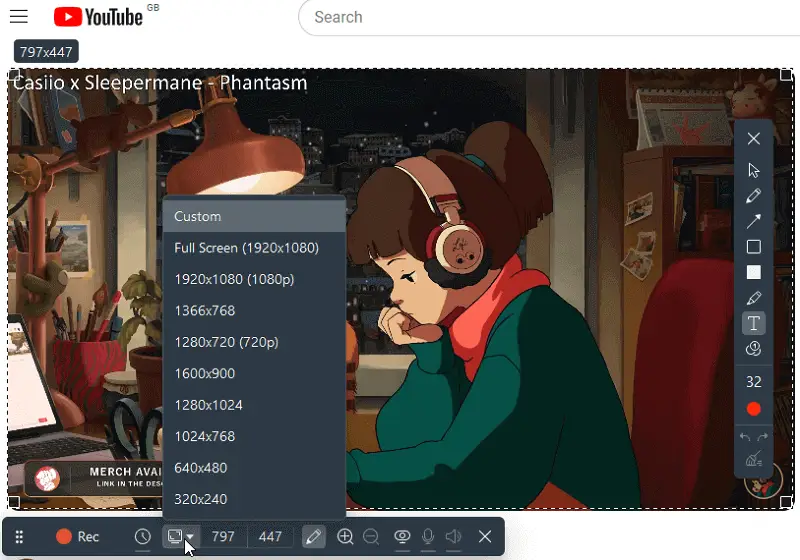
- Download screen recorder on your Windows PC and complete the installation process. Launch the program to proceed to the subsequent steps.
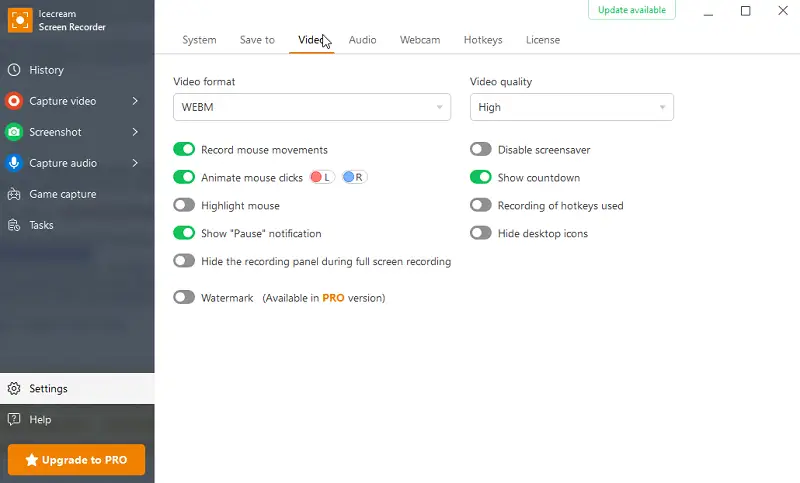
- Adjust the settings for recording streaming videos:
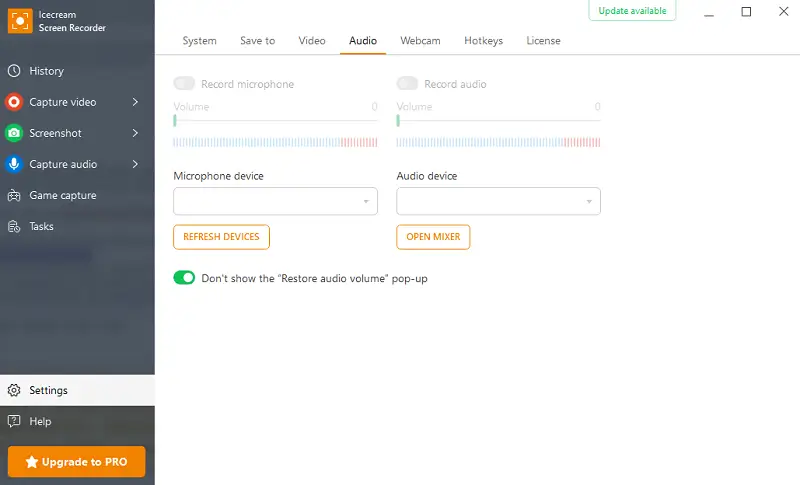
- Navigate to the "Settings" panel and access the "Audio" tab. Ensure that "Record audio" is enabled while unchecking the "Record microphone" option.
- To prevent the cursor from appearing in the video, disable the "Record mouse movements" option within the "Video" tab. This section also allows you to select the desired output format (MP4, AVI, MOV, and WebM) and set the video quality.
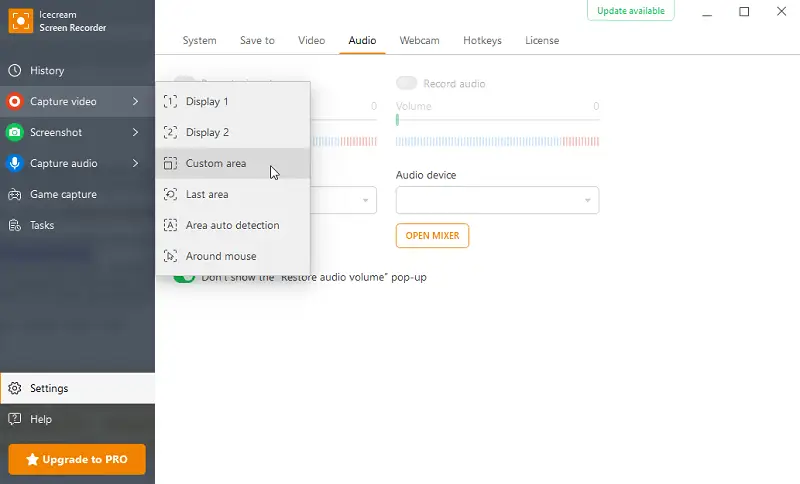
- Click the "Capture video" button to choose the mode from the provided list.
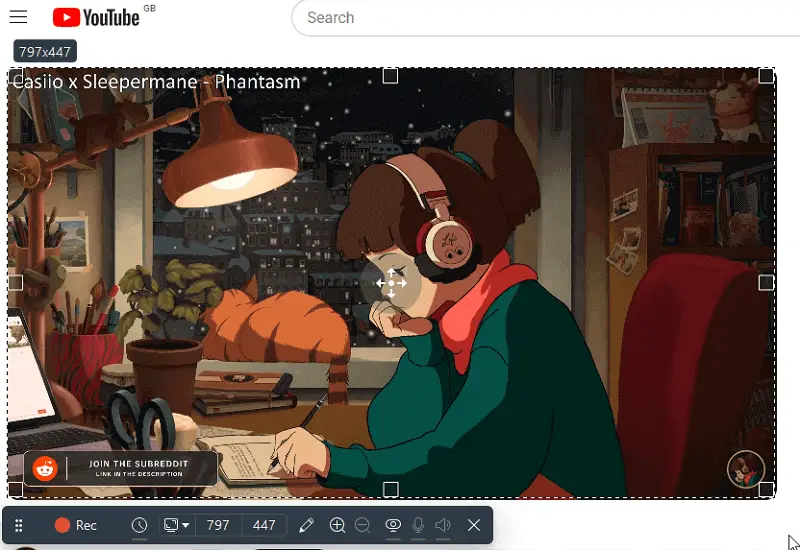
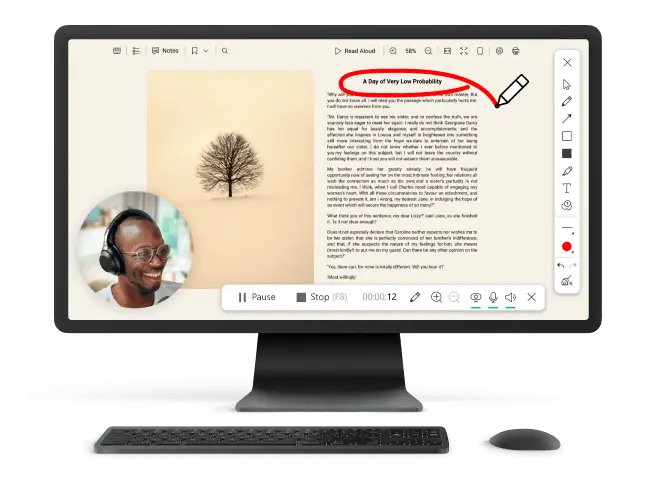
- Initiate the capture of live streaming video by pressing either "Rec" or the F7 hotkey.
- If there are any commercials or breaks, you can temporarily stop the process using the "Pause" button. Then you can continue with "Resume" (or simply utilize the F7 hotkey).
- Conclude the session by hitting the "Stop" button or employing F8, saving the video for future needs.
Pros:
- User-Friendly Interface. The screen recording software features an intuitive and easy-to-navigate interface, making it accessible for varying levels of technical expertise.
- Flexible Options. You can screen capture the entire desktop or select specific areas, providing versatility for various tasks such as tutorials, gameplay, or live streaming video.
- Audio Capture. The free screen recorder supports system sound, ensuring the preservation of audio from live streaming videos. You can also include microphone input for voiceovers.
- Basic Editing Tools. While not a full-fledged video editor, the application provides basic editing features, enabling users to trim recordings and add annotations.
- Snapshot Functionality. Users can take screenshots during the process, providing a convenient way to capture still images.
Cons:
No Live Streaming Feature. Primarily focuses on content on the screen but does not include features for live streaming directly from the application.
Overall, Icecream Screen Recorder stands out as a reliable and accessible screen capture program for those seeking a straightforward solution to record live streaming video, as well as other desktop activities, with efficiency.
OBS Studio
OBS is a free and open-source software that allows users to save streaming video. It is an ideal tool for creating professional-looking videos. The program has a functionality that makes it easy to start sharing the content.
How to record live streaming video in OBS Studio
- Download and install the programs' latest version from the website.
- Open the program and select "Settings" from the toolbar.
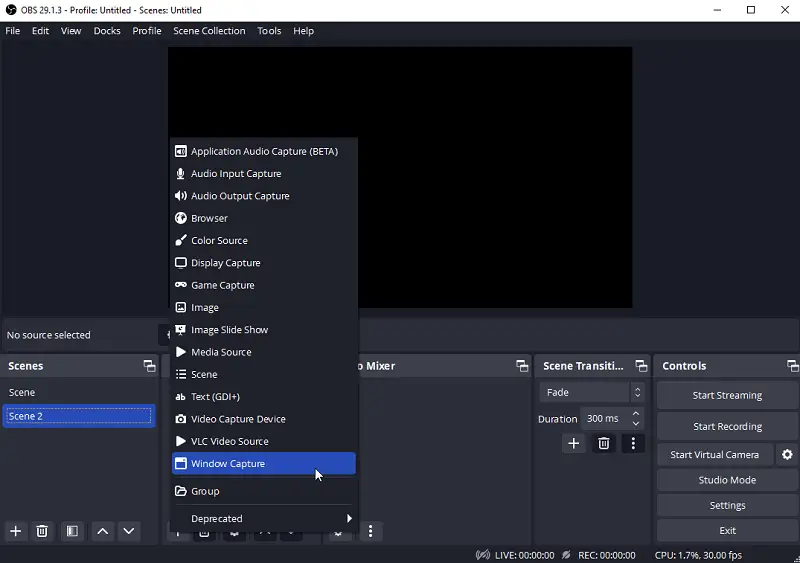
- Create a new scene by clicking the "+" under the "Scenes" box, then add a source. Opt for either "Display Capture" or "Window Capture".
- Fine-tune frame rate, resolution, and output format in the "Settings" tab.
- Initiate the capturing process by hitting the "Start Recording" button.
- Click "Stop Recording" to store your file on your computer.
Pros:
- Smooth Recording. Excels at both recording and live streaming, offering a comprehensive solution for content creators.
- Layered Video Sources. Allows the placement of video sources on different layers, enabling more sophisticated and visually appealing compositions.
- Compatibility with Services. The screen recording software seamlessly integrates with various online services.
Cons:
- Dependency on Plugins. Some advanced tasks may require the use of plugins, adding an extra layer of complexity for those seeking additional functionalities beyond the standard features.
- Limitations on Video Stream Duplication. You cannot add the same stream to multiple scenes simultaneously with standard tools, requiring workarounds for this functionality.
Whether you are creating tutorial videos, or recording live streams, OBS Studio's commitment to being open-source, and continually evolving makes it a compelling choice for those in need of a powerful and customizable solution.
VLC Media Player
VLC Media Player is a free, open-source media player and streaming video recorder. It's a decent choice for recording streaming videos from sources like YouTube, DailyMotion, and Twitch. Capturing video via this player is a simple and effective way to save for later viewing.
How to record live stream in VLC
- Download the app from the official website.
- Open the player and click the "Media" menu.
- Choose "Open Network Stream" option and type in the URL of the streaming video. Click the "Play" button.
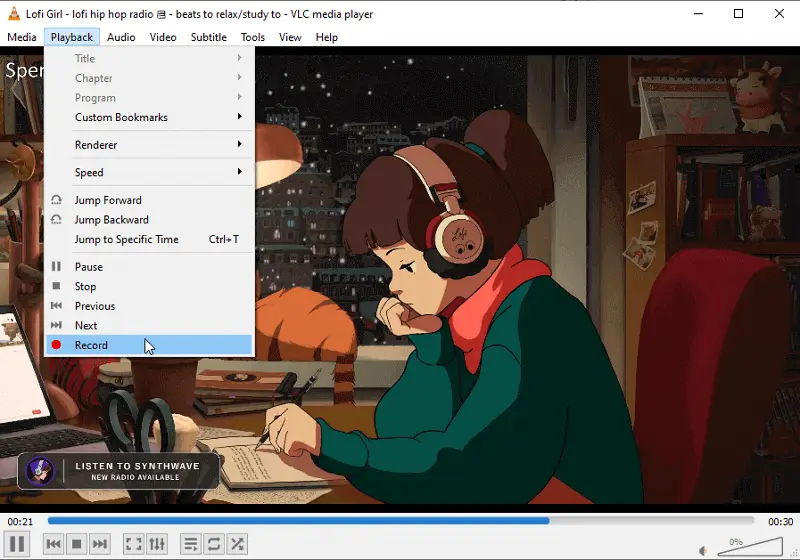
- Go to "Playback" and press the red button to begin the capture.
- Tap "Stop" to finish the recording.
Pros:
- Streaming Capability. Users can create or connect to video streams, expanding the application's utility.
- Keyboard Shortcut Control. Supports keyboard shortcuts, allowing you to control the application efficiently.
- No Codec Installation Required. Reduces the need for additional codec installations, ensuring seamless playback of music and video files.
Cons:
- Non-Customizable Interface. You cannot set up the program's interface, limiting personalization options for those who prefer a tailored visual experience.
- Direct File Opening Requirement. To play files, users must open them directly from their respective folders, which may be less convenient for those accustomed to media libraries.
In conclusion, VLC stands out as a versatile and powerful media player with a plethora recording features that cater to both casual visitors and content enthusiasts.
Video Candy
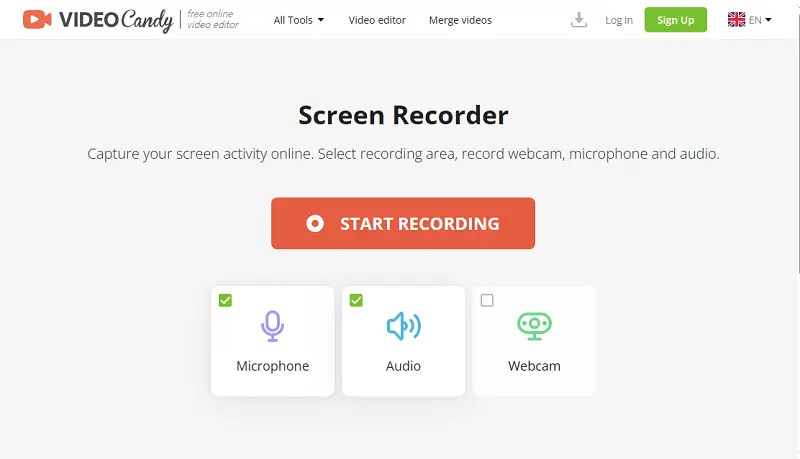
Video Candy offers a free online screen recorder that allows users to preserve activities on their computer screens in real time. You can select various capture options, including the entire screen, or a specific application window.
How do you record a live stream with Video Candy
- Open the free online screen recorder in your pre-installed browser.
- Adjust the settings like enabling audio and webcam.
- Select the area: web page, app window, or the whole display. Check the box if you want to share browser or display sounds.
- Press "Share" to start taking a video.
- Once the stream is finished, click the "Stop Recording" button.
Pros:
- No Additional Screen Recording Software Required. Being an online screen recorder, it eliminates the need to install additional software, providing a hassle-free process.
- Intuitive Interface. The service features an intuitive and user-friendly interface, catering to all experience levels.
Cons:
- Internet Dependency. The service relies on a stable internet connection. Users in areas with limited or unreliable internet access may face challenges of the tool seamlessly.
Video Candy is a good choice for those seeking an uncomplicated and efficient web-based solution. Its user-friendly design and flexibility in capture options make it a valuable asset for recording a streaming video.
Movavi Screen Recorder
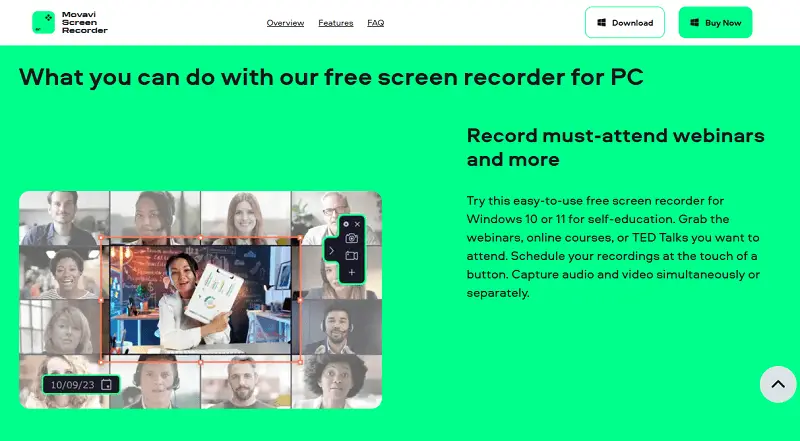
Movavi Screen Recorder is a versatile tool for capturing streaming video. It facilitates the HD clips from websites, screencasting Skype calls, webinars, lectures, and more.
How to record video streams with Movavi Screen Recorder
- Obtain and set up the program.
- Open it and click "Screen recording".
- Choose the area on the screen you wish to capture.
- Select the audio source you are aiming to preserve - system sound or microphone. Adjust the volume level suitably.
- Click "REC" to begin recording the live stream.
- When you're done, hit "Stop" and save your recording in the preferred format and destination folder.
Pros:
- Audio-Only Option. The program provides the possibility to create an audio-only version.
- Versatility for Various Levels. The screen recording software strikes a balance between simplicity and advanced functionality, making it suitable for those seeking an easy-to-use tool with extra features.
Cons:
- High Cost. While the screen recorder offers a range of features, it's quite expensive.
- Prone to Crashing. This may result in interruptions during sessions, potentially leading to the loss of unsaved work and affecting experience.
In conclusion, Movavi Screen Recorder is a powerful and versatile app, suitable for capturing, editing, and enhancing videos. While users report some bugs, the utility's wide range of features makes it a good choice for content creators and educators.
Aiseesoft Screen Recorder
Operating Aiseesoft Recorder is a breeze and has lots of features, such as capturing activities in full HD, and adding annotations while video recording.
How to record streaming videos in Aiseesoft Screen Recorder
- Download and launch the application. Then click the "Video Recorder" option.
- Adjust the area by dragging the edges or selecting a predefined area.
- Customize settings such as video format, quality, frame rate, and hotkeys according to your preferences.
- Press the "REC" button to start the process.
- Once you've captured the desired content, click the stop button on the floating toolbar.
Pros:
- High Frame Rate Recording. The screen recording software supports videos up to 60 frames per second (FPS), ensuring smooth and high-quality playback.
- YouTube Video. It allows users to record videos directly from YouTube.
Cons:
- Limited Output Formats. The software supports only MP4 and WMV as output formats, potentially restricting compatibility with certain devices or platforms.
- Free Plan Limitations. The free plan permits up to 3 minutes without editing capabilities, which may be insufficient for longer footage.
In conclusion, Aiseesoft Screen Recorder stands as a competent tool for capturing desktop and webcam activities. With features such as scheduled tasks, and the ability to record YouTube videos, it caters to a variety of needs.
Bandicam
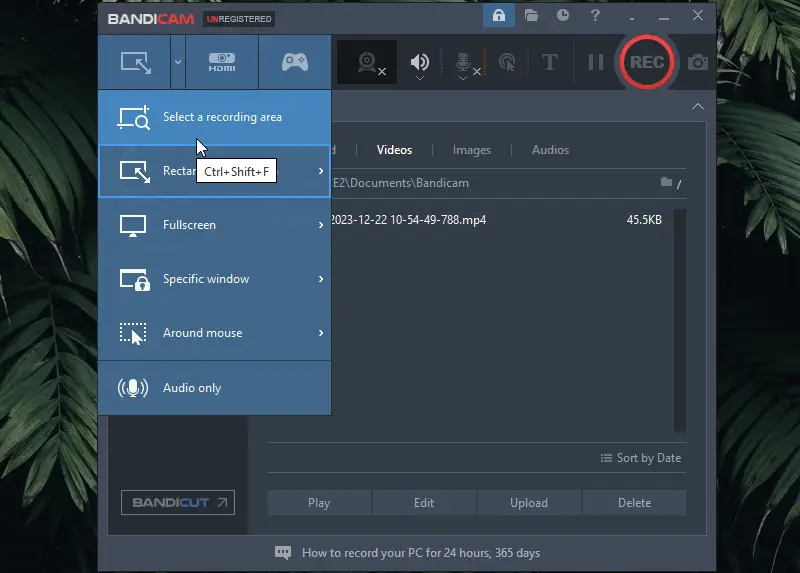
Bandicam is a popular software that supports capturing a live streams. It offers straightforward usage and gives a high-quality video and audio. You can add voice narration, that is perfect for creating tutorials or instructional videos.
How to start recording your streaming video using Bandicam
- Download and install the app on your PC from the official website.
- Launch the software and select the target area you want to record.
- Tap the gear icon to access the configuration options.
- Click on the "Record" button (red circle) to start the session.
- Press the "Stop" button (square) to end it.
Pros:
- Device Support. The possibility to capture from diverse devices such as XBOX, PlayStation, webcam, and IPTV in high quality expands the utility for different purposes.
- 4K Ultra HD. Users have the capability to record videos in 4K resolution, ensuring high-quality visuals for a more immersive viewing experience.
- Hardware Acceleration. Being a hardware-accelerated game recording tool, it likely provides efficient and optimized performance, reducing the burden on the system resources.
Cons:
- Modes Limitations. The restriction on the PC screen in the game mode may inconvenience users.
- Limited Compatibility. The stream capturer is exclusively available for Windows, limiting its accessibility for other operating systems such as Linux and Mac.
- Performance Impact. The software may experience a considerable decrease in FPS on low-spec PCs or laptops.
In summary, Bandicam is a comprehensive screen recorder with advanced features tailored for Windows users. The software offers a range of features to facilitate the capturing of various content, including gameplay, activities, and external device inputs.
ScreenRec
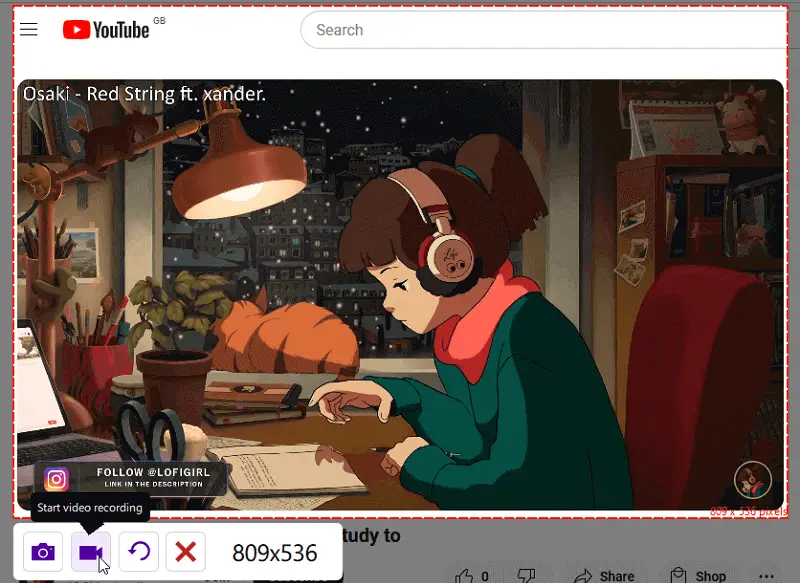
ScreenRec is an inventive tool for transmitting video. It features a range of advanced capabilities for capturing and sharing your display. You can easily record any streaming video from the web, or your desktop activity in real-time.
How to record streaming video in ScreenRec
- Download and install the software.
- Open it and click the gear icon or "Settings" to configure your preferences.
- Determine the area you want to capture by choosing "Full Screen" or "Select Area".
- Once everything is set up, click "Start Recording" and begin playing your streaming video.
- Hit "Stop Recording" to end the session.
Pros:
- Hotkey Functionality. Capture screenshots and videos swiftly with a single hotkey, streamlining the experience.
- Instant Sharing. Share your screencasts and videos quickly through a private link, facilitating seamless sharing with others.
Cons:
- Limited Recording Time. Users are initially restricted to up to only 5 minutes. To remove this limitation, creating a paid account is necessary.
- Lack of Video Editing Features. The screen recorder does not come with video editing features.
ScreenRec also supports multiple output types, so you can convert to the format of your choice. Whether you're creating a tutorial video, recording a live stream, or just capturing something off the web, it is an ideal solution.
Clipchamp
Clipchamp is a free online video recording and editing tool. It facilitates capturing of their screen, webcam, or a combination of both. It also offers features such as trimming, merging, cropping, and adding music to a video.
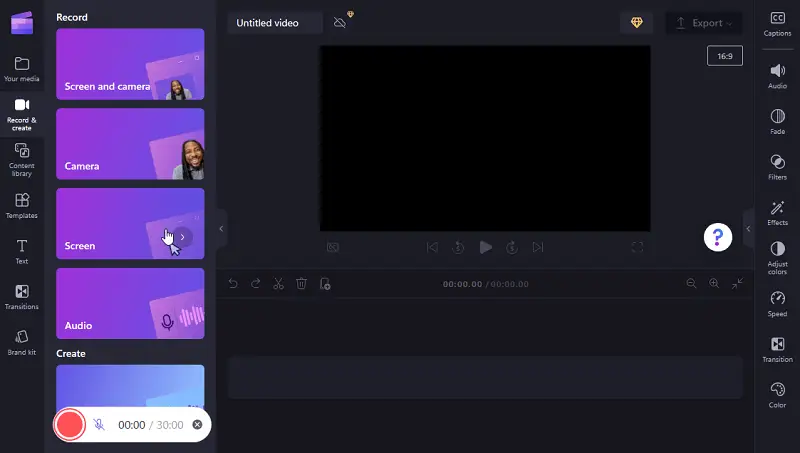
How you can capture streaming video in Clipchamp
- Navigate to the stream capturer website.
- Click "Record and Create".
- Select the method you want to use to record your video: either from your webcam, screen, or both.
- Press the red button and then decide what area to share.
- Hit "Stop Recording" when you want to finish capturing your stream.
Pros:
- No Downloads Required. Users can start recording without the need to download or install any additional applications.
Cons:
- Watermark on Videos. All videos made with this service carry a watermark, which might be undesirable for those seeking a professional and watermark-free final product.
- Export Time Consumption. The process of exporting videos may be time-consuming, which could be a drawback for tight deadlines.
Overall, Clipchamp is an excellent choice for recording streaming video thanks to its ease of use, quality output, and customer support. However, you should be mindful of potential downsides such as occasional slowness, and watermarks.
The demand for video game streaming is experiencing a swift rise among consumers, making it a thriving industry with an annual valuation of $9.3 billion.
Is it illegal to record streaming video
The answer is both yes and no. Generally speaking, it is permissible to acquire streaming video for personal use. This includes downloading or saving a stream, recording it with a video capture device, or even screen recording software.
However, the legality of saving streaming video will vary depending on where you live and what the laws of your country are.
You usually can't use such clips for business purposes, like selling it or broadcasting it, according to copyright law. You could get a fine or even go to jail if you do.
Lastly, you should know that some websites have terms of service that say you can't download their content in any way. If you break these rules, you could lose your account or have it put on hold.
So make sure to read any terms carefully beforehand.
Types of live streaming: table
| Kind | Description |
|---|---|
| Social Media | Streaming content on platforms like Facebook, Instagram, and YouTube. |
| Gaming | Live transmission of gameplay on services such as Twitch. |
| Webinar | Hosting online seminars or conferences with interactive elements like Q&A. |
| Event | Live airing of concerts, conferences, and sports competitions. |
| Corporate | Streaming business meetings, product launches, or company updates. |
| Live News Reporting | Real-time coverage of breaking or ongoing stories via digital or TV channels. |
FAQ
- Can I record live streams from any website?
- Most websites allow users to record streams for personal needs. However, some platforms may have restrictions, so it's essential to review their terms and conditions.
- What format is the most suitable for recording streaming video?
- MP4 is best for storing because it has good quality and a smaller file size than other options. If you need a higher resolution or compatibility with certain players, you can also choose an AVI or WMV format.
- Is it possible to record live streaming video in HD quality?
- The quality depends on the capabilities of the chosen tool. Some software supports HD, so be sure to check the settings beforehand.
- Can streaming platforms detect screen recording?
- Yes, some have technologies to detect and prevent recording live streams.
- What should I do if the streaming platform prohibits recording?
- Respect the terms of service of the website. If it is prohibited, seek alternative ways to access the content legally, or contact the owner for permission.
- How can you bypass DRM (Digital Rights Management)?
- Bypassing DRM is illegal and violates the terms of service of most streaming platforms.
- Can I capture a video stream for educational purposes?
- Educational needs might fall under fair use in some jurisdictions, but it's often still restricted without explicit permission.
- How to reduce the size of screen recordings?
- Lower the resolution and frame rate, try efficient video codecs like H.264, and trim unnecessary footage.
Conclusion
In conclusion, capturing streaming video is an excellent approach for safeguarding content for further viewing. It may seem hard at first, but with the right tools, the job can be done quickly.
Before you share the results, make sure you have the right permissions and a fast internet connection. Following these steps will make it easy for you to record high-quality videos from streaming video.

Chefredakteur bei Icecream Apps
Co-Autoren

Experte für Technische Texte
