
Slideshow Timing and Transition Strategies
Slideshow timing plays a crucial role in how your audience experiences your presentation. Well-timed slides paired with smooth transitions can highlight important information and create a natural storytelling flow.
In this article, we’ll explore how to choose cool slide transitions and adjust pacing for results that look polished and professional.
Why slideshow timing matters?
When you deliver a speech, your slides don’t just support your words—they guide your audience’s attention. That’s why timing is more than a technical setting; it’s a communication strategy.
Engagement and Flow
A good-paced video slideshow keeps viewers engaged. If images change too quickly, they may feel rushed and miss important details. If they linger too long, attention drifts. Striking the right balance ensures your visuals move at the rhythm of your message.
Think of it as the heartbeat—steady enough to feel natural, but flexible to adapt when emphasis is needed.
Emotional Impact
Timing can also influence how people feel about your content. For example:
- A slower transition during a powerful quote gives your audience time to reflect.
- A quicker pace through supporting data can keep momentum and avoid stagnation.
- Strategic pauses, where content remains visible a moment longer, create anticipation and weight.
Storytelling Rhythm
Just as authors pace dialogue, action, and description, presenters can pace their slides to build tension, deliver key points, and bring resolution.
Consider this flow:
- Introduce a new idea → hold briefly.
- Provide supporting visuals → move at a steady rhythm.
- Conclude the section → allow extra time before transitioning.
This helps a great presentation feel like a journey rather than a series of disconnected images.
Recommended durations for different content
| Type | Timing per Slide | Notes |
|---|---|---|
| Title / Section Divider | 2–4 seconds | Enough time to reset attention and prepare for the next topic. |
| Text-Heavy Slide | 20–30 seconds | Give viewers time to read while you emphasize key points verbally. |
| Bullet Point Slide | 10–15 seconds | Works best when you reveal points gradually or summarize quickly. |
| Image-Only Slide | 5–8 seconds | Maintains momentum while letting visuals make an impact. |
| Data / Chart Slide | 30–60 seconds | Allows for explanation and audience interpretation of complex info. |
| Quote Slide | 8–12 seconds | Short enough to keep energy, long enough to reflect on meaning. |
| Video or Animation | Full length + 2–3 seconds | Always allow a brief pause after the media plays before moving on. |
| Comparison Slide | 15–25 seconds | Long enough to point out differences without dragging. |
| Infographic | 30–45 seconds | Complex visuals need extra time to digest information. |
| Interactive Question | 20–40 seconds | Leave space to think or respond before proceeding. |
| Closing / Thank You | 5–7 seconds | A brief pause for acknowledgment and wrapping up. |
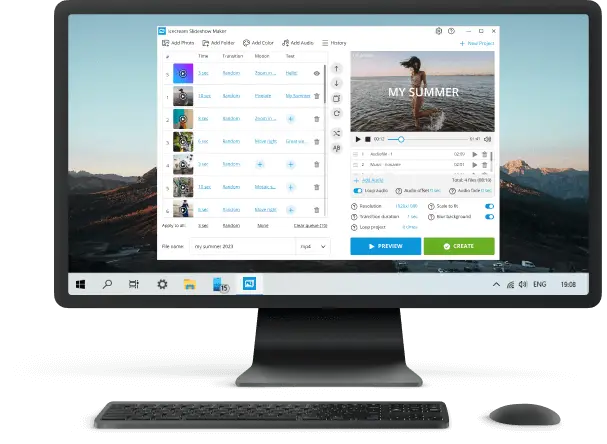
Software with the best slideshow transitions
Each program approaches timing and transitions differently. Here’s how some of the most popular ones handle it.
- Clear layout with straightforward duration controls for individual slides.
- Option to apply one consistent interval across the project or customize each frame separately.
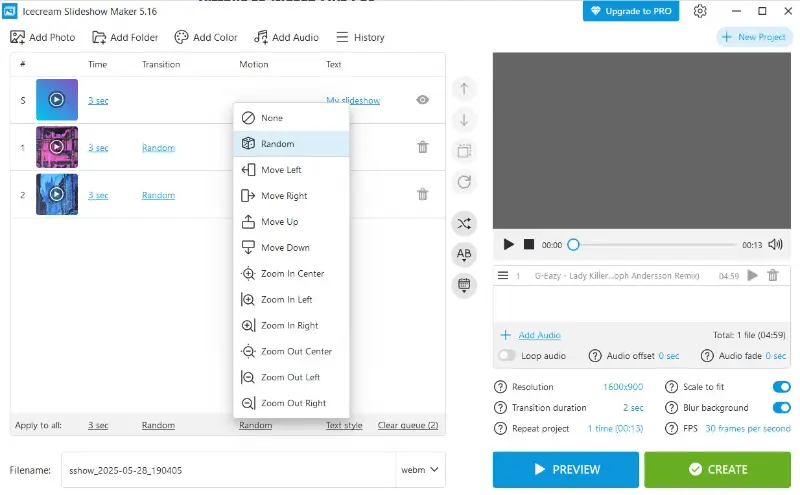
- Includes a broad set of effects such as fades, wipes, and zooms.
- Especially useful when exporting video slideshows with music or voiceover.
PowerPoint
- Open the Transitions tab to select both the effect and change speed.
- Try Rehearse Timings to match slides with your spoken delivery.
- Adjust intervals down to fractions of a second for consistent pacing.
- Combine manual clicks with automatic advance to create flexible movement.
Keynote (macOS)
- Modify slide intervals in the Animate panel.
- Unique transitions such as Magic Move provide fluid storytelling.
- Ideal for visually rich content or design-focused projects.
- Practice mode lets you test the pace before presenting.
Google Slides
- Add animations and transitions from the View → Motion panel.
- Publish a presentation with automatic changes for web playback.
- Works best when collaboration and cloud access matter most.
- For more precise control, convert to video or integrate add-ons.
Mastering slideshow transitions
Transitions can elevate a presentation when applied with care, but if they dominate the screen, it can distract from your central message.
The goal is to know when a light touch is appropriate, when a bold move adds impact, and how to keep everything in sync with your delivery.
Transition Slide Ideas
Not every effect carries the same weight. Some quietly support the flow, while others take center stage:
- Gentle options like fades or clean wipes help maintain continuity without stealing attention. These are well-suited to professional, academic, or formal settings.
- Showy techniques such as spins, flips, or 3D rotations can energize a presentation but should be rare. Save them for a standout moment—introducing a key idea, highlighting a major reveal, or going into a completely new section.
Tip: if the animation becomes more memorable than the information itself, it’s overshadowing your content.
Moving Slideshow with Purpose
Picture changes should serve a clear function.
They can:
- Mark a shift in subject or direction.
- Offer a visual pause that lets the audience process information.
- Reinforce the tone of your story—slow dissolves for reflective material, brisk cuts for energetic parts.
Think of slide transitions as navigational markers, guiding the audience through your storyline rather than acting as decoration.
Coordinating Image Transition Effects with Audio
When your slideshow is paired with music or narration, aligning transitions with those elements creates a polished rhythm.
- Advancing right after finishing a sentence feels natural and intentional.
- Changing on the beat of a soundtrack intensifies atmosphere.
- Holding a frame just a moment longer than expected can build anticipation.
This coordination ensures the presentation feels unified and immersive.
Pitfalls to Watch Out For
Even strong visuals can be weakened by poor choices in this area.
Avoid:
- Overloading with flashy animations that feel distracting.
- Mixing too many styles, which creates inconsistency.
- Pushing slides forward too quickly, leaving viewers behind.
- Skipping practice runs, which may cause lag or awkward delays.
Conclusion
Perfecting timing and transitions for a slideshow is about more than just setting automatic durations or choosing flashy options. It’s about controlling the rhythm of your presentation.
By aligning slide changes with your speech, using effects sparingly but effectively, and tailoring pacing to your audience, you create a more immersive and memorable experience.
With the right balance of timing and design, your slideshows can move beyond static visuals and become powerful storytelling tools.

Editor-in-Chief at Icecream Apps
