
Open Source PDF Editors: Top 8
Are you in search of a free PDF editor? Look no further. We've done the research and compiled a comprehensive list of the 8 best open-source PDF editors on the market. All of them can be used as a free alternative to Adobe Acrobat and other expensive programs.
In this article, we will discover the advantages, disadvantages, and unique features of each editor to help you make an informed choice for your needs.
With these free PDF software, you can make quick edits to documents without spending a dime. Whether you need to sign papers, remove pages, add annotations, or redact sensitive information, these tools get you covered.

How we picked open-source PDF editors
Choosing the best free PDF editor isn’t just guesswork — we actually weighed several factors to ensure the options would work for all sorts of folks. Here’s what stood out to us:
- Platform compatibility. A good app should play nicely with Windows, macOS, and Linux. Nobody wants to be left out just because of their pick of computer.
- Ease of use. No one has time to decipher confusing menus. We looked for PDF software with clean, intuitive interfaces that don’t require a tech manual to navigate.
- Editing capabilities. It’s not enough to just view a file. You need to be able to add or remove text, tweak images, and generally shape your PDFs however you want.
Why choose an open-source PDF editor
A PDF editor, in case you’re wondering, is simply utility that lets you assess, change, or even create files from scratch. With open-source options, the code is out in the open — meaning anyone can look under the hood, adjust things, or share improvements.
Advantages of using such open-source PDF editors:
- Completely free to download and employ — no hidden charges lurking.
- You can fine-tune the program to better suit your workflow.
- If you care about privacy or security, you can actually review the code to see how things work.
- Usually available for all major operating systems, so you’re not boxed in by your device.
- If you’re feeling ambitious, you can contribute ideas to help make the tool even better for everyone.
A paper from the U.S. Bureau of Economic Analysis estimates that in 2019, the U.S. invested US $36.2 billion in OSS.
1. LibreOffice
LibreOffice is an open-source suite offering everything from a word processor to spreadsheets and presentation utensils. It’s a solid alternative if you’d rather not spend money on Microsoft Office.
The package comes with a Drawing tool. This lets you jump right into editing PDF files, no need to hunt for extra programs.
Add text, images, signatures, and more to your PDFs. This software also allows you to modify the layout of the document, change the font size and color of text, incline or remove PDF pages, and much more.
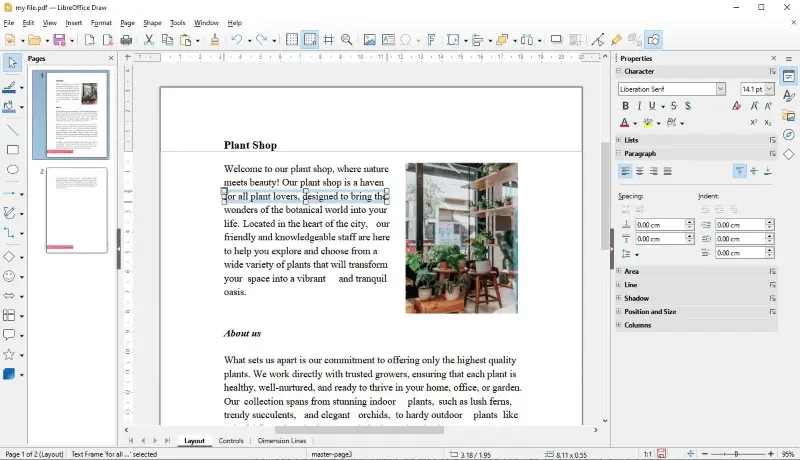
The free PDF editor can export the files in different formats including HTML and PDF/A which is the standard for archiving documents.
All changes are saved automatically meaning you don't have to worry about losing any work. The platform also offers cloud storage options so you can access your papers from anywhere.
With its extensive capabilities and storage possibilities, it's not hard to understand why LibreOffice is one of the most widely used open-source programs available today.
Pros:
- Export to various formats;
- Annotations and commenting;
- PDF form-filling capabilities;
- Variety of user interface options.
Cons:
- You have to download the whole suite;
- The installation file is much larger than the other options mentioned in this article.
Overall, LibreOffice is a great choice if you are in search of an open-source office suite that includes a powerful PDF editor. It's free to download and use on any computer running Windows, macOS, or Linux.
2. Inkscape
Inkscape is an open-source PDF editor for designing vector images adopted by millions of graphic designers, illustrators, and hobbyists. The program is designed to be intuitive and easy, while also providing robust features that make it suitable for professional work.
Its real power lies in its ability to export artwork as a PDF. This feature makes the free PDF software ideal for creating documents such as brochures, flyers, presentations, magazines, book covers, manuals, and more.
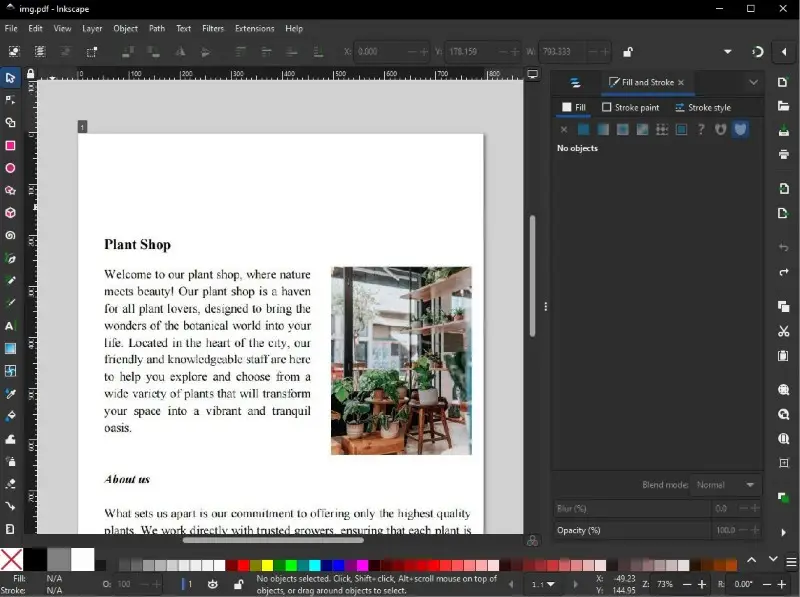
When you import your document, the PDF editing software treats each page as an individual layer. You can redact various elements such as shapes, and images within each layer.
However, if you choose the Poppler/Cairo import option, the program will convert text elements to vector paths. While this allows changing pictures and other elements, it means you can't modify existing PDF text.
This problem can be fixed by choosing the Internal import option, but the retouching is still limited.
It is possible to change the font color or highlight text but if you try to remove text, you will end up with a blank space between words. You will have to delete the entire paragraph and add a new text block if you want to edit some information.
Pros:
- Easily craft vector graphics right inside your PDF;
- Tweak images, shapes, and other objects to get things just how you want them;
- If a font’s missing, it’ll automatically pick out a close match.
Cons:
- Complex PDFs might suffer from lost formatting;
- Inconvenient PDF text editing process;
- Support for advanced features, like interactive form filling, is pretty limited.
All in all, Inkscape packs a lot of punch for a free vector graphics editor. It’s accessible enough for beginners but still offers the kind of tools pros appreciate. If you want to create or refine PDF artwork without spending any cash, it’s definitely worth a look — even if it has a few quirks with tricky documents.
3. OpenOffice
OpenOffice Draw is part of the suite, integrating seamlessly with Writer, Calc, Math, Base, and Impress — basically, the whole set. It's a surprisingly capable vector-based instrument, perfect for whipping up everything from diagrams and flowcharts to logos or sketches.
Now, here's the catch: it doesn't come with a built-in PDF editor. If you want to refine PDFs, you'll need to install an extra extension called PDF Import. Not exactly plug-and-play, but for a free tool, it's a small price to pay. All in all, the app gets the job done without too much fuss.
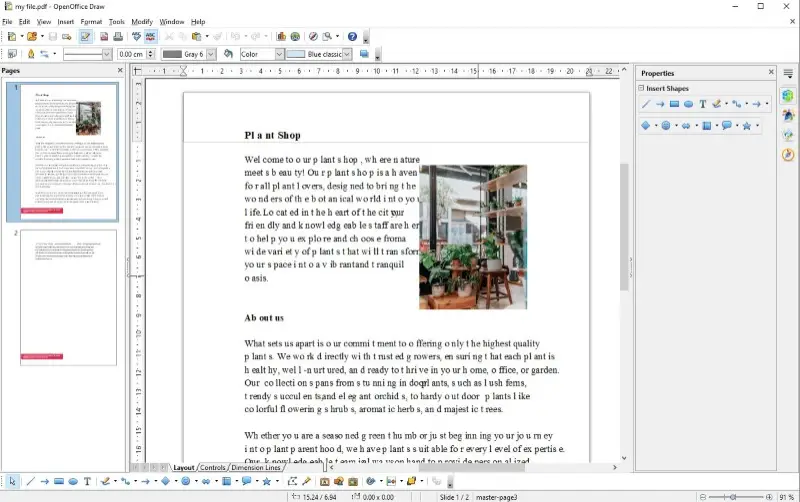
After you've installed everything needed, you can modify the text, add, remove, or extract images from PDF, and alter the layout of your document without having to convert it to another format beforehand.
The interface is intuitive and straightforward. You can insert text with the Text Tool or use the Fill Tool to add color or texture to shapes or lines in your drawings. There are also lots of features for manipulating objects in your PDFs such as resizing, rotating, skewing, and more.
Pros:
- Text and object editing;
- Basic annotation features.
Cons:
- No built-in PDF support;
- Loss of formatting.
OpenOffice Draw is a perfect option for those in need of a PDF editor at no cost. However, we wouldn't recommend it for text editing as its text recognition features aren't great.
According to a study, open source components appear in 96 % of codebases.
4. PDFsam
PDFsam Basic is an open-source PDF editor for Windows, Mac, and Linux systems. It provides a set of tools for splitting, merging, and rotating PDF documents, offering a simple and intuitive interface for users to manipulate their files.
In no time at all you can easily divide PDF pages into separate docs or combine multiple documents into one. Plus, you can rearrange pages within a PDF quickly and easily.
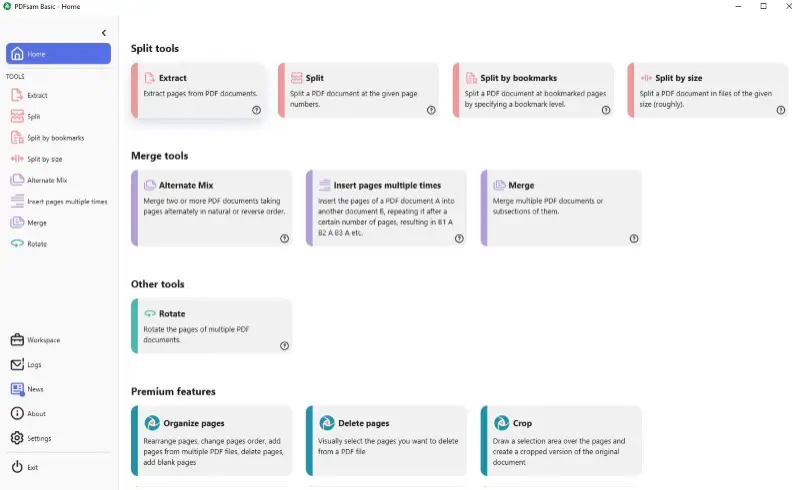
The free PDF editor provides a range of advanced features such as the ability to split documents by bookmarks or size. It also supports batch processing. For example, it can insert the pages from one document into other papers, repeating it after a certain number of pages.
When it comes to security, this free PDF editing software protects your files with 256-bit AES encryption.
The main downside is that refining text and other elements within the PDF document is only available with PDFSam Enhanced, which is a premium version of this PDF editor.
The premium features include additional security settings, such as password protection and digital signing to help secure your files. It also offers tools for working with PDF forms.
Pros:
- Splitting and merging utensils;
- Command-line interface;
- Batch processing;
- PDF conversion.
Cons:
- Limited editing features in the free version.
Overall, PDFsam is a powerful free PDF editor that enables to manage their documents more efficiently. Combined with its advanced features and security options, it's an ideal tool for any who needs to work with PDFs on a regular basis.
5. PDFedit
PDFedit is a liberated PDF editor for Windows and Linux systems. Being free and lightweight, this software is the perfect choice for those needing to make alterations to their PDFs.
The PDF editing software includes a set of command-line tools and a library for manipulating PDF documents.
The application has features like editing PDF text, images, annotations, bookmarks, page setup options, watermarking, signing documents with a digital signature, and more.
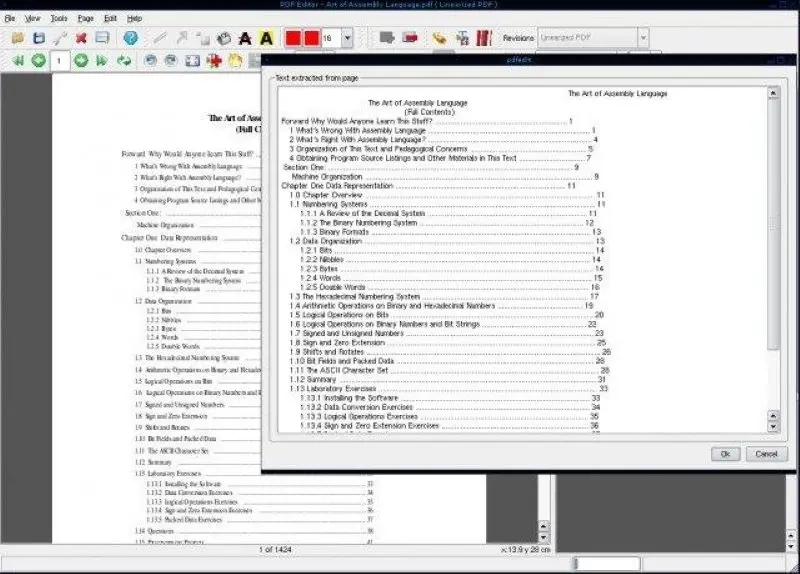
Consumers can add annotations like notes or comments and insert new pages into the PDF or delete existing ones.
PDFedit also allows to export edited PDFs as JPEG images or other formats. This is beneficial if you need to share your files with someone who doesn't have a PDF reader installed on their computer.
Pros:
- Free PDF editor with quick installation;
- Page manipulation tools;
- CLI to perform operations via scripts.
Cons:
- Outdated interface.
Overall, PDFedit is a great open-source PDF tool for anyone who needs a quick way to adjust a PDF for free. However, we can't recommend it for users with limited technical skills as the installation process and interface might be confusing.
6. PDF4QT
PDF4QT is a lightweight and efficient C++ library that provides developers with a practical command line and a range of tools for working with PDF files.
Regular users have access to four applications: Viewer Profi, Viewer Lite, DocPage Organizer, and DocDiff. The one you need for editing PDF documents is Viewer Profi.
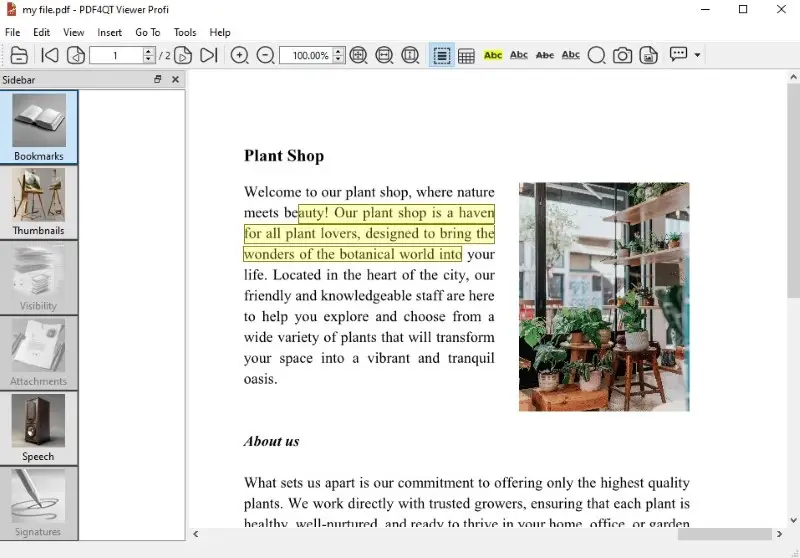
The free PDF editor excels in rendering PDF, ensuring that the content is accurate to the original layout.
After you've opened the PDF you want to modify you can select one of the available options from the Edit drop-down menu. Here you can select phrases you want to highlight or underline, copy text, and search for a word in a PDF.
The PDF editing software allows to add comments, providing users with interactive and collaborative document experiences.
Pros:
- Qt Integration;
- PDF annotation support;
- Data extraction tools;
- Is actively maintained and receives updates.
Cons:
- You can't edit PDF text.
7. Skim
Let’s take a look at Skim. This open-source PDF editor has built a solid reputation among Mac users for its reliability and flexibility. If you’re looking for a straightforward way to highlight, underline, or jot down notes directly on your PDFs, the app does the trick without much fuss.
Perfect for research, studying, or just reviewing documents — honestly, it’s hard to find a simpler tool that covers these bases so well.
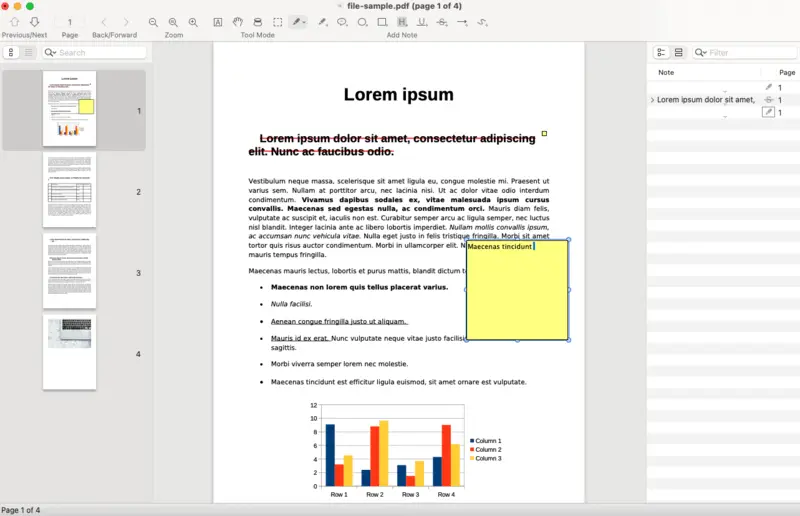
The free PDF editing software is known for its basic interface and customizable features, allowing users to tailor their experience. You can open several papers at once, which is a lifesaver if you need to compare articles or cross-check information. For readers, it’s got all the essentials: bookmarking, note exporting, and even support for eBooks.
And for the academics or anyone dealing with LaTeX files, Skim’s integration with PDFSync and SyncTeX is a real bonus. It just makes the workflow smoother, and that’s always appreciated when you’re knee-deep in scientific papers.
Pros:
- Excellent for annotation and reading;
- Optimized for macOS;
- Handy integration for scientific documents.
Cons:
- No ability to edit the existing text;
- Relatively limited toolkit.
8. GIMP
GIMP, or GNU Image Manipulation Program, is an open-source image editor that can also be used as PDF editing software, albeit with some limitations.
Primarily designed for tasks like photo retouching, the program allows you to open and manipulate PDF files one page at a time. When you import a document, each page is converted into an image format, allowing you to work on it using a suite of photo editing tools.
You can modify text, images, and other graphical elements on the page, but there are a few restrictions. Since GIMP treats pages as images, it doesn’t retain vector information. This makes it unsuitable for text-heavy PDFs or for tasks requiring text manipulation.
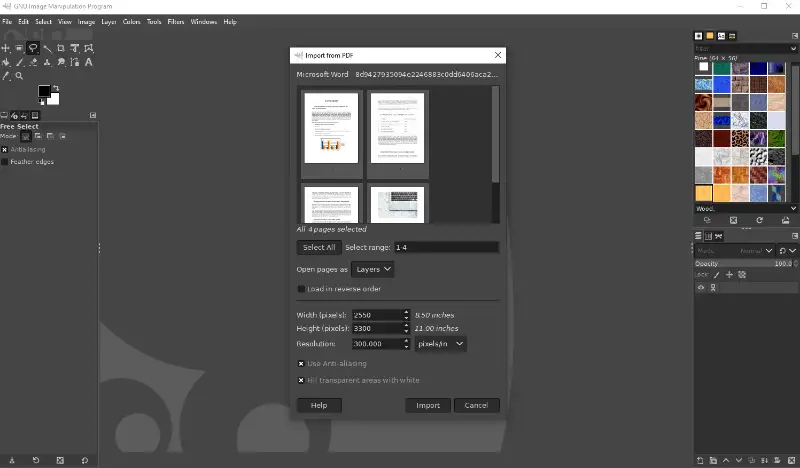
Additionally, after editing, you'll need to export each page as a picture. You will then have to use a separate tool to combine these images back and merge files into one PDF if that’s required.
Pros:
- Runs on various operating systems, including Windows, macOS, and Linux.
- Offers a wide range of tools for editing images, including layers, masks, filters, and diverse effects.
Cons:
- Doesn't support text layer retention or precise text manipulation.
- When importing PDFs, the app rasterizes the content, losing any vector information.
- You can only edit one page at a time.
Overall, while GIMP can be useful software for certain types of PDF changes, especially those focused on graphical content, it's not a comprehensive PDF editor.
How can you change an open-source PDF editor?
- First, double-check that the license actually lets you modify it. Something like MIT or GPL should be fine.
- Visit the project's repository, typically hosted on platforms like GitHub, GitLab, or SourceForge.
- Download the source code. Easiest way? Clone it with
git clone <repository-url>, or just grab the zip if that’s more your style. - Go through the project documentation to see what tools and libraries you’ll need. Every project has its own list of weird requirements.
- Set up whatever software they recommend — could be an IDE, a code editor, or specific build tools.
- Configure environment variables if required.
- Review README files, contribution guides, or developer wikis.
- Familiarize yourself with the directory structure and core components.
- Build the unmodified project to ensure your setup is correct.
- Find the part of the code you want to update — maybe it’s the interface, the PDF engine, or how materials are handled.
- Make changes in the relevant files using your preferred code editor.
- Test the open-source PDF editor thoroughly to ensure functionality and stability.
Key features to look for in an open-source PDF editor
- Content Modification – Adjust, insert, or remove text.
- Markup Tools – Highlight, underline, annotate, or sketch.
- Form Handling – Complete interactive fields or design new ones.
- Page Management – Rearrange, extract, or combine sections.
- Format Conversion – Transform files between PDF, DOCX, ODT, and images.
- Security Options – Encrypt, password-protect PDF, or apply digital signatures.
- Text Recognition (OCR) – Extract characters from scanned pages.
- Multi-Platform Support – Compatible with Windows, macOS, and Linux.
FAQ
- Can I edit the text in a document using open-source PDF editors?
- Yes, many free PDF editors support text editing. You can add, delete, or modify text content within the documents.
- Are open-source PDF editors secure to use?
- Regularly updated and supported by an active community software is secure. Always download from official sources and keep your software updated.
- Can I customize the interface of open-source PDF editors?
- Depending on the editor, customization options may be available for interface elements, toolbars, and shortcuts.
- How do I report bugs or request features?
- Most open-source projects have community forums or bug trackers where users can report issues, suggest features, or seek assistance.
- Is there customer support for open-source PDF editors?
- Such software typically relies on community support, forums, and documentation. Some projects may offer premium support for commercial versions.
- Can I use open-source PDF editors for professional or business purposes?
- Yes, many programs are suitable for professional use. Consider the specific features and licensing terms of each tool on their official website.
- How can I stay informed about updates in free PDF editors?
- You can subscribe to mailing lists, follow project blogs, or join community forums to stay updated on new releases, features, and announcements.
Tips
- Choose the right tool. Explore different open-source PDF editors to find one that aligns with your needs.
- Check for updates. Regularly check for updates to ensure you have the latest features, bug fixes, and security patches. Many open-source projects have active communities that contribute to ongoing development.
- Review documentation. Familiarize yourself with the documentation provided by the project. Understanding the features and capabilities of the PDF editing software will help you use it more effectively.
- Explore keyboard shortcuts. Learn and employ keyboard shortcuts to speed up your workflow. Most free PDF editors provide shortcuts for common tasks, improving efficiency.
- Collaborate with the community. Join forums, discussion groups, or communities associated with the PDF editor. Engaging with the community can provide valuable insights, troubleshooting help, and tips for advanced usage.
- Back up your work. Regularly back up the PDF documents, especially before making extensive edits. This ensures you have a copy of your work in case of unexpected issues.
- Consider security measures. If you're handling sensitive information, remember the security measures. Ensure that the open-source PDF editor allows you to add a password to your document.
- Report bugs. If you encounter bugs or issues, report them to the open-source community. Providing constructive feedback helps improve the software for everyone.
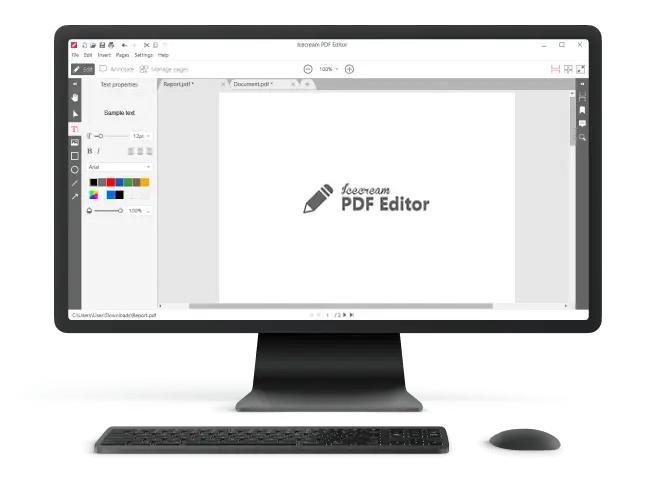
Best open-source PDF editor - Conclusion
By using open-source software, you can save money and get access to powerful tools without spending a fortune. Today we highlighted some of the best free PDF editing software.
Each editor offers different features and tools that can help you edit PDFs with ease. No matter which editor you choose, make sure it meets your requirements and provides all the features you need.
Tech Writer and Photography Aficionado
