
4 Free Audio File Converters
Converting audio files can honestly be a bit of a headache, especially if you’re not super tech-savvy. Maybe you just want your music to play nicely on every device or you’re trying to save some space — either way, I’ve dealt with that struggle more times than I’d like to admit.
Here, I’ll walk you through how to convert tunes and shed some light on the differences between the main formats. I’ll lay out the strengths and drawbacks of each method so you can confidently choose the utility that actually fits your situation.

How we picked audio file converters
Selecting the best audio converter involves considering several crucial criteria to ensure efficiency, reliability, and satisfaction.
- Format compatibility. If it can’t handle the usual suspects — MP3, WAV, FLAC, AAC, and so on — it’s just not practical.
- Ease of use. A smooth, simple interface goes a long way. The simpler it is to navigate, the better.
- Conversion speed. Nobody wants to wait forever. Fast results are great, but not if it ruins the audio quality.
Method 1. Icecream Video Converter
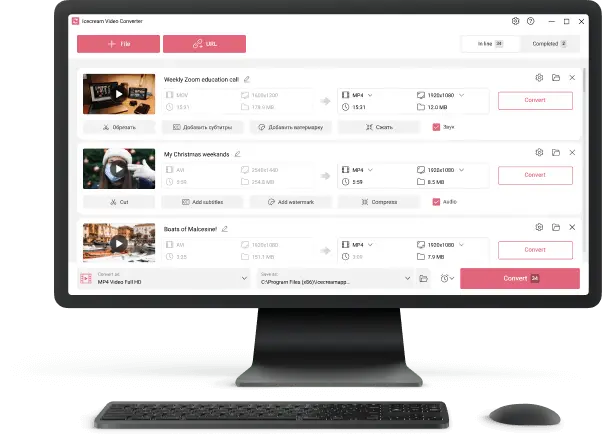
Icecream Video Converter makes sound transformation refreshingly simple. The UI isn’t cluttered, and you won’t find yourself lost in endless menus. It’s efficient, reliable, and honestly, I’ve found it pretty enjoyable.
How to convert mixes using Icecream Video Converter:
- Download free media converter and install it.
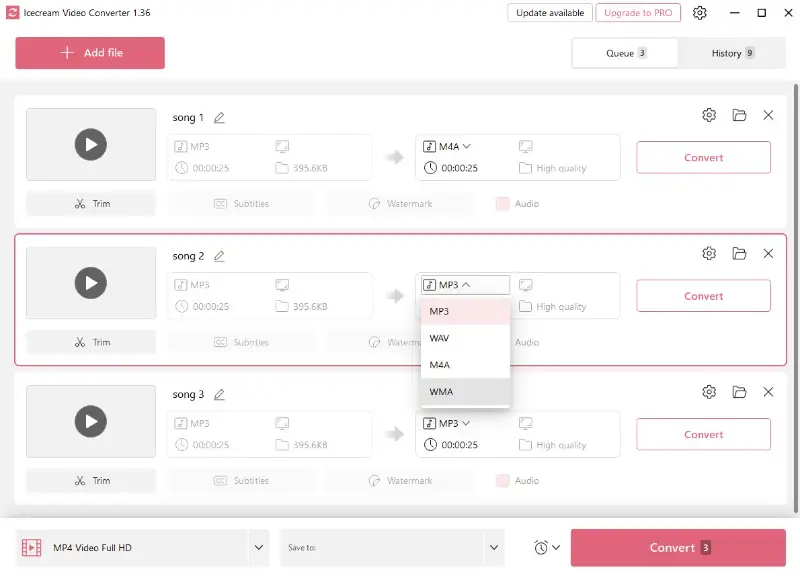
- Once you open the program, use the "Add File" button to select the desired audio for conversion.
- Select the output format from the drop-down menu next to each preview.
- If you want to edit the track length, you can do so by clicking "Trim" next to your selected track.
- Choose the destination folder where you want your song to be saved.
- Press the "Convert" button to initiate the conversion process.
Pros:
- Speedy conversion. It’s honestly impressive how quickly the software processes samples, and the quality holds up.
- Batch modification. You can convert a stack of files at once, which is a real time-saver if you’ve got a pile.
- Post-production. The software allows you to make edits to your audio before transforming them.
- Frequent improvements. Updates roll out regularly, so you get new features and fixes all the time.
In my experience, Icecream Video Converter is a trustworthy tool for anyone who intends to change up their formats. It covers the basics (and then some), all without making things complicated. If you wish a smooth, high-quality conversion, it’s hard to go wrong here.
Method 2. 1-Click Video Converter
1-Click Video Converter is a robust free application for macOS that lets you alter the extensions of various multimedia pieces effortlessly. I’s one of those instruments that just does what it promises — no drama.
See the guide to using this audio converter below:
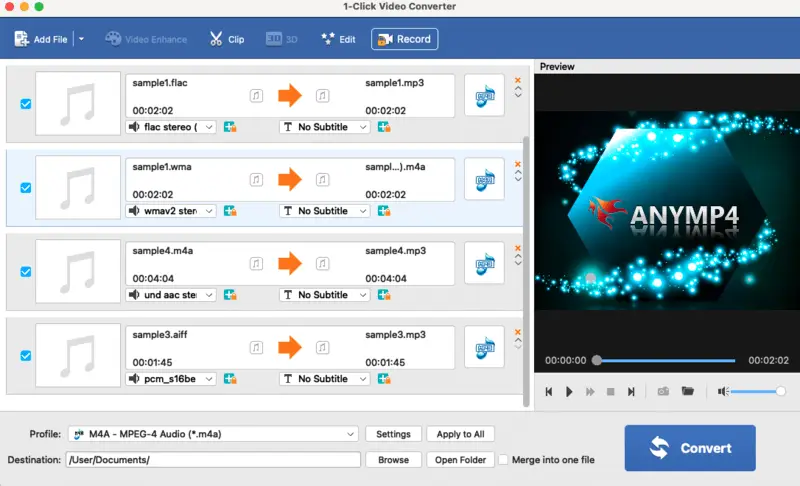
- Download the program from the App Store. Launch it.
- Click the "Add File" button in the top left corner and import the audios for conversion.
- In the "Profile:" field, select the desired output. Got several takes? You can turn them all to a single format with “Apply to All,” or set a different one for each if you feel like mixing things up.
- Hit "Convert" when you're ready. Check the "Open output folder" box and the software will redirect you to the destination location of your converted bites upon finishing the task.
Pros:
- Free and simple. With this audio converter you don’t need a manual.
- Bulk processing. Can process files simultaneously in a bulk of different formats.
- Variety of formats. From MP3 and WAV to OGG and MKA, it covers both the usual suspects and the more obscure types.
Cons:
- Limitation on quality. The free version only lets you convert to standard quality. If you’re after lossless audio, you’ll need to buy a license. Not ideal, but at least you know upfront.
To sum up, I think 1-Click video Converter offers a smooth and efficient method of changing the format of audio. If you want something quick, reliable, and free (for basic needs), it’s definitely worth a try.
Method 3. Audacity
Let’s dig into Audacity for a minute. If you’re looking for a free way to modify audio demos, this one’s surprisingly versatile. It’s open-source and has been around for ages — it’s a staple in the music world. Not only can you edit and polish your recordings, but you can also switch extensions pretty easily.
The process of converting audio using Audacity:
- Download and install Audacity on your computer.
- Open it and click "File" in the top menu bar.
- Select "Open" and pick the audio you want to convert.
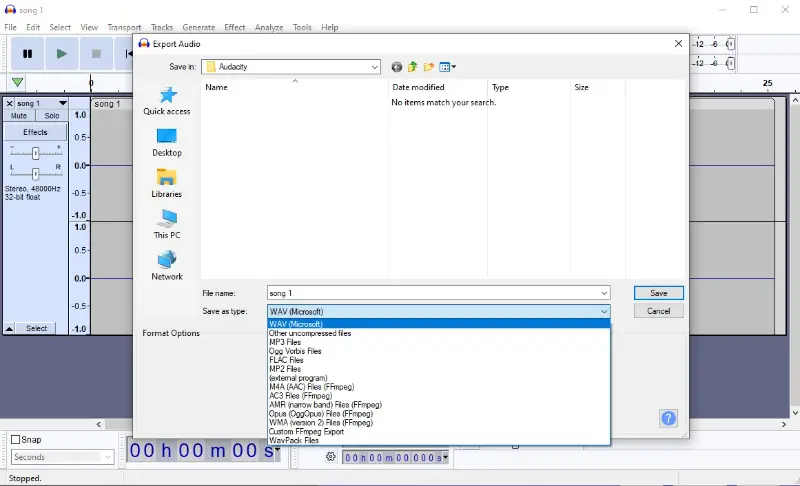
- Once the sound is loaded, go to "File" again and select "Export Audio".
- Choose the desired format for your output clip from the menu.
- Click "Save" and wait for the process to finish.
Pros:
- Complimentary. Free audio converter won’t cost you a cent, which is always a plus.
- Format support. Whether you need MP3, WAV, FLAC, or something else, it’s got you covered.
- Cross-platform compatibility. Windows, Mac, Linux — it doesn’t play favorites.
- Full-featured. Beyond converting, you can record audio, edit tracks, and even add effects if you feel like experimenting.
Cons:
- No batch utensils. This one’s a bit of a drawback. You have to turn recordings one by one, so it’s not ideal if you’ve got a long playlist to process.
The use of Audacity in converting audio offers a convenient and efficient solution for changing their format. It is free, friendly, and provides a variety of formatting choices while ensuring top-notch audio quality.
Method 4. FreeConvert
With FreeConvert, transforming your audio is a hassle-free process. There’s no installation required, and you’re not stuck with a handful of formats — the site supports a huge variety. Everything happens right in your browser, which is a relief if you’re not keen on cluttering up your device with extra programs.
How to apply FreeConvert online audio converter:
- Go to the FreeConvert homepage.
- Use the "Choose Files" button to import the audio you desire to switch.
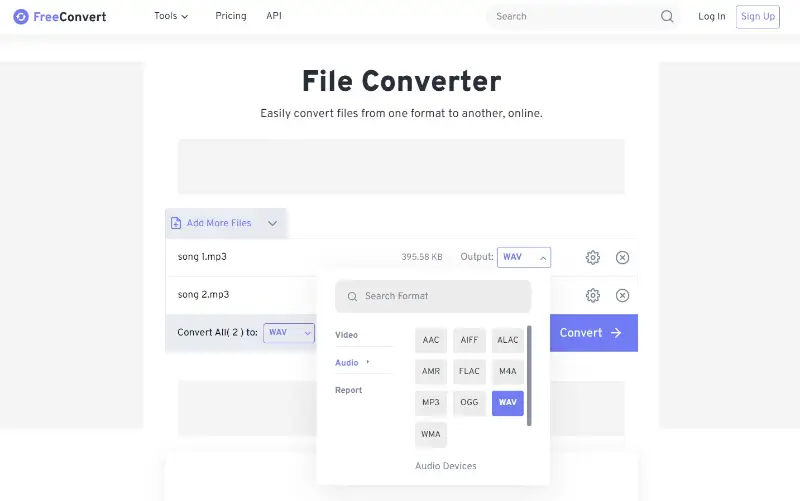
- Choose the output format in the drop-down menu.
- Customize the audio transcoding settings by clicking the gear symbol. Here, you can change the codec, adjust volume, etc.
- Hit "Convert". After the migration process finishes, a download link will be provided. Click on it to save the file.
Pros:
- Lots of customization. You can trim audio, reverse it, add fade effects, and more, all without leaving your browser.
- No downloads. In this audio format converter everything runs online, so your computer stays clean.
- Batch processing. Shifting multiple sessions at once is a real timesaver.
Cons:
- File size restriction. Free users can only upload pieces up to 1GB. If you need more, you’ll have to upgrade.
- Ads on the site. There are some advertisements, which can make things feel a bit cluttered at times.
Featuring an extensive selection of compatible formats and customizable features, FreeConvert is the ideal solution for all your requirements.
Types of audio files
Each audio format brings its own quirks to the table, so picking the right one can really shape how your track sounds and where it’ll actually play.
MP3
MP3 (MPEG-1 Audio Layer III) is basically everywhere — think playlists, podcasts, you name it. It’s compressed, so you save space, but you might lose a touch of detail. Honestly, most people won’t notice unless they’re listening with pro headphones.
Best for: Sharing and streaming audio online.
WAV
WAV (Waveform Audio File Format) skips the reduction and keeps all the data intact. Sound quality is top-notch, but the files? Huge. Not exactly ideal if you’re trying to upload something quickly.
Best for: Professional audio recording and editing needs.
WMA
WMA (Windows Media Audio) is Microsoft’s take on waves. It manages to pack sound into smaller sizes, and it usually holds up pretty well. It shines on Windows devices, but can be hit or miss elsewhere.
Best for: Windows systems and streaming where space is tight.
AIFF
AIFF (Audio Interchange File Format) is Apple’s answer to WAV. You get lossless music, and it’s super common if you’re working on a Mac or with Apple gear. Just be prepared for those chunky weight.
Best for: Pro audio work, especially on Apple setups.
FLAC
FLAC (Free Lossless Audio Codec) is the go-to for anyone serious about sound. It compresses files, but doesn’t toss out any fidelity. Music lovers swear by it.
Best for: Preserving high-quality tracks without running out of storage.
ALAC
ALAC (Apple Lossless Audio Codec) is Apple’s own flavor of lossless condensation. It’s very similar to FLAC, but plays nice with iPhones, iPads, and Macs.
Best for: Archiving collections on Apple devices.
AAC
AAC (Advanced Audio Codec) is a step up from MP3 in a lot of ways — it delivers better voices at lower bit rates. Apple popularized it, but plenty of other platforms use it too.
Best for: Mobile devices with limited storage space.
OGG
OGG (Ogg Vorbis) is open-source and royalty-free, so it’s a favorite for games and software that don’t want to deal with licensing headaches. It’s efficient and surprisingly good quality.
Best for: Streaming and gaming.
M4A
M4A (MPEG-4 Audio Layer) is a container that usually holds AAC. You’ll mostly see it in iTunes and Apple devices. It’s compact and does the job well.
Best for: iTunes and listening on Apple devices.
MIDI
MIDI isn’t actual audio — it’s more like digital sheet music for PC and instruments. The files are tiny, but don’t expect to hear any vocals or real instruments.
Best for: Connecting synths, computers, and other gear to play or create music.
AC3
AC3 (Audio Codec 3), also known as Dolby Digital, is what you’ll find in most DVDs. It does surround sound really well, making movies a lot more immersive.
Best for: Home theater systems and surround sound applications.
Knowing the different formats will help you make an informed decision when converting your audio files. Consider the purpose and platform where you are going to use the file to determine which format will work best for you.
Tips on audio files conversion
- Start by picking a format that fits your plans. MP3 works for everyday, but if you want top-notch sound, FLAC or WAV is the way to go.
- For MP3s, aim for a bitrate between 192 and 320 kbps. Lower than that, and you’ll start to notice the drop in quality.
- Repeatedly converting files — especially with lossy types — gradually wears down the track. It’s best to keep this to a minimum.
- Always save your original. Trust me, you’ll appreciate having the untouched version if something goes wrong.
- Higher sample rates (like 48 or 96 kHz) can boost fidelity, but be aware they also make your files larger.
- If you need to save space, mono (just one channel) gets the job done, but it does change how things sound, especially with songs.
- Trim out any unnecessary sections. It keeps items smaller and makes the process swift.
- Utilize volume normalization so your tracks play at consistent levels. No one likes sudden volume jumps.
FAQs on how to convert audio files
- Do audio converters work with copyrighted songs?
- It really depends. If there’s DRM or other protection, some files won’t turn unless the software specifically supports it.
- What are lossy and lossless audio conversions?
- Lossy formats shrink weight by dropping some of the data — MP3 is a classic example. Lossless types, on the other hand, keep all the details.
- Can I make changes to the audio file that has been converted?
- Absolutely. Once your file’s converted, you can edit it like any other audio.
- Can I convert audio files without losing metadata?
- Most good programs hang onto your metadata, so your titles and album info should make it through the transformation intact.
- Is it possible to convert audio from video?
- Yes, many programs support extracting audio from video, allowing you to convert and save audio separately.
Conclusion
All in all, switching audio formats isn’t complicated — it comes down to choosing the right converter and settings for your needs.
Whether you’re organizing a library, prepping for a project, or want your tracks to play smoothly on any device, these tips will help you get it done without the usual headaches.

Expert Tech Writer
Co-authors

Editor-in-Chief at Icecream Apps
