4 MOV to MP3 Converters

How to convert MOV to MP3 may seem like a niche task, but it's surprisingly handy in everyday situations.
Maybe you want to save a memorable speech, isolate background music in video, or repurpose dialogue for a podcast — whatever the reason, extracting audio from a video file can be quick and straightforward.
In this guide, we’ll explore a range of simple solutions, from free web-based tools to reliable desktop video converter software, to help you get the job done with ease.
Method 1. Icecream Video Converter
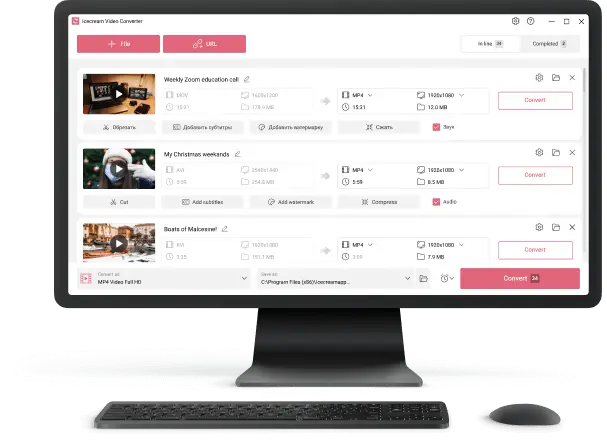
Icecream Video Converter provides an efficient solution for turning MOV into MP3 audio without compromising quality. It enables users to process multiple videos simultaneously, saving time and effort.
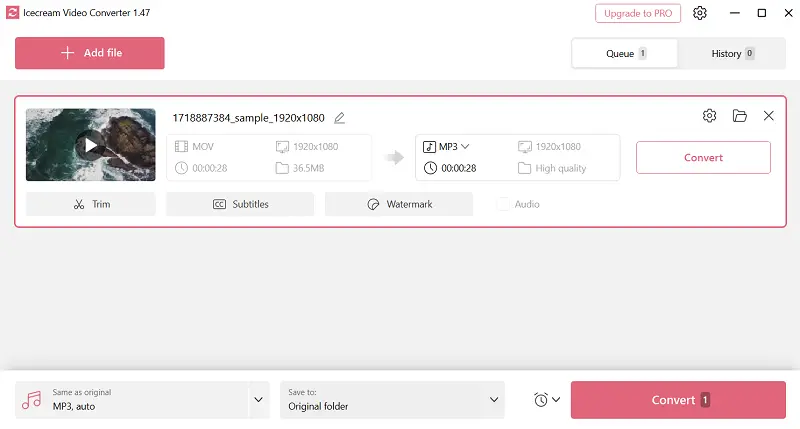
How to convert your Quicktime videos to MP3 using Icecream Video Converter
- Download video to audio converter from the official website and complete the installation.
- Launch the program to access its interface.
- Press the "Add File" button to import the video you wish to transform.
- Select MP3 as the target format from the available options.
- Choose a destination folder where the output will be stored.
- Click "Convert" to begin the operation.
Pros:
- Includes a video trimming feature to cut audio or video segments
- User-friendly design suitable for beginners in video editing
- Preserves excellent sound quality during audio from video extraction
Method 2. VideoProc Converter
VideoProc Converter excels with its comprehensive capabilities, combining editing and downloading features in one package. It offers real-time clip to MP3 conversion with minimal CPU usage thanks to GPU acceleration.
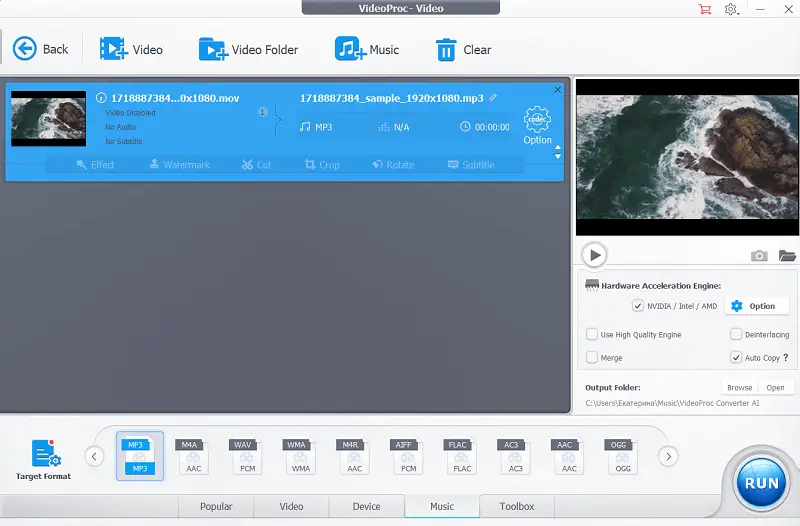
How to turn video into MP3 by means of VideoProc Converter
- Get the program from the website, set it and navigate to the tool.
- Load your MOV file by selecting it from your folders or dragging it into the interface.
- Pick MP3 as the desired resulting audio extension.
- Adjust parameters such as quality if necessary.
- Initiate the process by pressing the "Run" button.
Pros:
- Includes built-in editing tools like trimming, video merging, and effects
- Has noise reduction and video stabilization features
Cons:
- Larger conversions may demand significant system resources
Method 3. FreeConvert
FreeConvert provides a seamless way to change MOV to MP3. Operating via cloud technology, it requires no software installation and delivers quick transfer speeds.
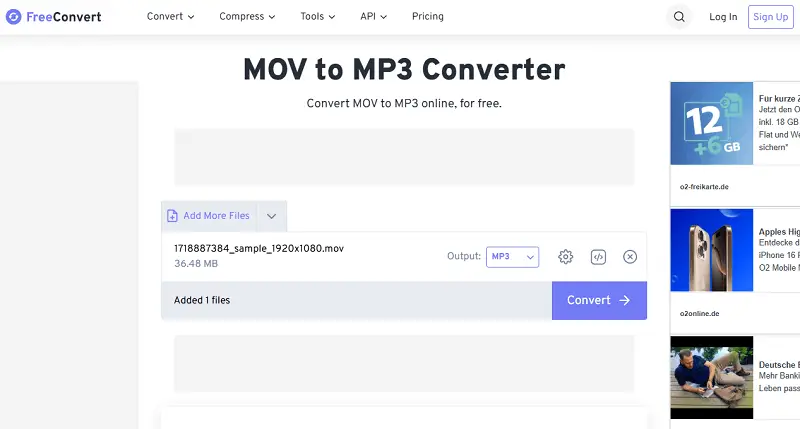
How to use FreeConvert as a video to audio converter
- Go to the service.
- Upload your MOV video(s) by hitting "Choose Files".
- Modify audio parameters like bitrate or sample rate.
- Click the "Convert to MP3" button to start the transformation.
- After completion, save the resulting tracks to the device.
Pros:
- Handles conversion of multiple items simultaneously
- Offers adjustable settings to preserve or enhance audio quality
Cons:
- Premium features and larger limits require subscription
Method 4. CloudConvert
CloudConvert delivers precise and rapid file transformations, accommodating more than 200 formats like MOV to MP3. Its comprehensive API enables seamless integration into third-party applications or automated pipelines, facilitating large-scale or recurring tasks with minimal manual intervention.
How to convert MOV to MP3 for free on CloudConvert website
- Follow the link and upload your video by selecting the file from your computer, or import it from cloud.
- Access the settings menu to modify options such as bitrate, codec, sampling rate, and channel configuration.
- Initiate the conversion with "Convert". Monitor the progress until it is complete.
- Download the resulting MP3 to your PC.
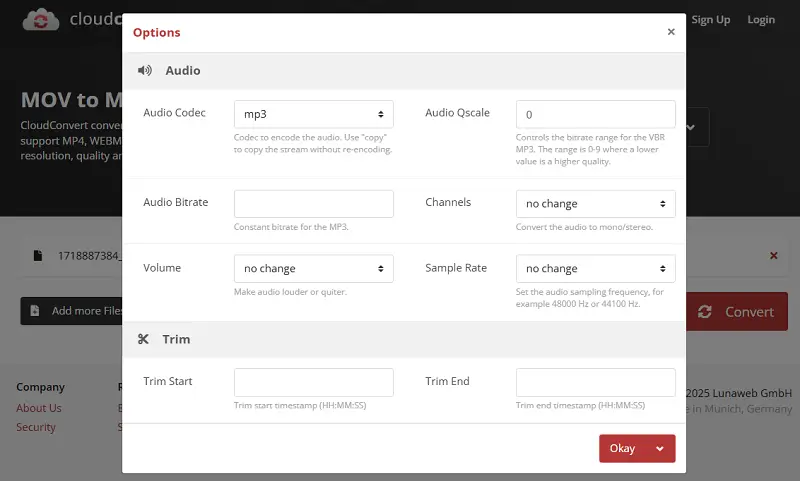
Pros:
- Protects data through secure encryption and temporary storage
- Online video converter provides output compression to optimize file size and quality balance
Cons:
- Premium features, including API, are locked behind paid plans
Why turn MOV into MP3?
- Extracting sound lets you enjoy music, talks, or podcasts without needing visuals.
- The MP3 format compresses data, making files smaller and easier to store or share.
- Audio-only tracks work well on devices that don’t support footage playback, like basic media players or car audio systems.
- Converting movie to MP3 allows convenient utilization of speech in presentations, workouts, or background listening.
- Eliminating visuals helps concentrate on the voice, which is helpful for transcription or focused study.
MOV vs. MP3: comparison table
| Feature | MOV | MP3 |
|---|---|---|
| Type | Multimedia container for video, audio, and text | Digital sound compression standard |
| Common Purpose | Storing films, clips, or animations | Distributing melodies, podcasts, or voice recordings |
| Compression | Can be lossy or lossless, based on encoding method | Always lossy, optimized for smaller sizes |
| Supported Codecs | Video: H.264, ProRes; Audio: AAC, PCM | MPEG Layer III only |
| Bitrate Range | Wide spectrum due to streams | Typically 32 to 320 kbps |
| Sample Rate Options | Frequently 44.1 or 48 kHz | Usually 32, 44.1, or 48 kHz |
| Storage Demand | High, depending on resolution and length | Low, ideal for portable use |
| Device Compatibility | Optimized for Apple ecosystem | Recognized by nearly all systems |
| Online Application | Needs more bandwidth | Ideal for streaming |
Conclusion
To wrap up, converting MOV to MP3 is a practical way to extract audio from video for easier listening or sharing.
With a range of tools at your disposal — from free online services to downloadable software — you can choose the option that best fits your workflow and quality requirements.
No matter the method, the process is quick and accessible, allowing you to repurpose your media with minimal effort.
Expert Tech Writer