5 Simple Ways to Record Yourself and Screen

How to record yourself and your screen at the same time is a common question for anyone making video tutorials or other video content.
Combining a webcam feed with a display allows you to provide a more engaging experience, whether you’re teaching a lesson, explaining a process, or giving feedback.
In this guide, you’ll learn different methods and tools to screen record with webcam, so you can create professional-quality projects with ease.
Option 1. Icecream Screen Recorder
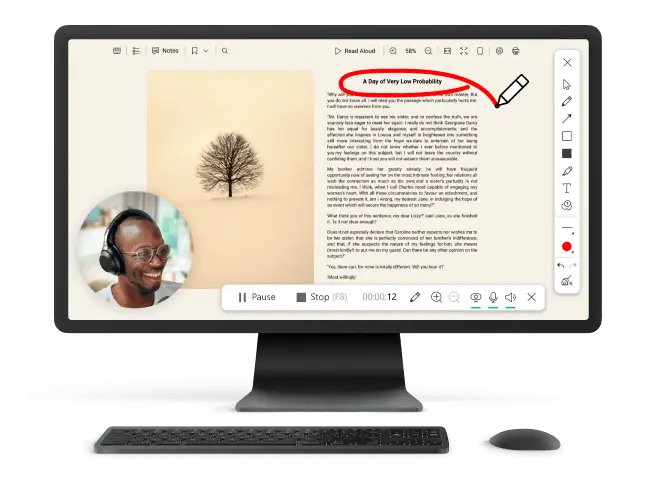
Icecream Screen Recorder is a user-friendly program available for Windows. It allows you to capture your desktop along with a camera overlay, system audio, and microphone input.
This makes it ideal for tutorials, webinars, and presentations where both your actions and face need to be visible.
How to record the screen and camera at the same time
- Download free screen recording software install it on your computer.
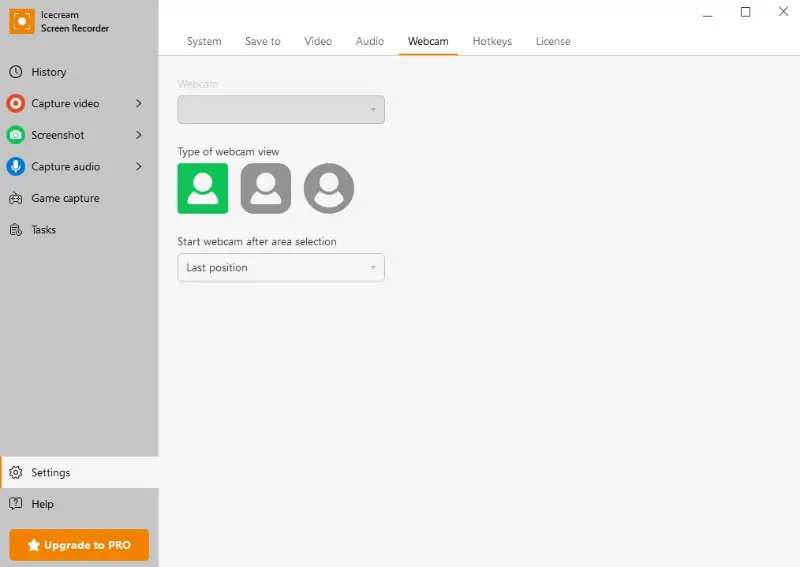
- Open the app, go to settings, and set up your webcam and microphone. Adjust sources to capture both system sounds and your voice.
- Position the camera window as desired and choose the view type.
- Hit "Capture video" and select whether you want to include the full screen or a specific area.
- Click the "Rec" button to begin. When finished, stop the process, preview the result, and save it in your preferred format.
Pros:
- The layout is intuitive, making it easy for those with no prior experience to record video and screen at the same time.
- Captures both computer system audio and microphone input, allowing you to narrate while showing what’s on your display.
- Lets you draw, add text, and highlight areas during the process to make clips more engaging.
- Files can be saved in different video formats (MP4, WEBM, MOV, AVI), which makes them compatible with most platforms.
Option 2. OBS Studio
OBS Studio is an open-source application compatible with Windows, macOS, and Linux. It enables capturing the desktop, webcam feed, and audio inputs simultaneously, offering extensive customization options for both novice and experienced users.
This makes it an excellent choice for live streaming, creating tutorials, recording gameplay, and producing professional-quality videos.
How to record face and screen at the same time with OBS
- Download OBS Studio and complete the installation on your device.
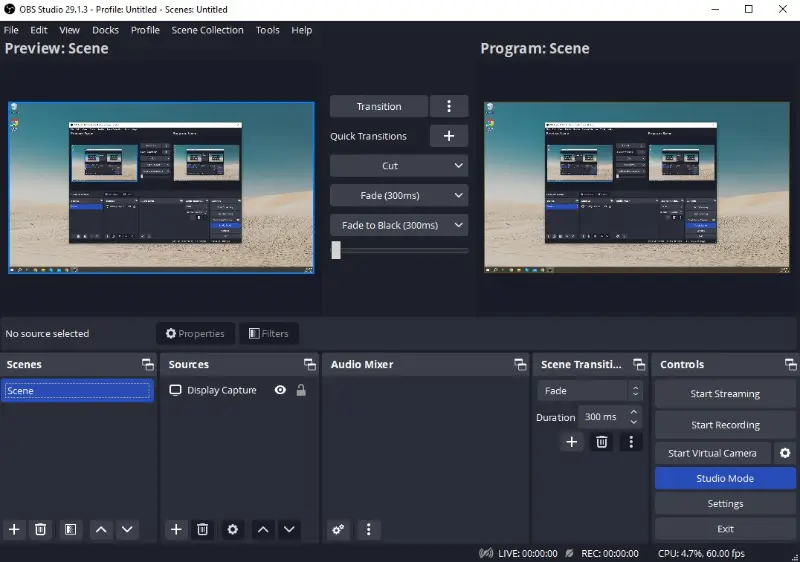
- Open the program and, in the "Sources" panel, add "Display Capture" to grab your screen.
- Insert a "Video Capture Device" to include the webcam image and arrange it as an overlay.
- Configure channels (microphone and system sounds) in the "Audio Mixer" to ensure proper synchronization.
- Press "Start Recording" to begin. Once finished, hit "Stop Recording", review the footage, and export it to your preferred format.
Pros:
- Entirely free screen recorder with no hidden limits or watermarks.
- Allows advanced setups with multiple scenes, layered elements, and custom layouts.
- Delivers excellent video quality with adjustable resolution, frame rates, and encoding options.
- Suitable for offline tasks as well as broadcasting to platforms like YouTube or Twitch.
Cons:
- Has a steeper learning curve compared to simpler alternatives.
- Requires manual setup, which may overwhelm first-time users.
- Can consume considerable system resources during high-definition sessions.
Option 3. Camtasia
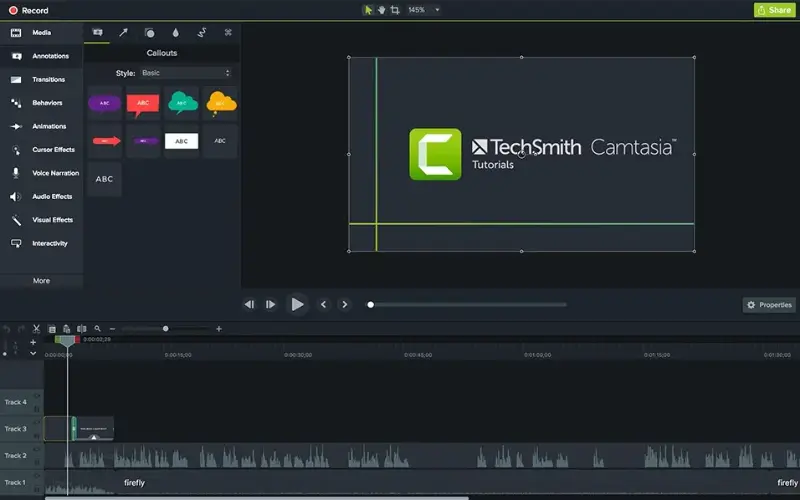
Camtasia is a professional-grade tool for capturing and editing videos, available for both Windows and macOS. It merges recording capabilities with a built-in editor, enabling you to craft polished content without relying on multiple programs.
This makes it ideal for teachers, business specialists, and creators producing software demonstrations, training clips, and educational materials.
How to record screen and face at the same time in Camtasia
- Download Camtasia and follow the installation instructions.
- Open the software, then choose between the entire desktop or a selected area.
- Turn on the webcam to include your video feed, resizing and positioning it as needed.
- Set up audio devices to have voice and system sounds accurately.
- Press "Start Recording" to begin. When complete, click "Stop", adjust the footage using the built-in tools, and export the result.
Pros:
- Provides a collection of templates, transitions, animations, and effects to enhance projects.
- Delivers excellent output quality with multiple export options and straightforward sharing.
- Clear interface that simplifies the creation process for both beginners and experienced users.
- Stable performance, even when handling long sessions or high-definition screen recordings.
Cons:
- Commercial product with a higher cost compared to many competitors.
- The trial version has restrictions and requires purchasing a license for full functionality.
- Demands significant system resources, which can slow down older machines.
Option 4. Bandicam
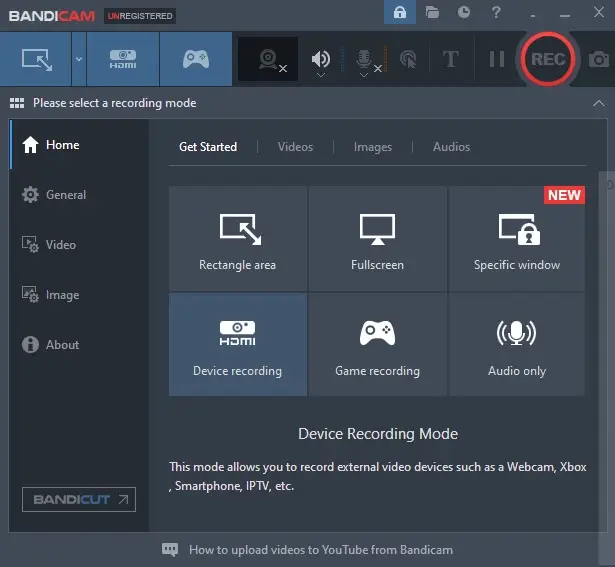
Bandicam is a compact yet capable solution for Windows. It captures the entire desktop, chosen areas, or external devices such as webcams and consoles while keeping resource consumption low.
This makes it well-suited for gamers, instructors, and anyone needing to produce clear video tutorials or demonstration videos.
How to use Bandicam to record the screen and camera at the same time
- Download Bandicam and complete the setup process.
- Open the application and select whether to capture the full display or a specific portion.
- Activate the webcam overlay in the options menu and place it where you prefer.
- Adjust audio inputs to include both microphone speech and system sounds.
- Press "REC" to start the process. When finished, hit "Stop" and check the result.
Pros:
- Lightweight program that minimizes CPU load, making it ideal for gameplay or lengthy projects.
- Offers drawing tools and text insertion for highlighting key moments during the session.
- Delivers crisp videos with support for 4K UHD and high frame rates.
- Saves files in widely compatible formats like MP4 and AVI for seamless sharing.
Cons:
- Free edition adds watermarks and restricts duration.
- Some configuration options may appear complex to first-time users.
Option 5. Loom
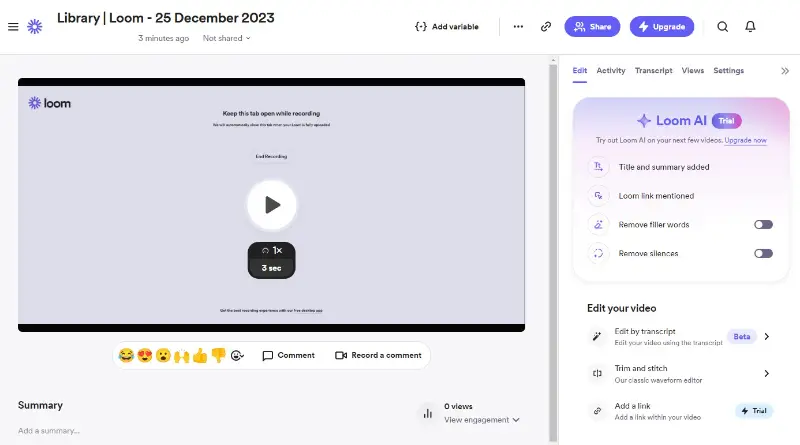
Loom is a straightforward platform available for Windows, macOS, and as a browser add-on. It allows capturing the screen alongside a camera feed and instantly sharing the result through an auto-generated link, removing the need for manual uploads.
This makes it a favorite among remote workers, teachers, and professionals who regularly create quick demonstrations, feedback videos, or online presentations.
How to record yourself and your screen with the help of Loom
- Download Loom or add its extension to your browser.
- Log into your account and launch the recorder.
- Pick whether to capture the entire display or a specific window, then activate the camera overlay.
- Configure audio to include both microphone narration and system sound if required.
- Hit "Start Recording" to begin. After finishing, press "Stop", then either share the provided link or download the file.
Pros:
- Minimal setup, enabling you to record yourself and your screen without technical hassle.
- Automatically creates shareable URLs, simplifying distribution.
- Supports multiple environments, including desktop applications and web-based usage.
- Cloud storage keeps videos secure and accessible from any device.
- Includes simple trimming tools for refining clips before sending.
Cons:
- Uploading and sharing rely on a stable internet connection.
- Advanced features, like higher-resolution exports, are only available with paid plans.
- Less suitable for offline tasks or projects requiring extensive post-production.
Common issues when you record yourself and your screen
| Issue | Likely Reason | How to Fix |
|---|---|---|
| Webcam not working | Outdated drivers or disabled device | Update drivers, review privacy permissions, and reconnect the camera. |
| No microphone sound | Incorrect input chosen or muted mic | Select the right device, unmute, and tweak volume settings. |
| Recording stutters | Excessive CPU load or low memory | Close unused programs, lower resolution, or switch to a lighter recorder. |
| System audio missing | Sound source not set up properly | Enable system audio in preferences and verify sound drivers. |
| Blank video output | Wrong display selected or access blocked | Grant screen permissions and ensure the correct monitor is targeted. |
| File size too large | High resolution or bitrate settings | Compress the clip or decrease resolution and frame rate beforehand. |
| App crashes during use | Software conflicts or outdated version | Update the tool, run as administrator, or reinstall to resolve errors. |
| Saved video won’t play | Unsupported format or missing codec | Convert the file to a common format (MP4) or install the required codec. |
| Image is dark or blurry | Poor lighting or incorrect parameters | Improve lighting conditions and adjust webcam settings manually. |
| Hotkeys not functioning | Key conflicts with other applications | Reassign shortcuts in the recorder’s preferences to avoid overlaps. |
Conclusion
Knowing how to record your screen and yourself doesn’t have to be complicated. With the right software and setup, you can capture both elements seamlessly to produce engaging and informative content.
Whether you’re making educational videos, streaming gameplay, or sharing business presentations, the techniques discussed in this article will help you achieve professional results without the hassle.
Expert Tech Writer