
How to Make Training Videos
In today's digital world, where online learning and remote work are becoming more common, knowing how to record training videos is a very useful skill.
Well-made tutorials can help people understand, remember, and get involved more, whether you're trying to hire new employees, teach clients about your product, or share your knowledge with a larger audience.
This article will show you how to make professional training videos. We'll talk about everything from planning and writing to screen recorders and editors.
What is a video for training?
A training video is a visual tool that educates a specific group of people certain skills, ideas, or steps. It is a type of online learning that shows how to do something step by step.
There are many different things that these can teach, such as how to utilize software, stay safe, demonstrate a product, or improve your professional skills. They might use things like narration, pictures, animations, and interactive parts to get students interested and help them understand.
The main purpose is to make the process easier in a clear and short way.
Common types of training videos
Videos for training come in various forms, each tailored to meet specific needs.
| Type | Description |
|---|---|
| Instructional. | Guidance on tasks or product usage, often with narration. |
| Tutorial. | Detailed instruction on specific skills or techniques, suitable for different skill levels. |
| Demonstration. | Real-time showcases of procedures, helpful for complex tasks. |
| Simulation. | Recreated scenarios for practicing problem-solving abilities, valuable in high-risk working environments. |
| Interactive. | Engaging content allowing active participation, with choices or questions for the viewer. |
| Compliance and Safety. | Education on workplace safety protocols, regulatory compliance, and best practices. |
| Soft Skills Training. | Development of interpersonal aptitudes like communication and leadership, often with role-playing scenarios. |
| Onboarding. | Introduction to an organization's policies, culture, and expectations for new employees. |
| Product Training. | Highlighting product features and benefits, useful for sales teams and customers. |
| E-learning Modules. | Comprehensive online courses combining multimedia elements like clips, text, and quizzes. |
| Whiteboard Animations. | Hand-drawn illustrations and animations to explain concepts or processes. |
How to make a training video
Screen recordings have become an essential tool for training videos. They allow you to capture your desktop and provide step-by-step instructions, so it is easier to follow along.
Here's a general guide:
1. Define objectives and audience
To begin, clearly **outline the purpose*. Identify the specific learning objectives you want to achieve, whether it's teaching a new skill, explaining a process, or introducing a product.
Additionally, consider your audience—determine their knowledge level, studying preferences, and any specific needs or challenges they may have.
2. Plan your content
Take the time to carefully plot and structure your project.
- How to plan your training video?
- Clearly outline what you want to achieve. Is it to teach a specific skill, explain a process, or introduce a new concept?
- Consider the knowledge level, needs, and preferences of your audience. Understanding your viewers will help you choose the right tone, complexity, and style for the clip.
- Create a detailed outline of what you want to cover. Break down the topic into smaller, digestible chunks. This could involve listing key points, subtopics, or steps that need to be explained.
- Choose the format that best suits your content. Will you use screencasting to demonstrate software? A talking head for explaining concepts?
- Plan the visual aids that will support your message, such as slides, diagrams, on-screen text, or animations.
- Include strategies to keep your audience engaged. You might want to add questions, quizzes, or calls-to-action.
3. Choose your equipment
Picking the right equipment is critical to capturing high-quality video and audio. Depending on your budget and resources, select professional microphones, earphones, and tripods to improve the production quality of your film.
If your training involves demonstrating program or computer-based tasks, consider trying screen recording software to present your voice narration and desktop actions simultaneously.
There are many options available, ranging from free to premium. Below we will review some of them.
4. Set up the recording space
Seek a quiet, well-lit location with minimal background noise and distractions. Arrange any props or visual aids you'll be using to support your content. Spend some time testing audio levels for optimal conditions.
5. Record the video
When filming your training video, refer to your scenario to guide your delivery. Speak clearly and at a steady pace so your audience can easily follow along.
When you demonstrate actions or processes, do them accurately and employ cursor highlights to help keep track of what you are saying. Monitor your audio and visual elements throughout the screen recording process and make adjustments as needed.
6. Edit training videos
After recording, opt for video editing software to refine and polish your footage. Trim any unnecessary segments, cut out mistakes or pauses, and arrange your clips to create a cohesive narrative.
Pay attention to audio quality, adjusting volume levels, and removing background noise as needed. Editing is where you can fine-tune details to achieve the desired impact and clarity.
Special effects can significantly enhance the effectiveness and engagement of instructional videos.
Here are some options:
| Effect | Description |
|---|---|
| Transitions. | Smooth transitions between scenes or parts can maintain interest and create a seamless flow. |
| Animations. | Animated elements such as graphics, icons, or characters can help visualize concepts and improve understanding. |
| Visuals. | Placing overlays, filters, or color grading can enhance the aesthetics and draw attention to specific points. |
| Text Effects. | Dynamic like subtitles or transitions can emphasize key information and improve comprehension. |
| Green Screen Effects. | Using a green screen allows for integrating backgrounds, providing context, or enhancing storytelling. |
| Split-Screen. | Displaying multiple feeds or content simultaneously can compare information or demonstrate several concepts. |
| Interactive Elements. | Clickable buttons, quizzes, or annotations attract viewers and encourage active participation. |
| Sound Effects. | Adding audio creates a more immersive experience and reinforces key messages. |
| Music. | Background audio sets the tone, evokes emotions, and maintains pacing, enhancing overall satisfaction. |
| Slow Motion / Time-lapse. | Adjusting playback speed highlights specific actions, aiding understanding complex processes. |
7. Review and revise
Before finalizing, thoroughly check the footage to identify any errors or areas for improvement. Watch the video multiple times from the perspective of your audience, ensuring clarity and coherence.
Seek feedback from colleagues, and mentors, or test viewers to gain valuable insights and perspectives. Make any necessary revisions to improve the overall quality.
8. Finalize and distribute
Once you're satisfied with the final version, export it in the best format and resolution for your intended platform.
Consider adding closed captions or subtitles to improve accessibility for everyone.
Upload the video to your chosen hosting network, whether it's YouTube, Vimeo, or an internal company server.
Promote the clip to your target audience through email newsletters, social media posts, or other marketing channels.
Best software to record training videos
In the realm of producing instructional videos and tutorials, having the appropriate tools can greatly impact the end result. Not only do you want to generate high-quality content, but you also want the recording process to be seamless and efficient. Check out these recommendations.
Icecream Screen Recorder
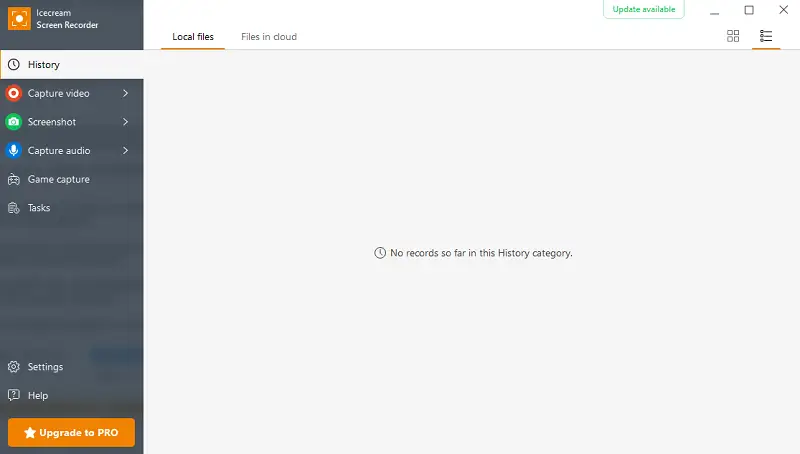
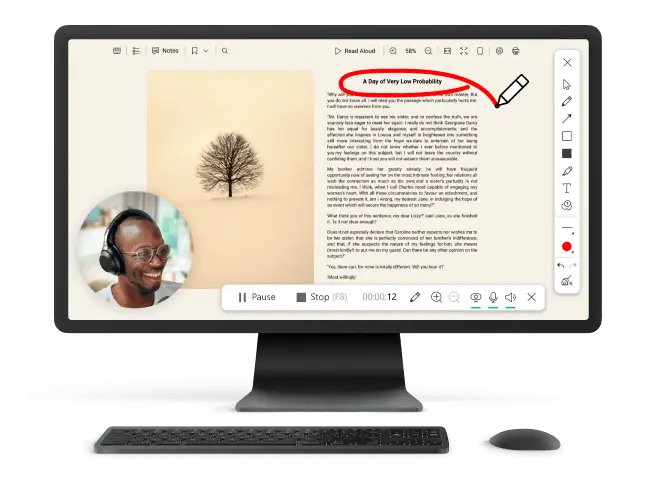
Icecream Screen Recorder is a versatile and user-friendly application that allows you to capture any area of their desktop, along with audio, in high quality. It offers a range of features to create professional-looking videos.
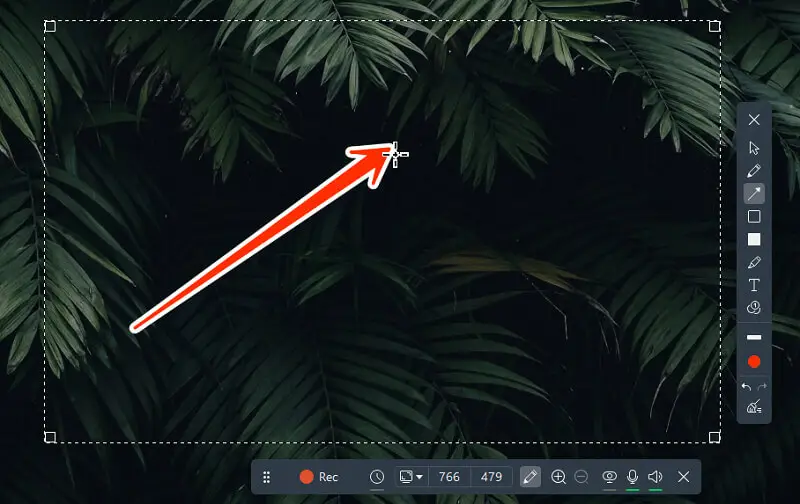
The free screen recorder includes annotation tools such as text, arrows, shapes, and highlights, allowing users to emphasize key points, draw attention to specific areas, or provide additional context during recordings.
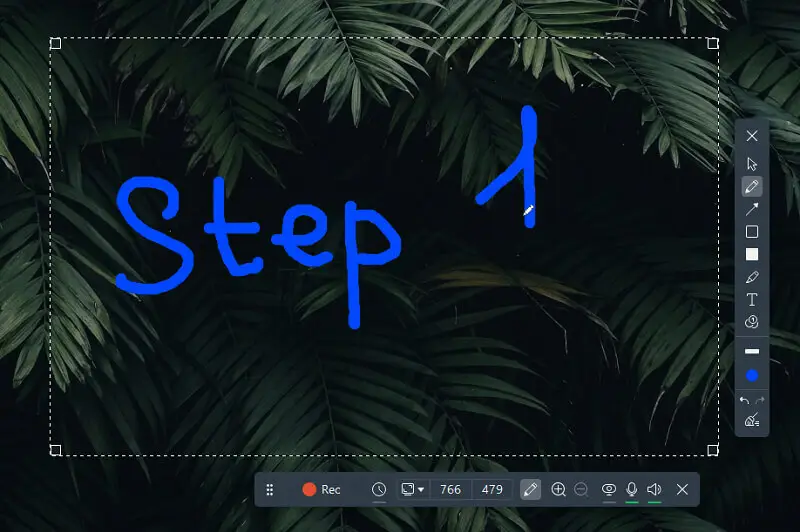
It also features a built-in drawing panel that enables individuals to sketch or write directly on the display, great for illustrating concepts, outlining processes, or adding visual elements to presentations.
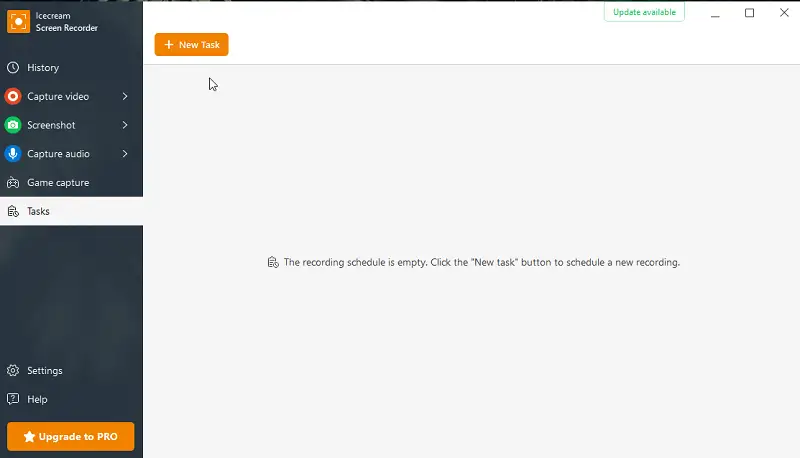
It is possible to schedule screen recordings to start and stop automatically at specified times, making it convenient for live streams, webinars, or other events without manual intervention.
The software supports various output formats, including MP4, AVI, and WebM. It also allows users to adjust quality settings to achieve the desired balance between size and resolution.
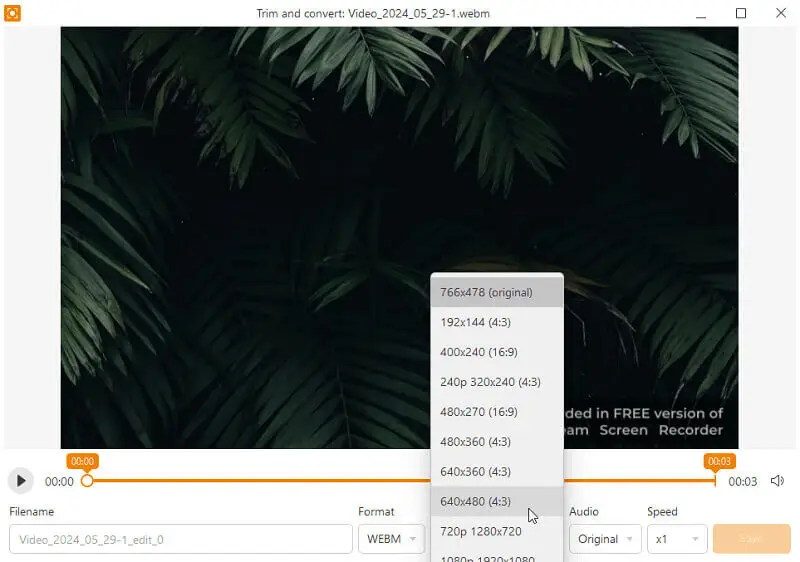
With customizable hotkeys for starting, pausing, and stopping, as well as other common actions, Icecream Screen Recorder streamlines the training process and improves efficiency.
Details:
- Price: Free, PRO $29,95 per year
- Best for: Instructions, guides, gameplay, webcam recording, training and explanation
- OS: Windows
Camtasia
Camtasia is a powerful screen recording and editing software designed for creating professional-quality content. It offers a comprehensive suite of features to capture, edit, and share images and training videos, making it a popular choice among educators, marketers, and bloggers.
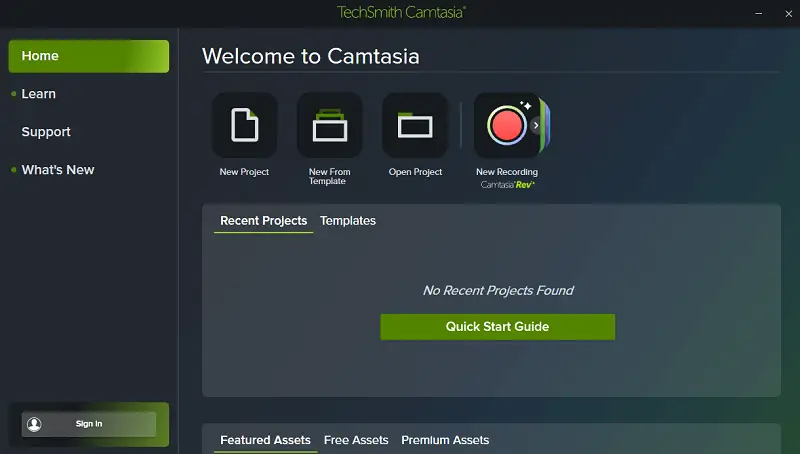
It offers an extensive array of advanced features tailored to elevate the creation process. Integration with Camtasia Rev facilitates seamless transcription and translation of audio content, enhancing accessibility and extending reach.
Dynamic audio visualizers add depth and engagement, while variable shortcuts offer flexibility in adjusting playback speed as needed.
Advanced effects, including cursor replacement images and color enhancements, improve visibility and highlight mouse movements during screen recordings.
Details:
- Price: $202,50 per year
- Best for: Instructions, guidelines and training clips
- OS: Windows, mac
Screencastify
Screencastify is a simple extension for Google Chrome, designed to facilitate the creation of instructional videos, tutorials, presentations, and demonstrations. With this program, users can track who has watched the content and see detailed analytics, including demographics and satisfaction metrics.
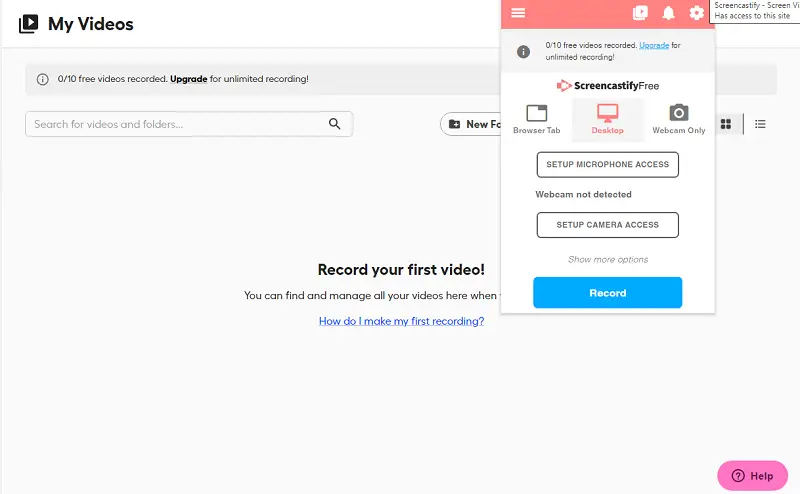
Additionally, the extension provides tools for annotating recordings in real time, letting you add text, drawings, and highlights to emphasize key points or clarify context.
Quizzes, surveys, and polls can be inserted directly into the video, allowing viewers to interact with the content and test their understanding. This feature not only increases audience engagement but also provides valuable feedback for assessing comprehension and retention.
Screencastify offers seamless integration with Google Drive and YouTube. You can also export recordings as MP4 files or share them via email, social media, or other platforms.
Details:
- Price: Free screen recorder
- Best for: Demonstrations
- OS: Google Chrome extension
Loom
Loom is a diverse and intuitive media messaging platform that simplifies the process of capturing, editing, and sharing videos for training across devices and websites.
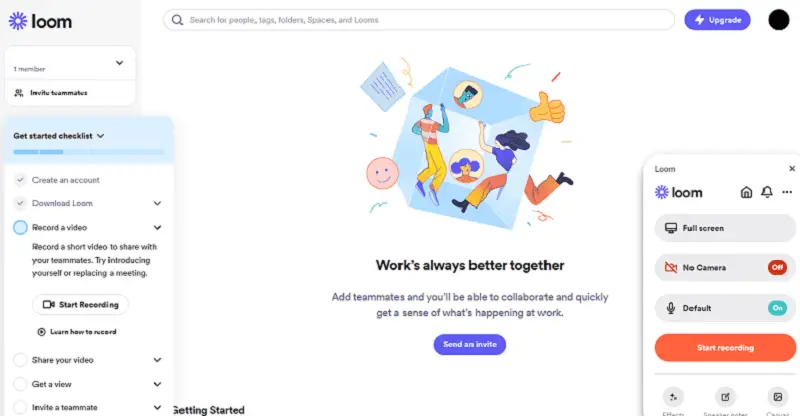
Educators can provide feedback, comments, and even emojis directly within the program, fostering collaboration and communication among team members and students. Drawing tools for annotations and emphasis allow users to highlight key points and provide additional context within their training recordings.
Browser-based and mobile capabilities let you make quick adjustments straight from the application. This includes trimming, cropping, and merging clips, as well as adding external links to share valuable outside resources.
Loom videos can be embedded anywhere on the internet, increasing reach and visibility across websites, blogs, and other online platforms.
Details:
- Price: Free, $12.50/mo
- Best for: Lectures, marketing recordings
- OS: Windows, Mac, Linux, iOS
ScreenPal
ScreenPal is a full-featured screen recorder designed to streamline the process of creating, editing, and sharing multimedia content.
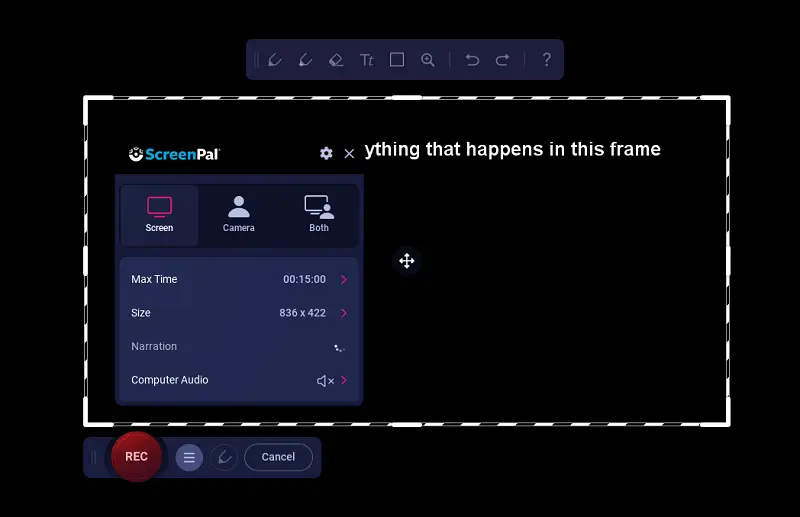
The platform allows users to capture both their desktop and webcam footage simultaneously in a window or full-screen modes, providing flexibility in presentations, tutorials, or guides.
Basic editing tools are available for trimming, cutting, combining, and adding text, annotations, and transitions. Clips can be published directly to the website, as well as to YouTube and cloud services for quick sharing.
The app provides access to an audio library with 30 tracks for background music. You can customize thumbnails and create content channels for branding consistency and organization.
Details:
- Price: Free, $1.65/mo
- Best for: Casual needs
- OS: Online
Bandicam
Bandicam is a robust capturing option renowned for its advanced features tailored for gamers, professional editors, and content creators alike. The program allows for real-time drawing during recording sessions, enabling annotation, highlights, or emphasizing specific elements.
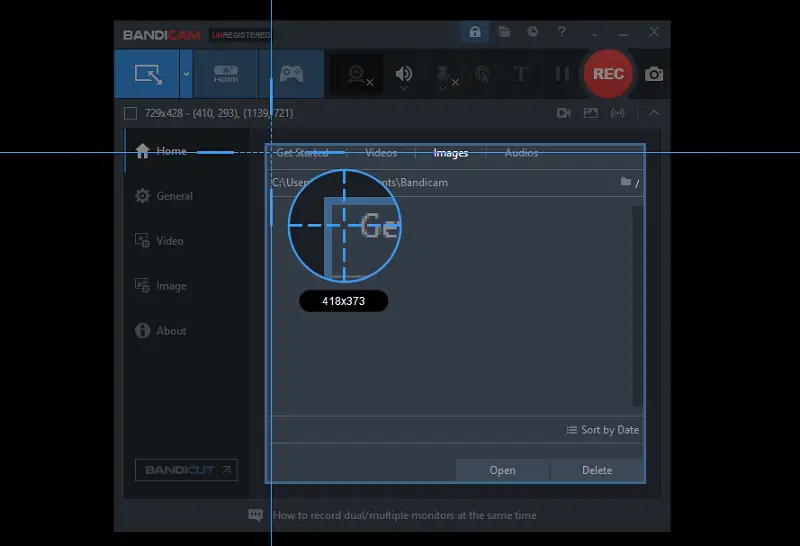
The screen recording software offers the option to add mouse click effects and animations, making it easier to track cursor movements and interactions during gameplay, program demonstrations, or tutorials.
Bandicam's advanced capabilities extend to various 2D and 3D games with 4K UHD quality, allowing you to preserve every detail and nuance of their training experiences.
Additionally, it supports high frame rates of up to 480 FPS, ensuring smooth and fluid motion capture even in fast-paced letsplay.
Details:
- Price: Free, $2.78/mo
- Best for: Gaming sessions
- OS: Windows
OBS Studio
Documenting educational videos is a necessary element of crafting successful and interesting material for your followers. OBS Studio stands out as a reliable tool. This free and open-source screen recording software allows you to preserve and stream high-quality content from your computer.
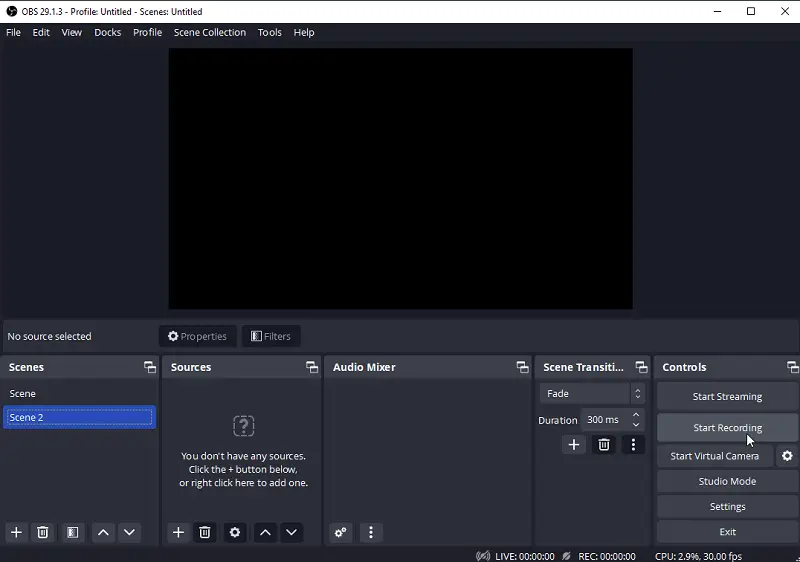
It offers a variety of options, including customizable settings such as resolution, frame rate, bitrate, and encoder adjustments. You can capture entire desktop, specific windows, or custom regions, providing flexibility.
Advanced features such as scene composition and source layering enable users to create dynamic and visually engaging recordings. Overlaying images, text, graphics, webcam footage, and other media elements enhances visual appeal and conveys information effectively.
OBS Studio provides options for saving and sharing in popular formats like MP4, MOV, and FLV. Also, it is possible to stream live to platforms such as Twitch, YouTube, and Facebook Live.
Details:
- Price: Free screen recorder
- Best for: Gaming sessions, streams
- OS: Windows, Mac, Linux
Common mistakes
Are you planning to create a video tutorial? By understanding these pitfalls, you can proactively steer clear of them, recording high-quality lectures.
Here are some instructional video mistakes to avoid:
- Lack of planning and a well-thought-out script can result in disjointed content and confusion.
- Overly technical language or too much information at once can overwhelm people.
- Ignoring audio quality can lead to distractions and reduce the overall effectiveness.
- Poor lighting or unclear visuals during webcam recording can make it difficult for viewers to follow along.
- Failing to engage through interactive elements or entertaining content can result in low retention.
- Lack of rehearsal can cause stumbling over words or being unprepared, which can diminish the quality.
- Overuse of special effects can distract from the content while neglecting them can result in a lackluster presentation.
- By skipping editing, you can end up with unpolished videos that contain mistakes or inconsistencies.
- Failing to gather feedback or analyze viewer metrics can result in missed opportunities for improvement.
- Neglecting to optimize for devices and screen sizes can create compatibility issues.
- Using copyrighted material without permission can trigger legal issues and damage credibility.
By avoiding these mistakes and focusing on delivering high-quality content, training videos can effectively educate and empower to succeed.
FAQ
- How long should training videos be?
- The ideal length of training footage depends on the complexity of the subject matter and the attention span of your audience. Aim for a duration that covers the necessary content without overwhelming—typically between 5 to 20 minutes per segment.
- How can I make my training videos more engaging?
- Break up clips into shorter segments, include interactive elements like quizzes or polls, and maintain a conversational tone to keep viewers interested.
- What should I do if I make a mistake during recording?
- Pause and take a moment to collect your thoughts before continuing. You can edit out mistakes during post-production or use annotations to clarify any misunderstandings.
- How do I ensure accessibility and inclusivity?
- Provide closed captions or transcripts to accommodate those with hearing impairments. Employ large fonts and high-contrast colors to aid the audience with visual impairments.
- How do I maintain consistency across multiple video tutorials?
- Establish a clear style guide or template, including consistent branding, formatting, and messaging. Opt for the same intro and outro sequences, music, and other elements.
- How often should I update my instructional videos?
- The frequency of refreshing depends on factors such as changes in policies, procedures, or technology, feedback from viewers, and the relevance of the content over time. Aim to update periodically for accuracy and effectiveness.
- What encoding settings should I use?
- For online platforms like YouTube or LMS systems, exporting in H.264 with a bitrate of 10-15 Mbps (1080p) or 35-45 Mbps (4K) ensures good quality while maintaining manageable file sizes. AAC audio at 192 kbps provides clear sound without excessive compression artifacts.
Conclusion
In conclusion, learning how to capture your display for video tutorials can change the way content is delivered. You can make clips that everyone can enjoy by using the right tools, following best practices, and including interactive elements.
To ensure you're always getting better, keep improving your approach based on feedback and analytics. With hard work and creativity, you can get the most out of screen recording training videos to motivate people to learn and grow.

Expert Tech Writer
